Agile Work Management

Enhanced Risk Planning and Ownership

Follow these steps to configure Risk Repository and manage risks

Step 1: Login to Application and Click on Configure Menu and Add Function
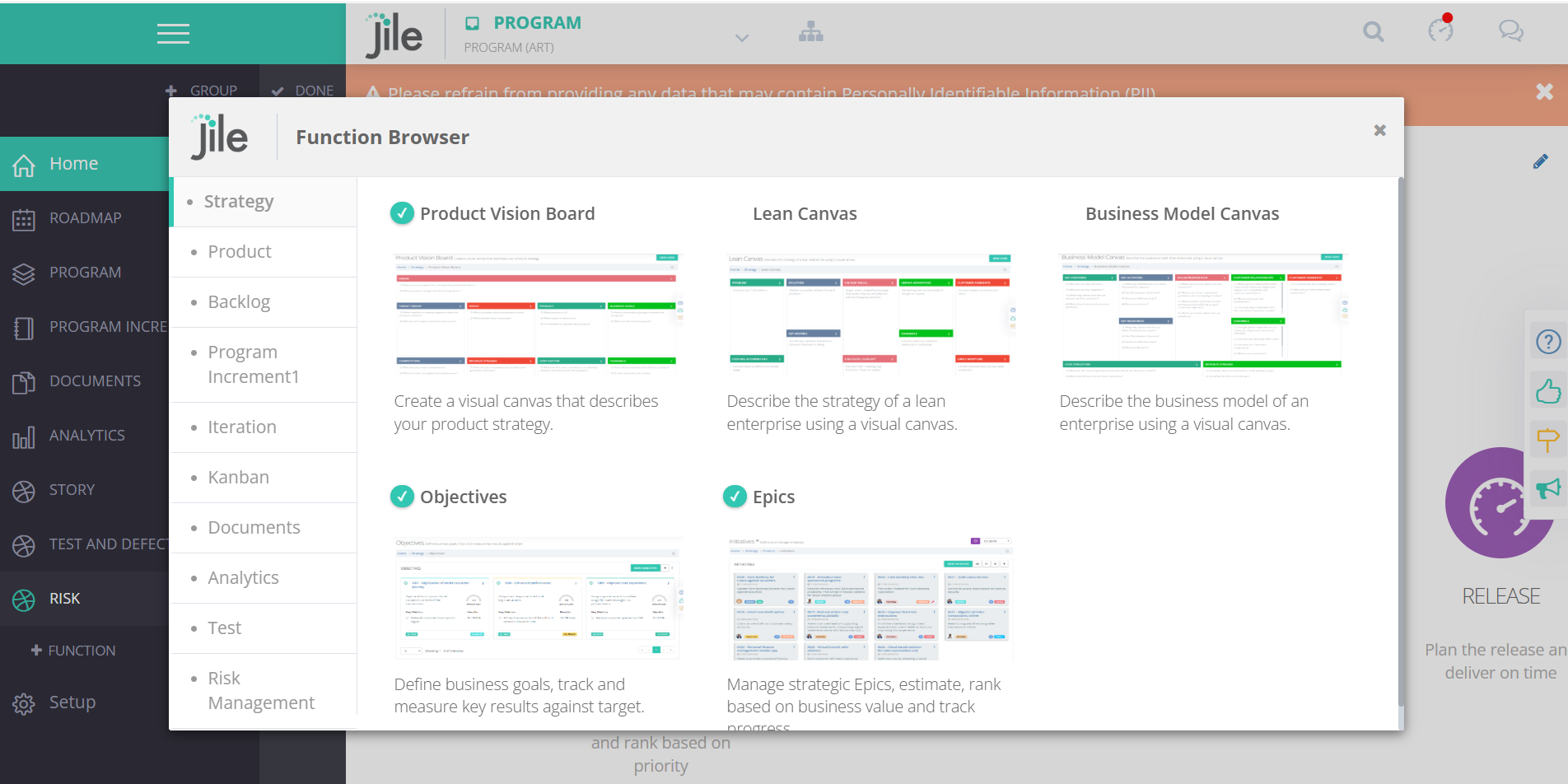
Step 1

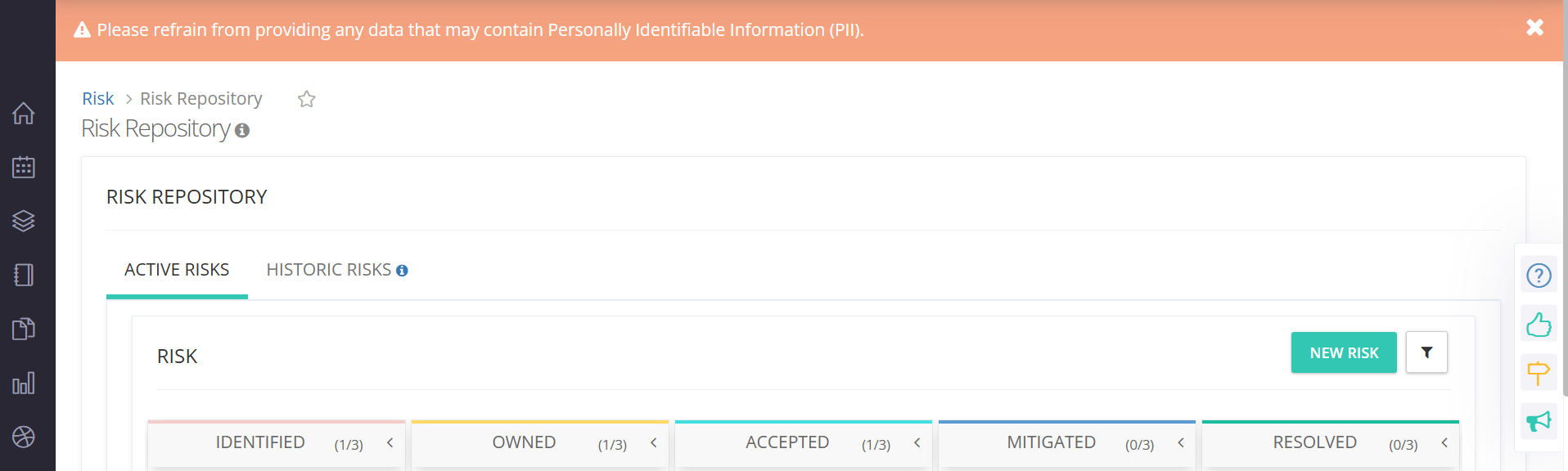
Step 2: Move to Risk Management and Add Risk Repository to the Menu.
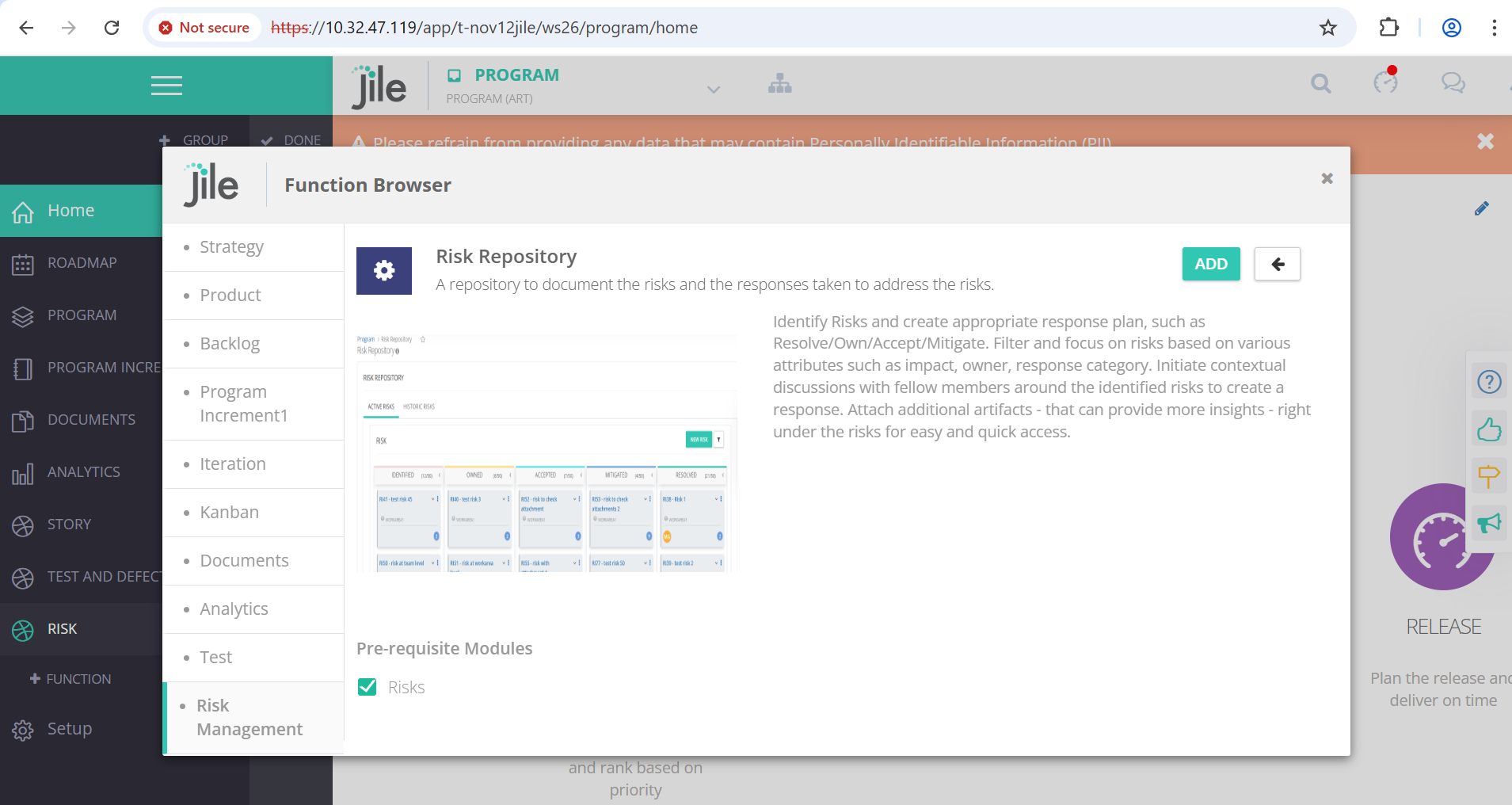
Step 2

Step 3: User will be able to view Active Risks and Historic Risks tab

Step 3

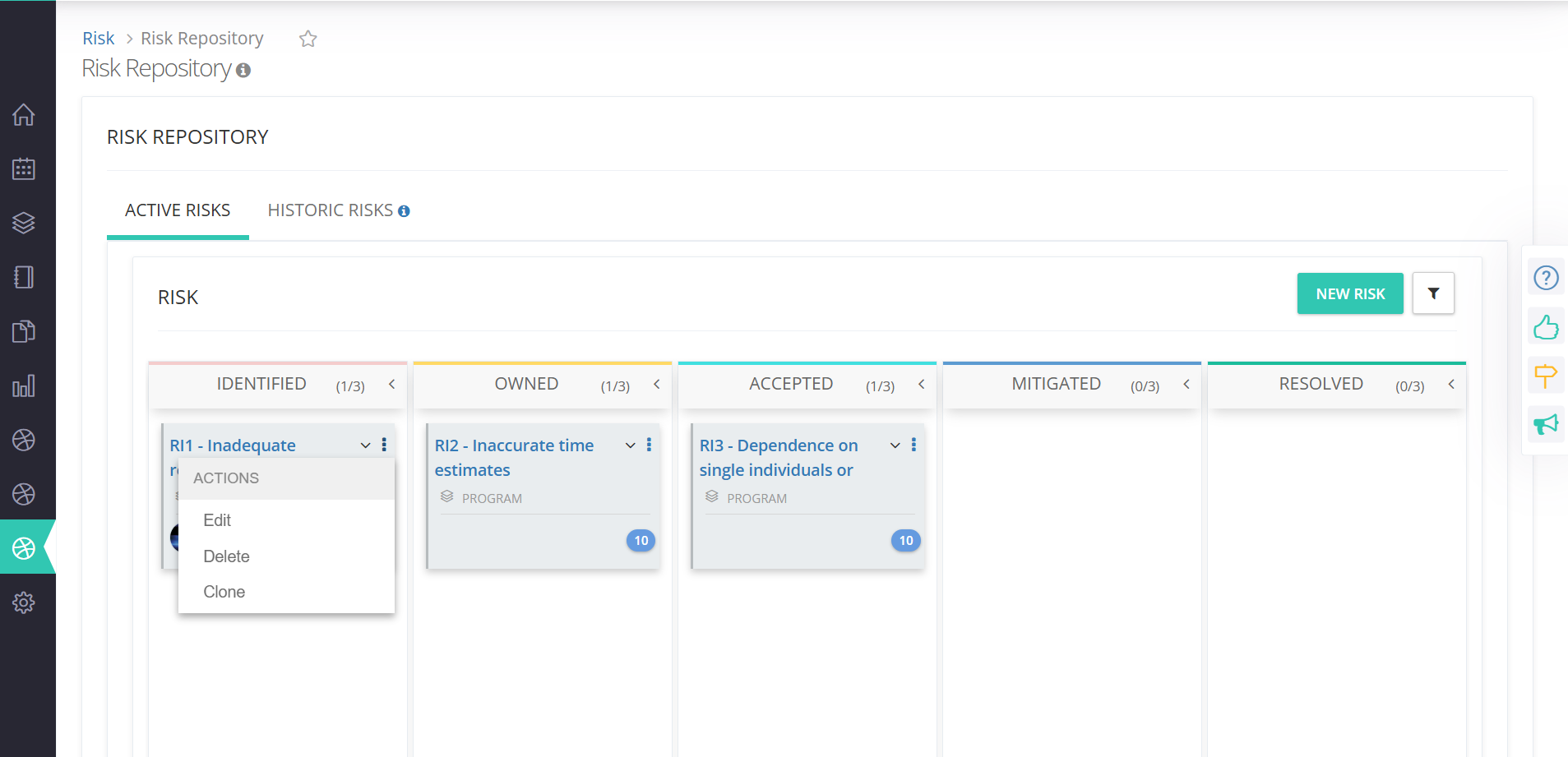
Step 4: Under Active Risks, User will be able to View, Create, Update, Delete and Clone Risks(Risks which are older than 92 days)

Step 4

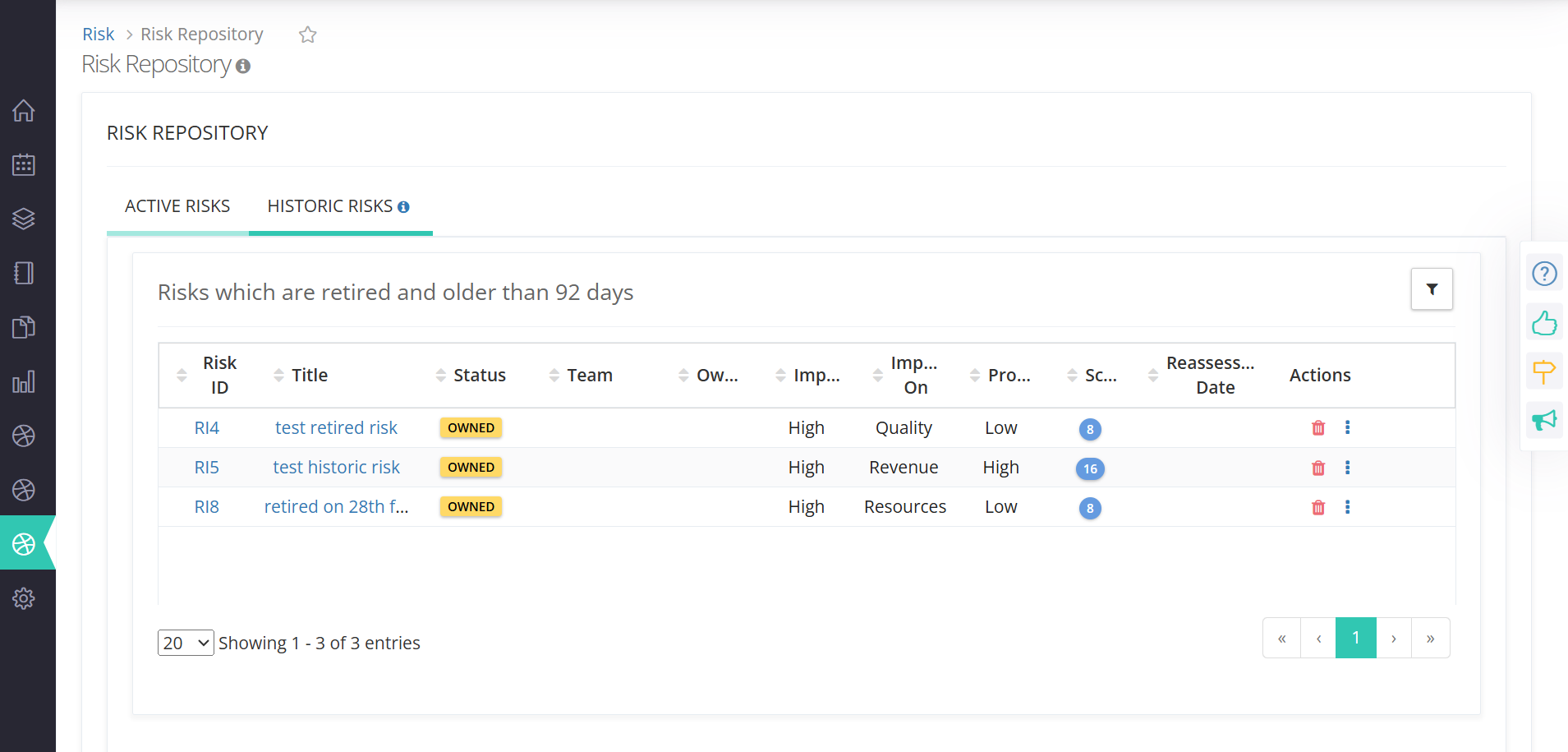
Step 5: Under Historic Risks, User will be able to view list of all historic risks(Risks which are older than 92 days) in a Grid View

Step 5

Step 6: To link an Initiative to a risk, Open a Risk in Single Page View and click link Initiative.
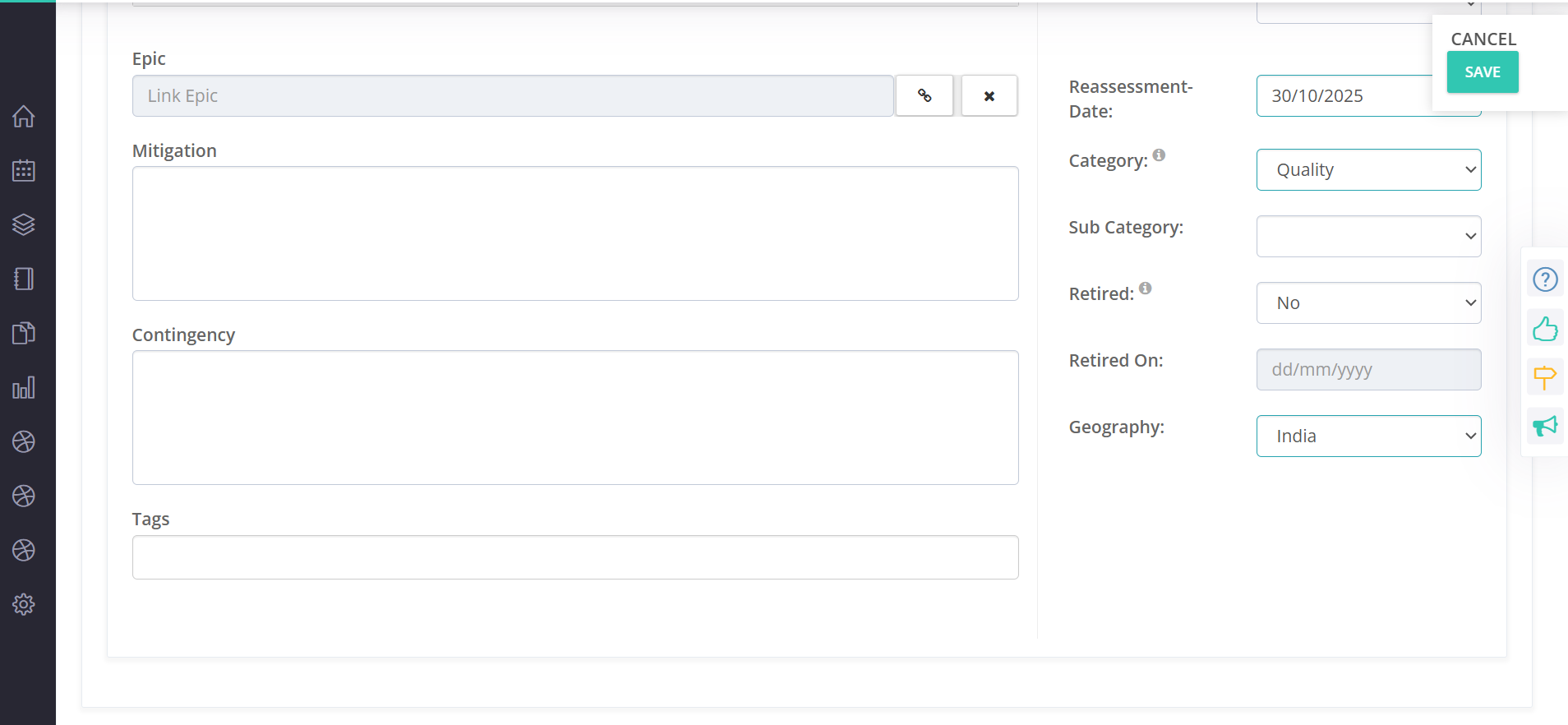
Step 6

Step 7: Select the required Initiative to be linked and click on Link button
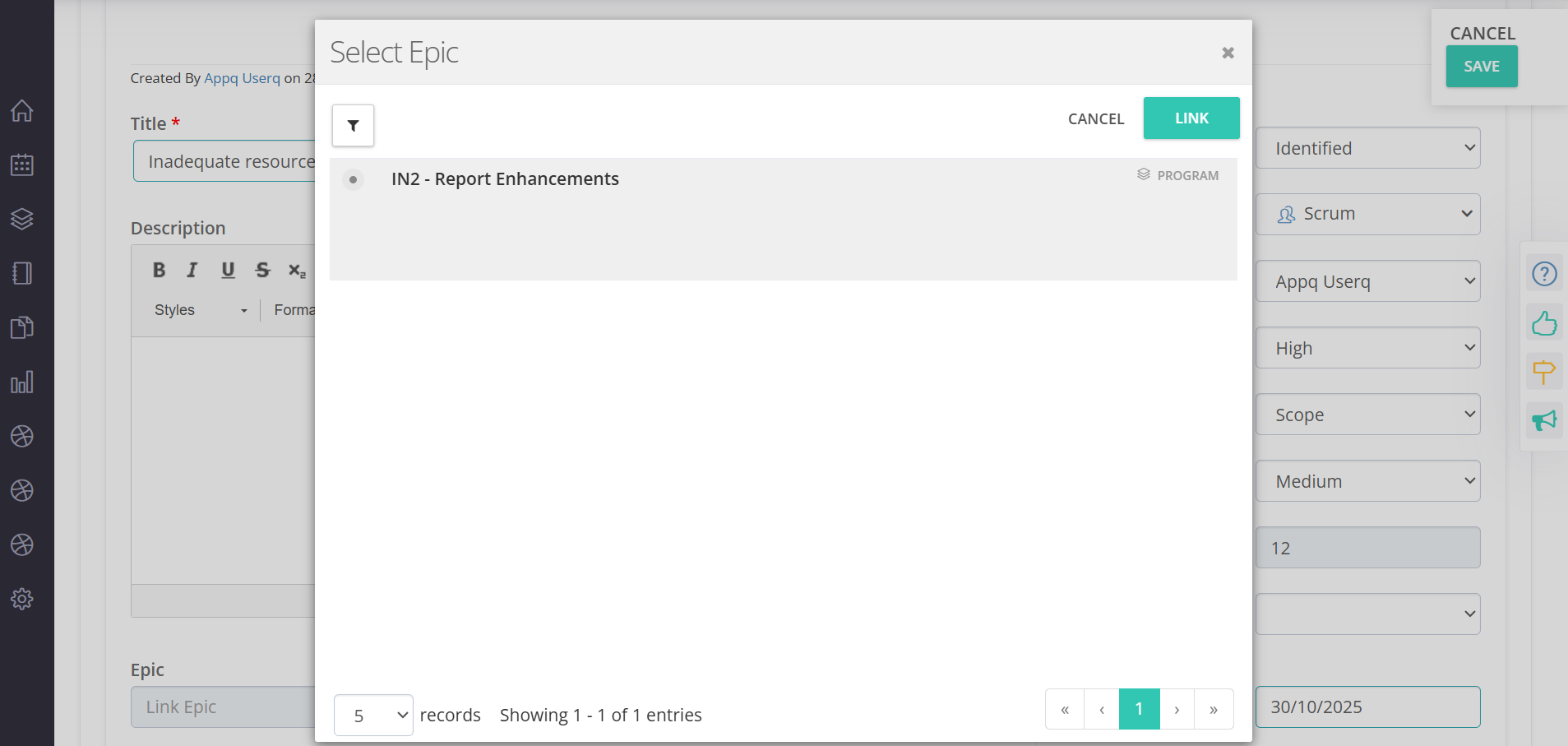
Step 7

Note: You can also link Risks to Initiative under Risks tab of Initiative Single Page View.
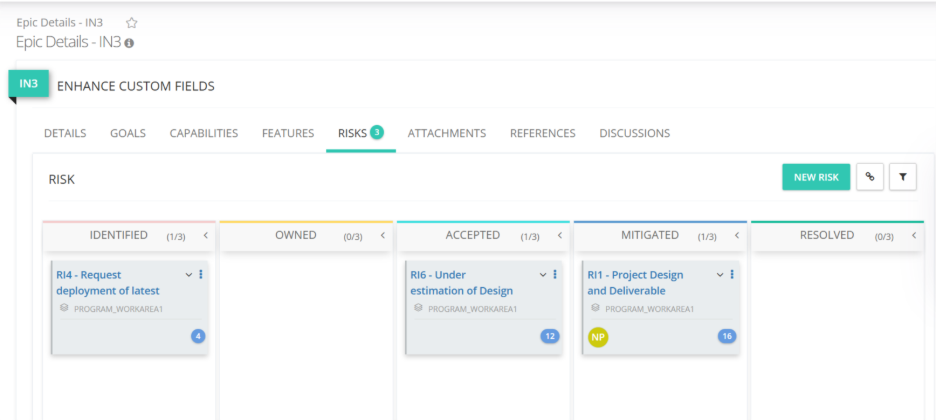
Step 8

More Power to the Centralized Review Teams

Follow these steps for tagging Approvals under ODR

Step 1: On the left pane, navigate to On Demand Release.
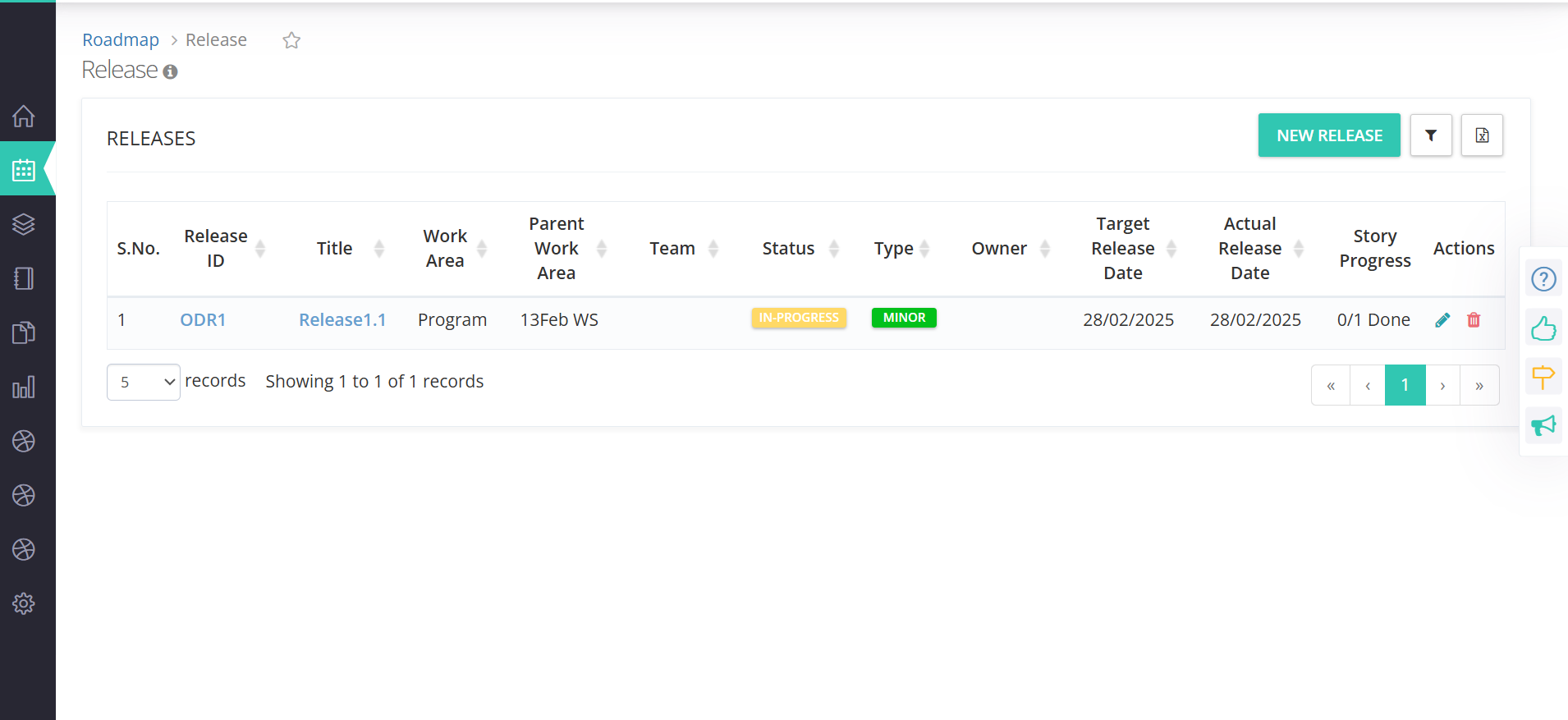
Step 1

Step 2: Open the ODR to which you want the Approval to be linked.
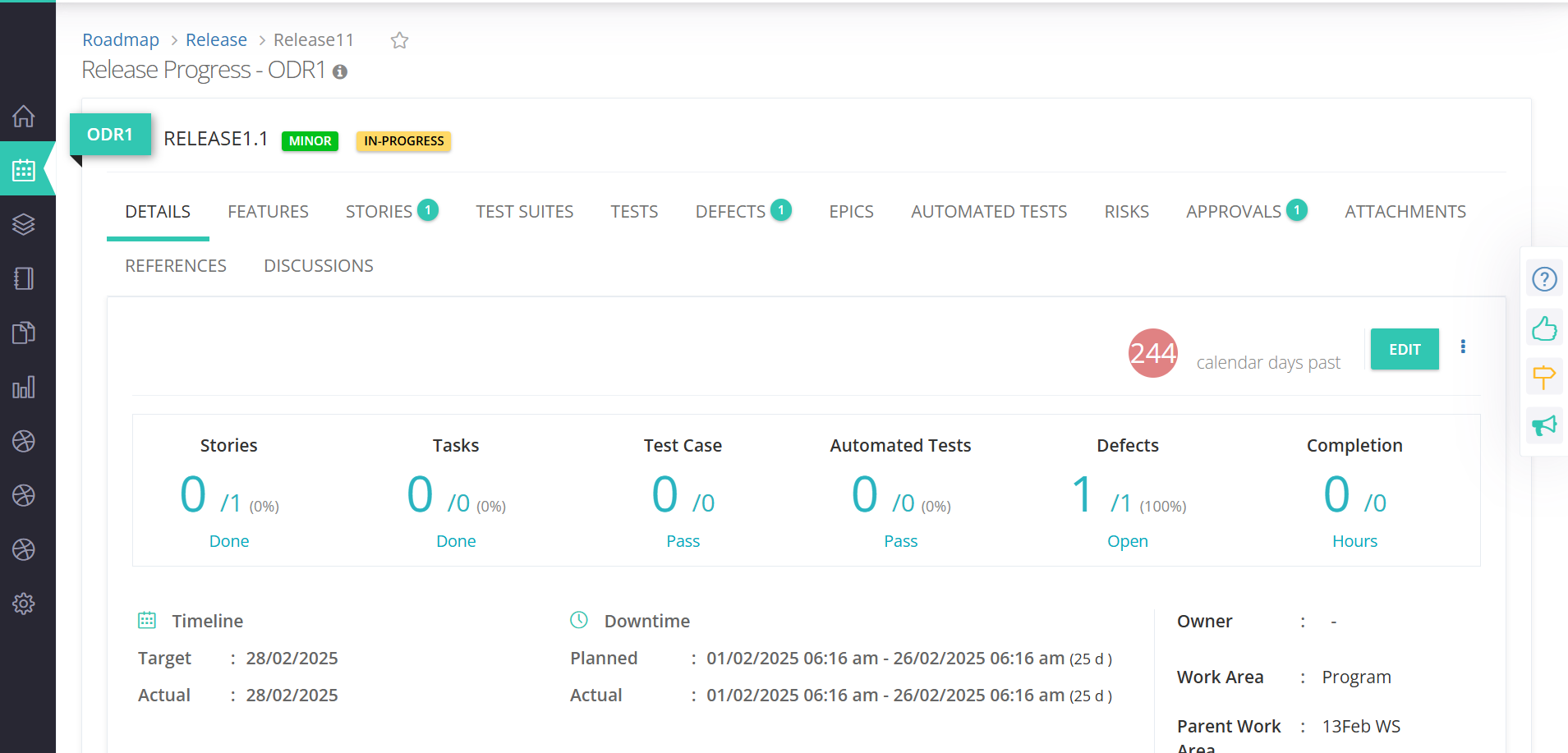
Step 2

Step 3: Click APPROVALS tab -> Link Approval icon.
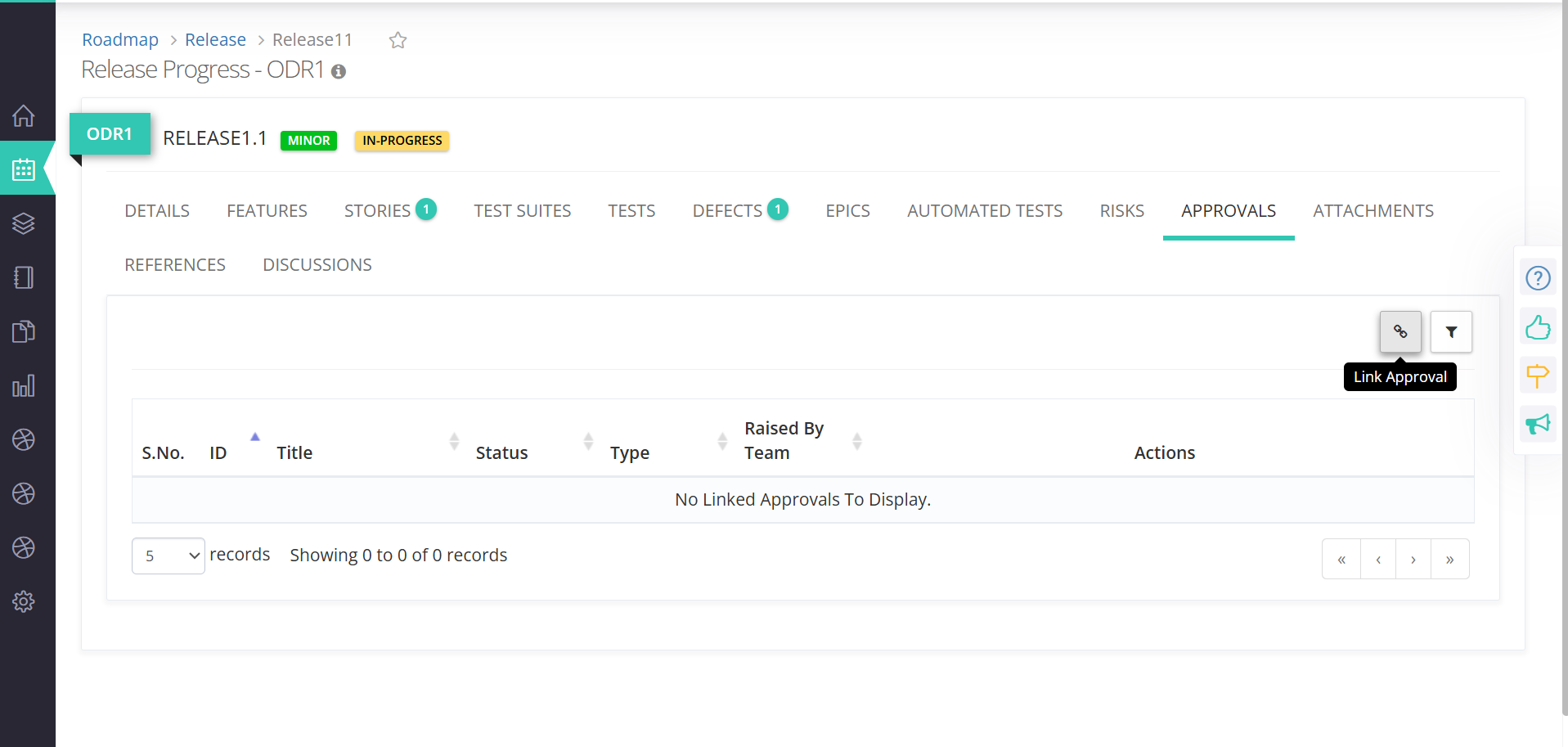
Step 3

Step 4: Select the required Approvals and click on Link.
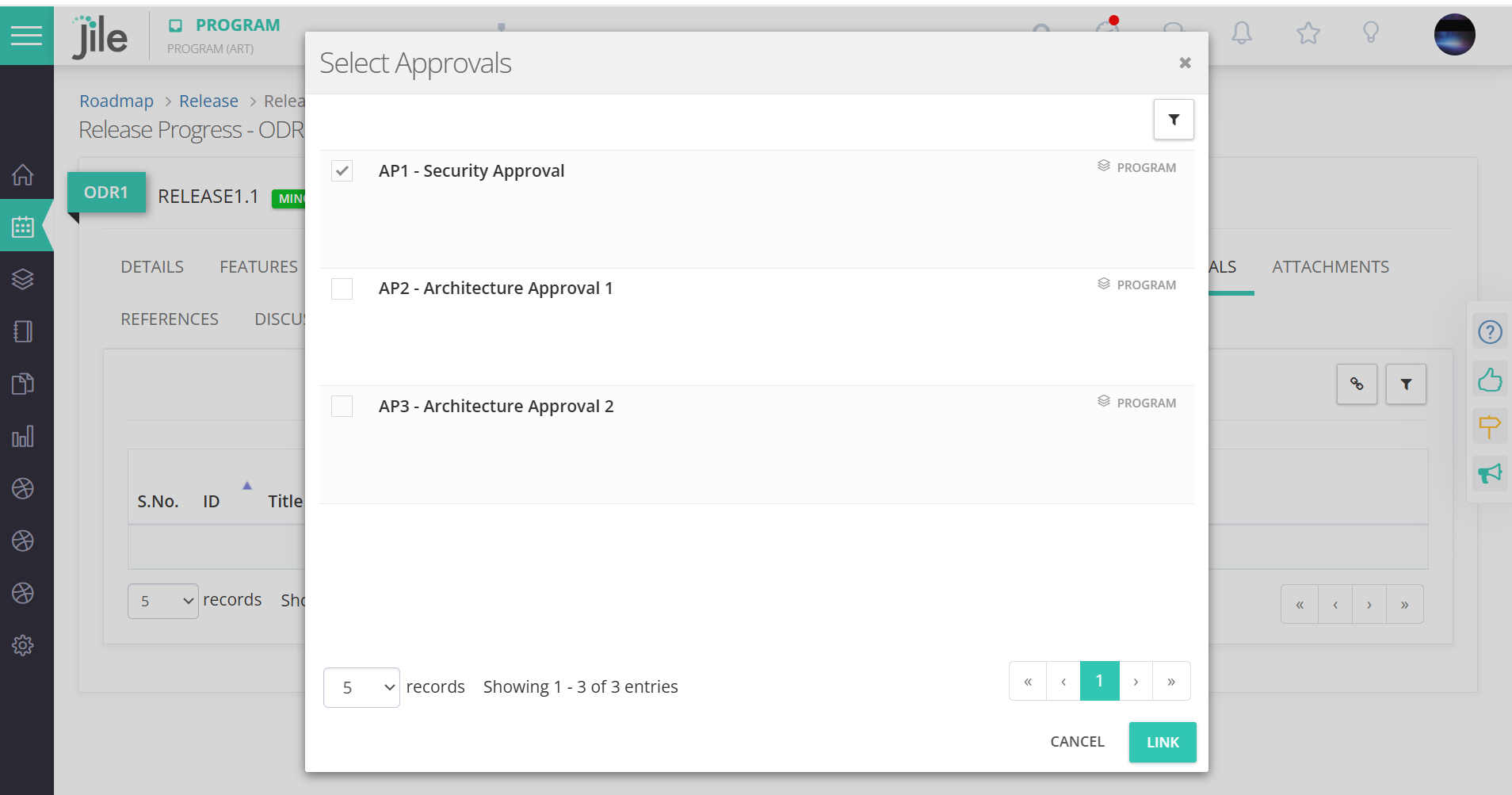
Step 4

Step 5: The selected Approvals are now tagged to ODR.
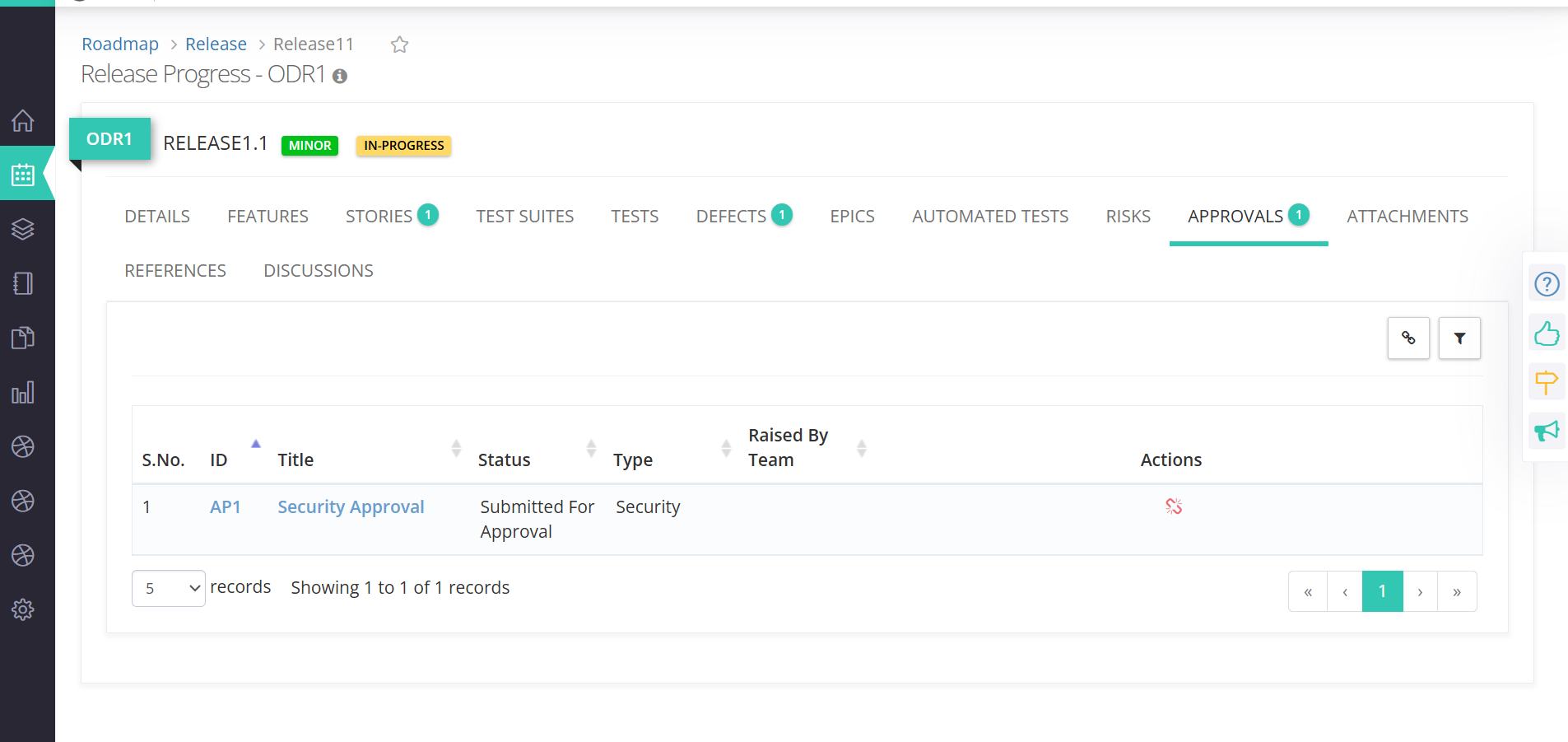
Step 5

Gantt - Timeline chart to show Feature/Story Title as first column instead of ID

Follow these steps to view the changes

Step 1: On the left pane, navigate to Program Increment->Plan
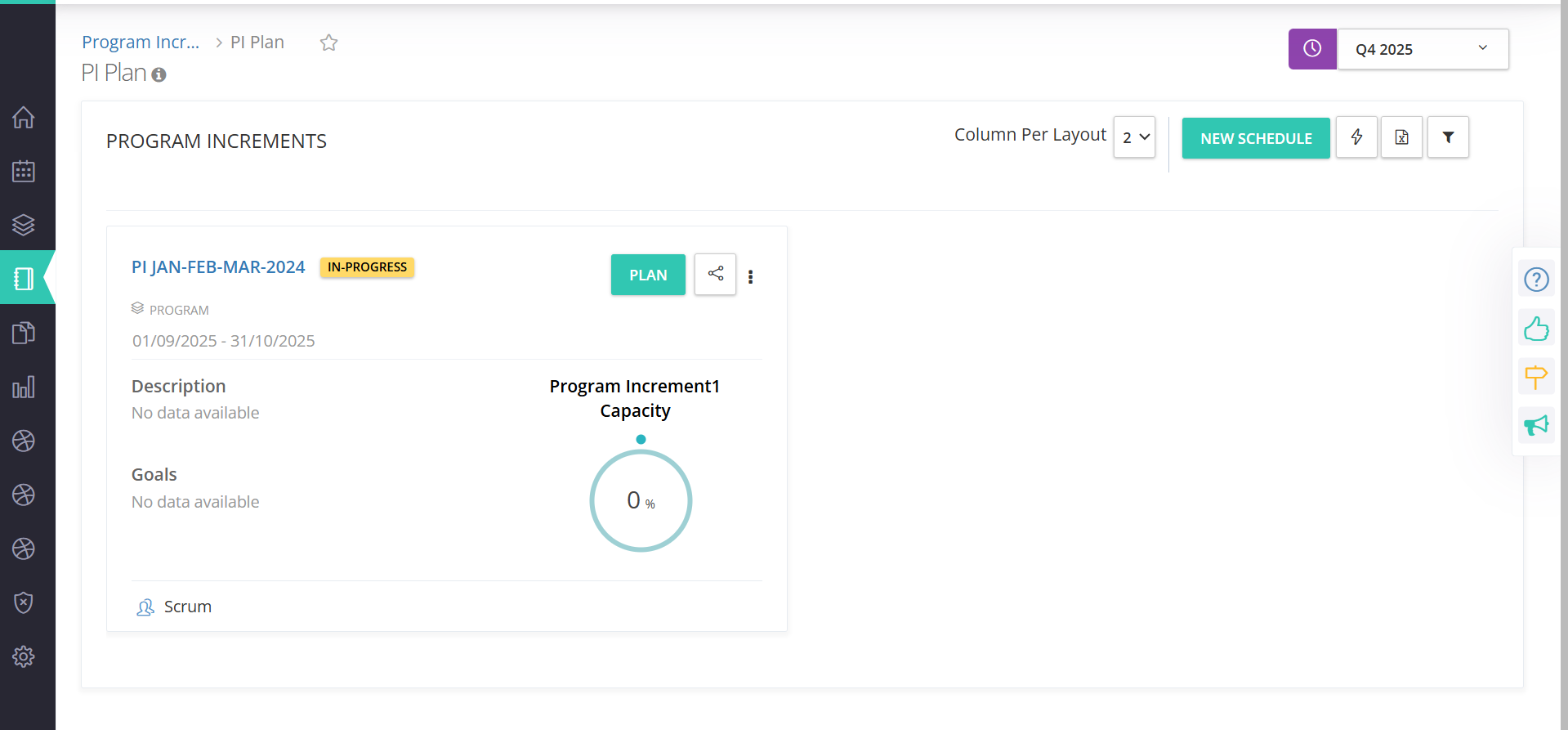
Step 1

Step 2: Open a Program Increment for which the Gantt chart is being viewed
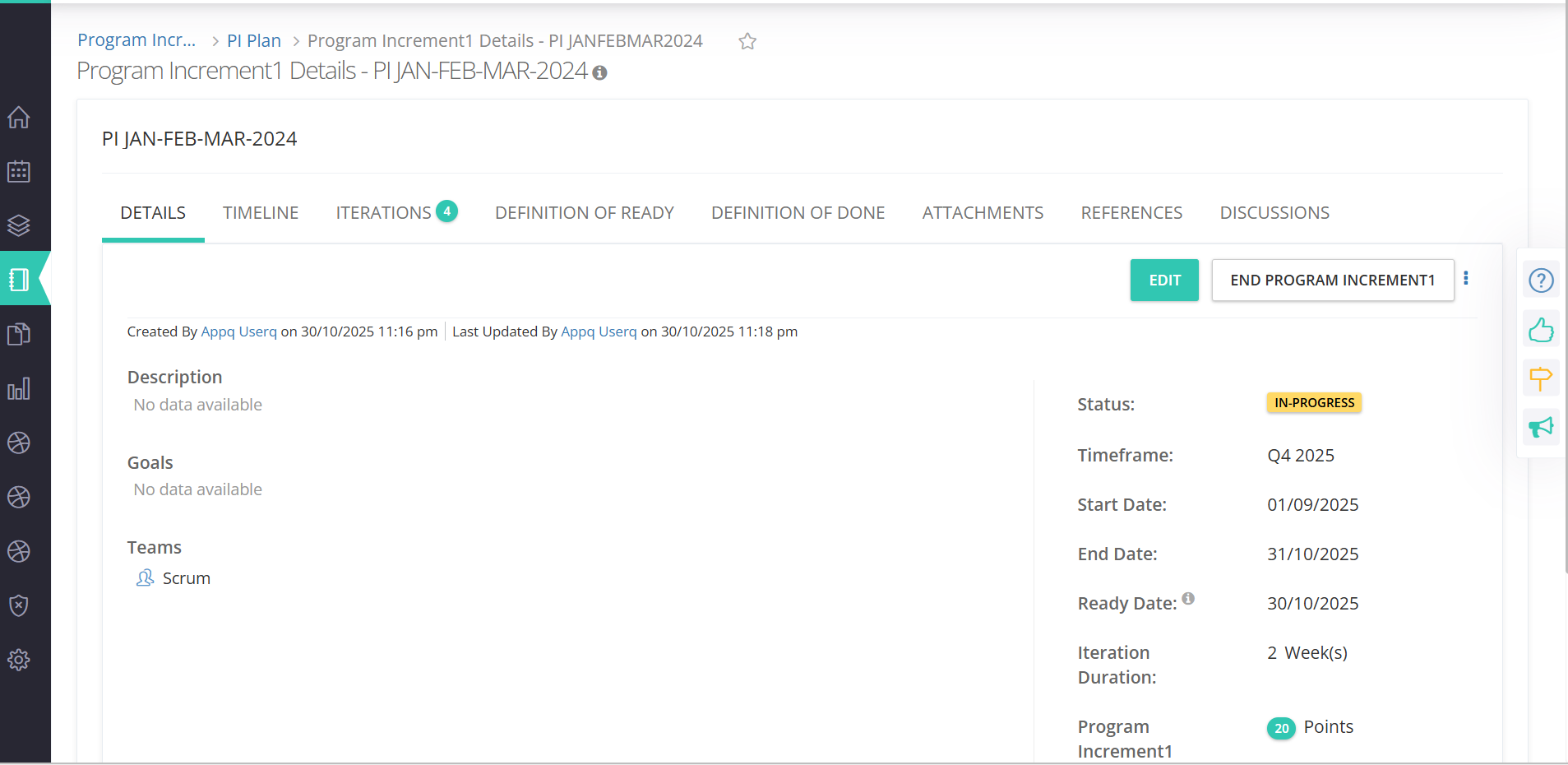
Step 2

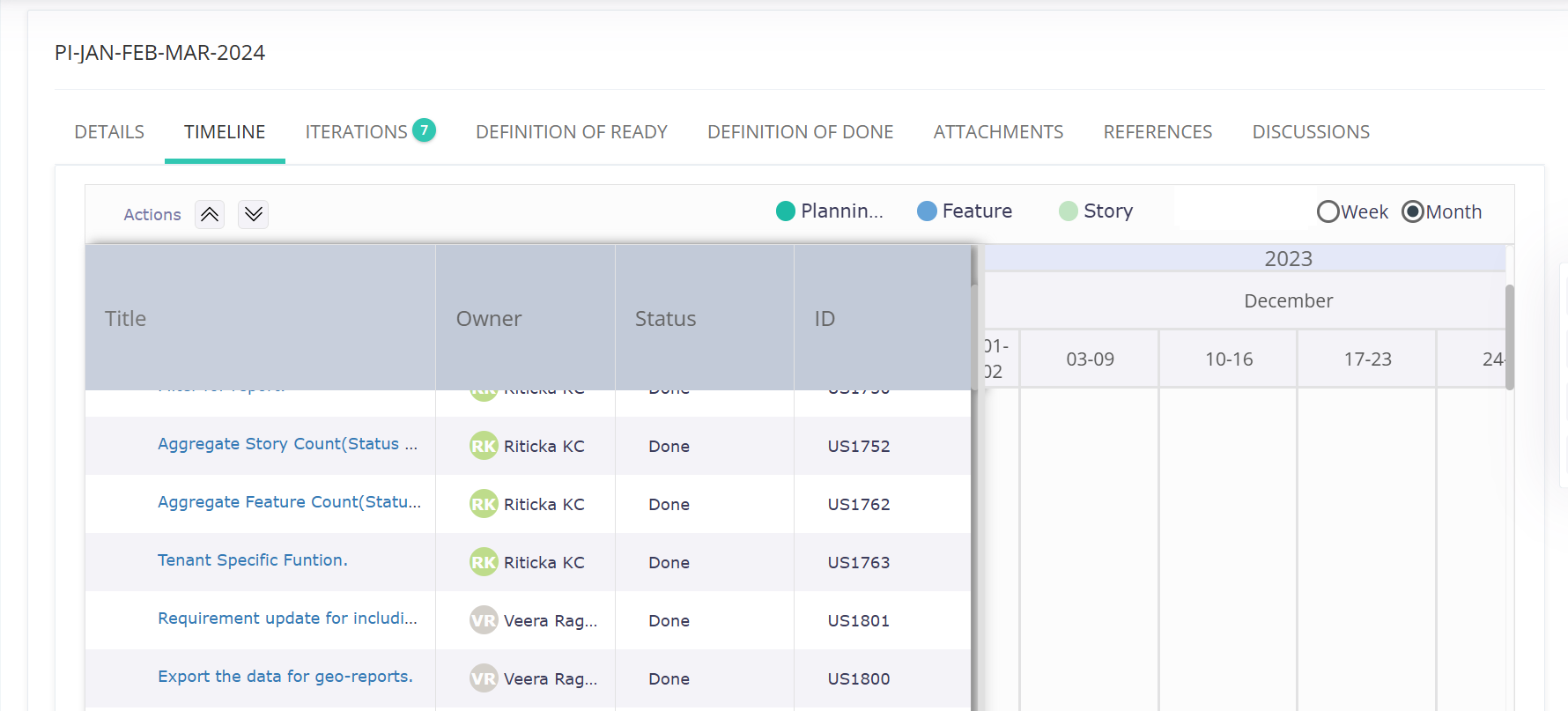
Step 3: Navigate to the Timeline tab, and you will be able to view Title as the first column.

Step 3

Test Management Got Better with These Important Features

To Download Blank Template for Story, do the following:

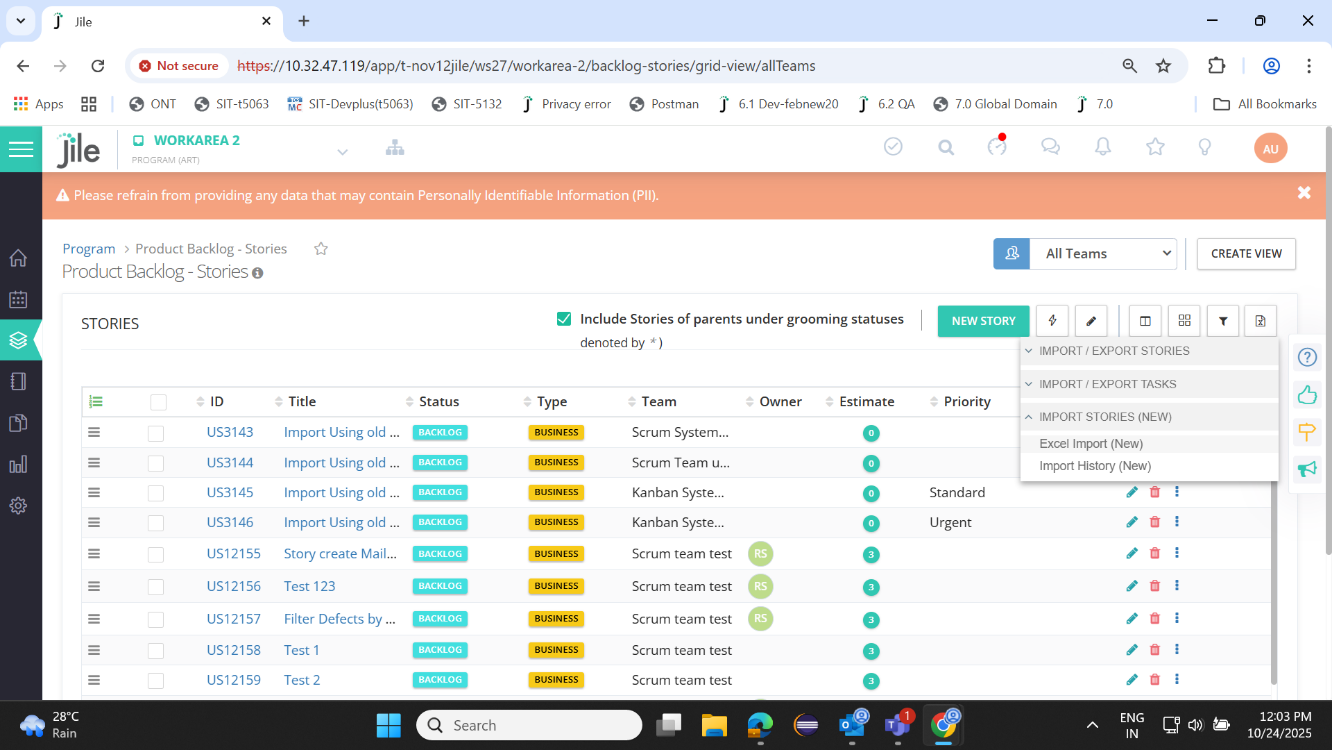
Step 1: Select Excel Import (New) option under Import and Export of Product backlog story screen.

Step 1

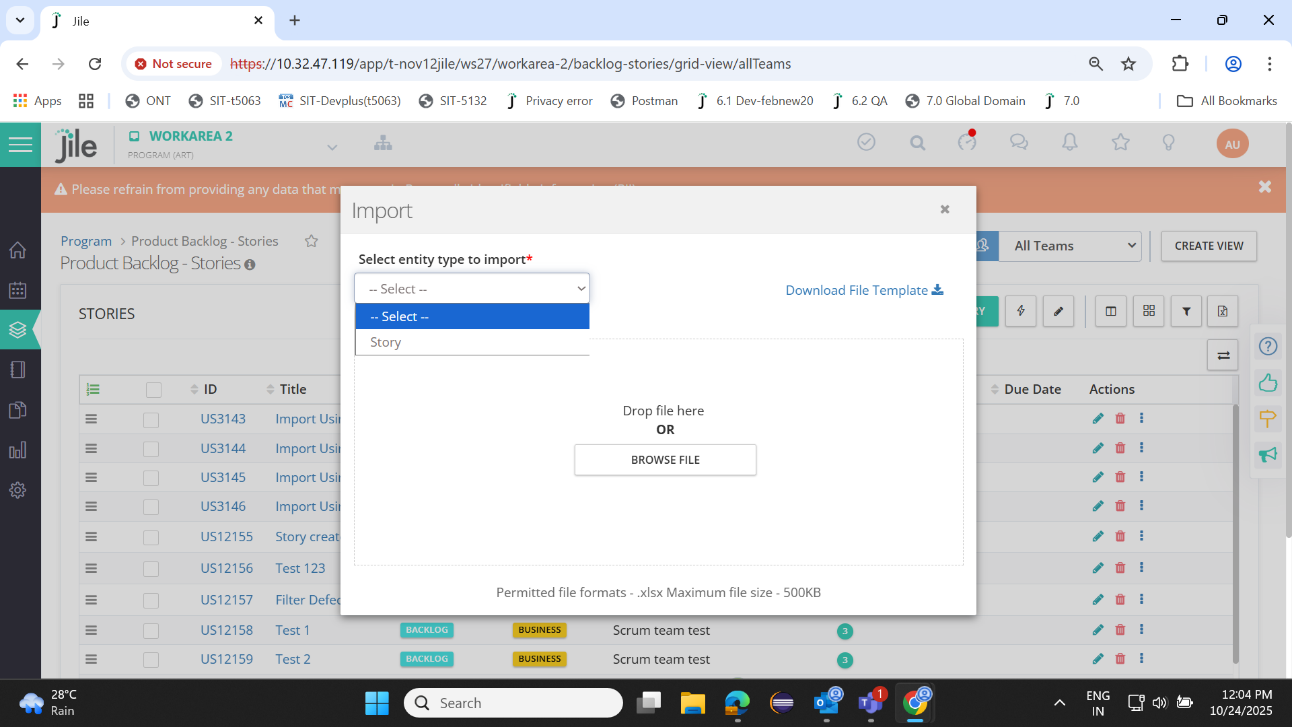
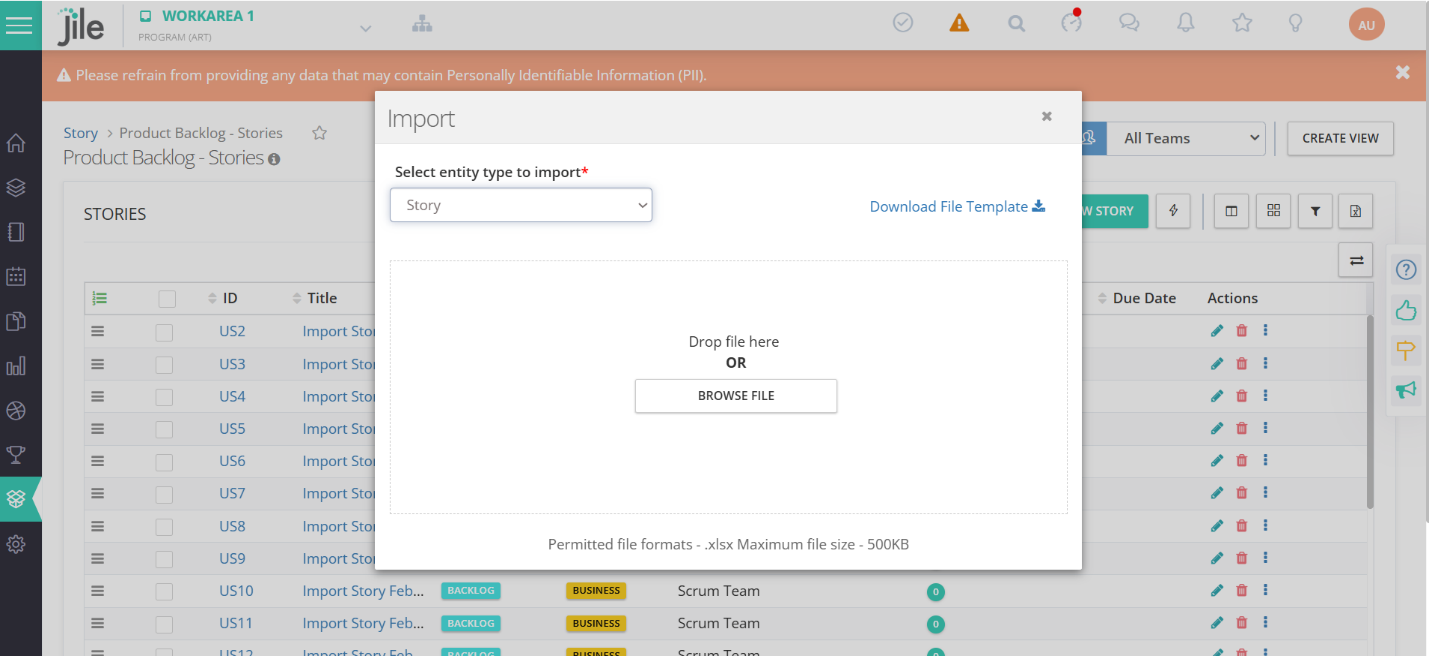
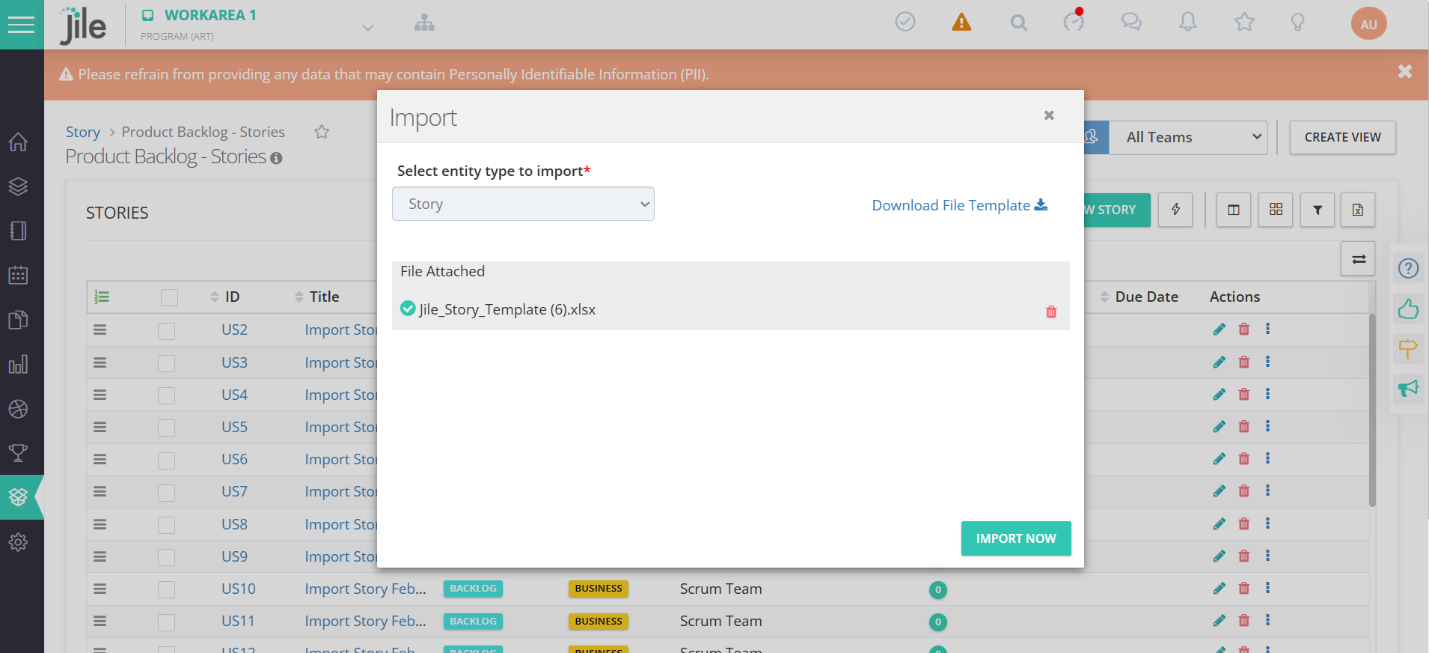
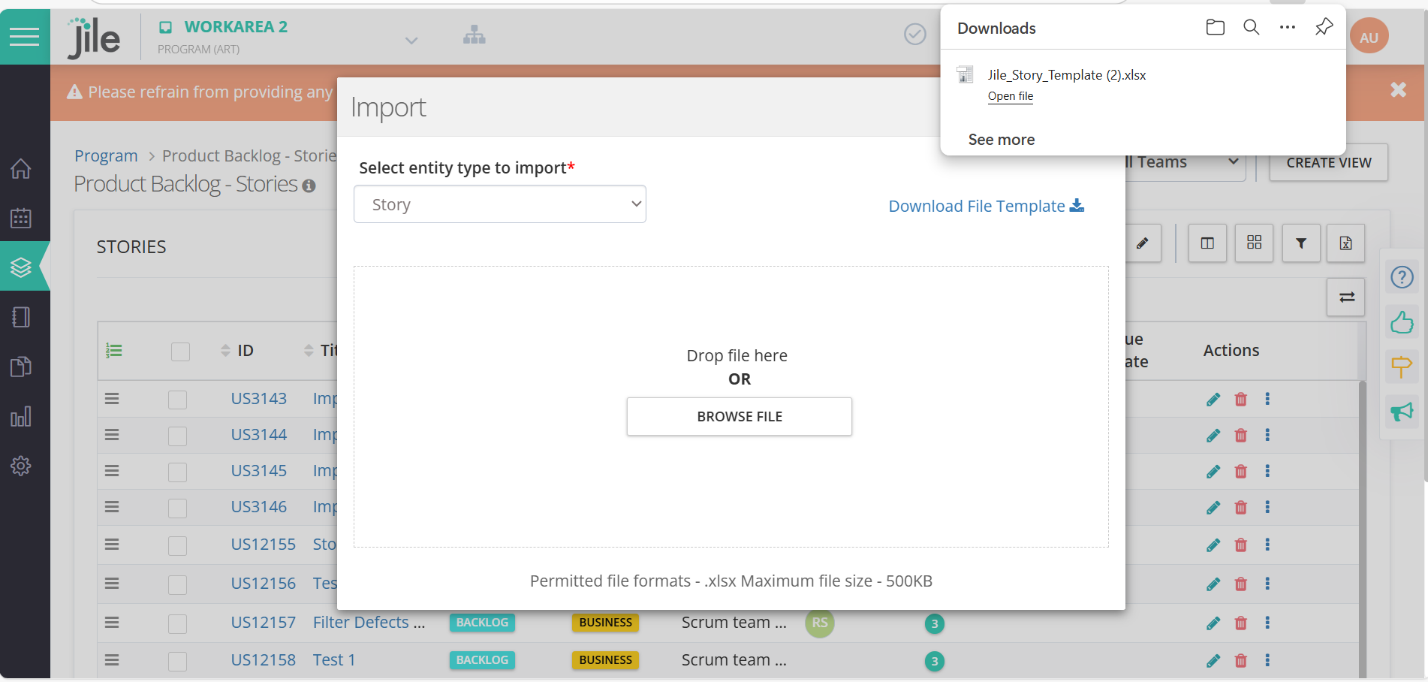
Step 2: Select an entity type as Story in Import Screen.

Step 2

Step 3: Click Download File template

Step 3

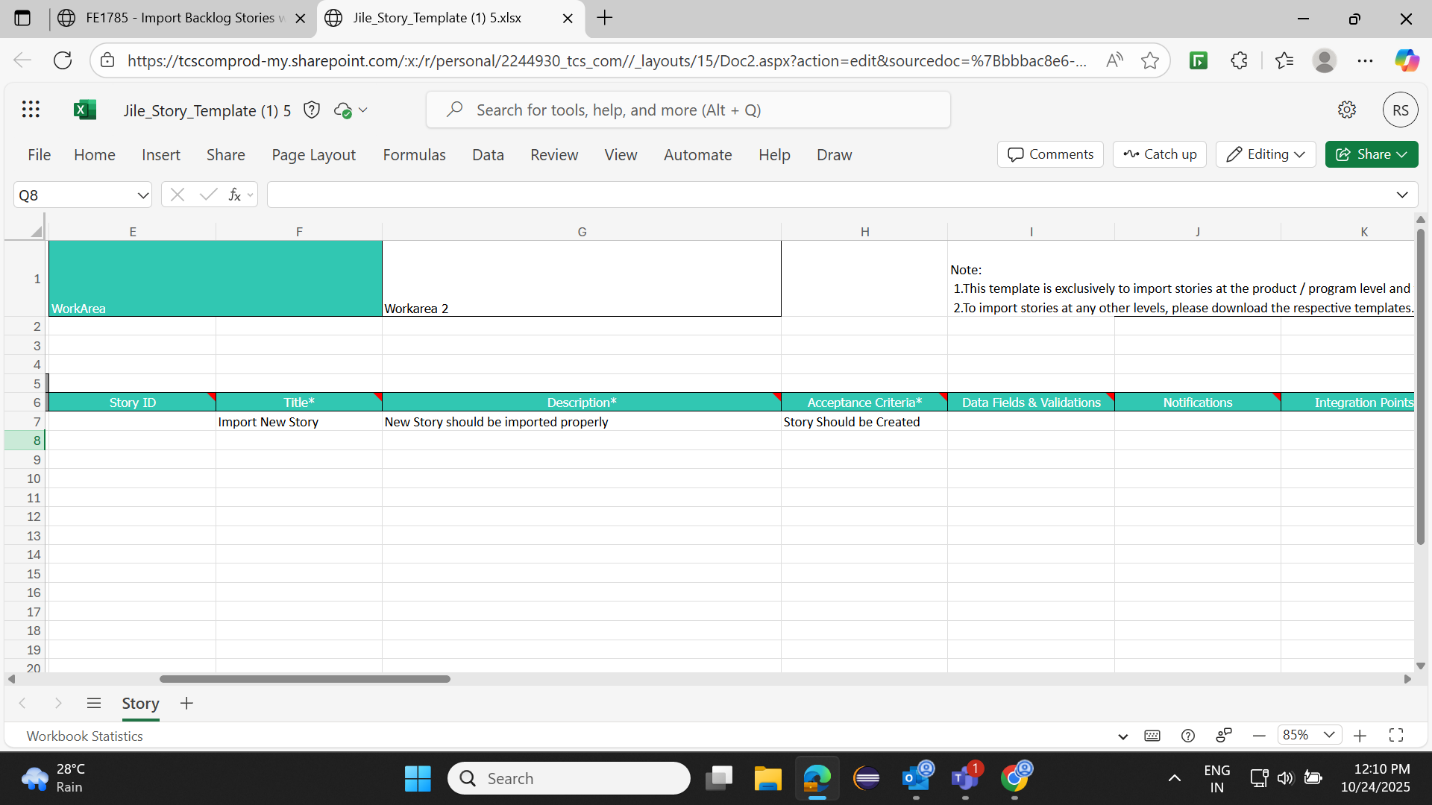
Step 4: Blank template for product backlog story is downloaded.

Step 4

To Import a Backlog Story, do the following:

Step 1: Fill the blank template with the required data

Step 1

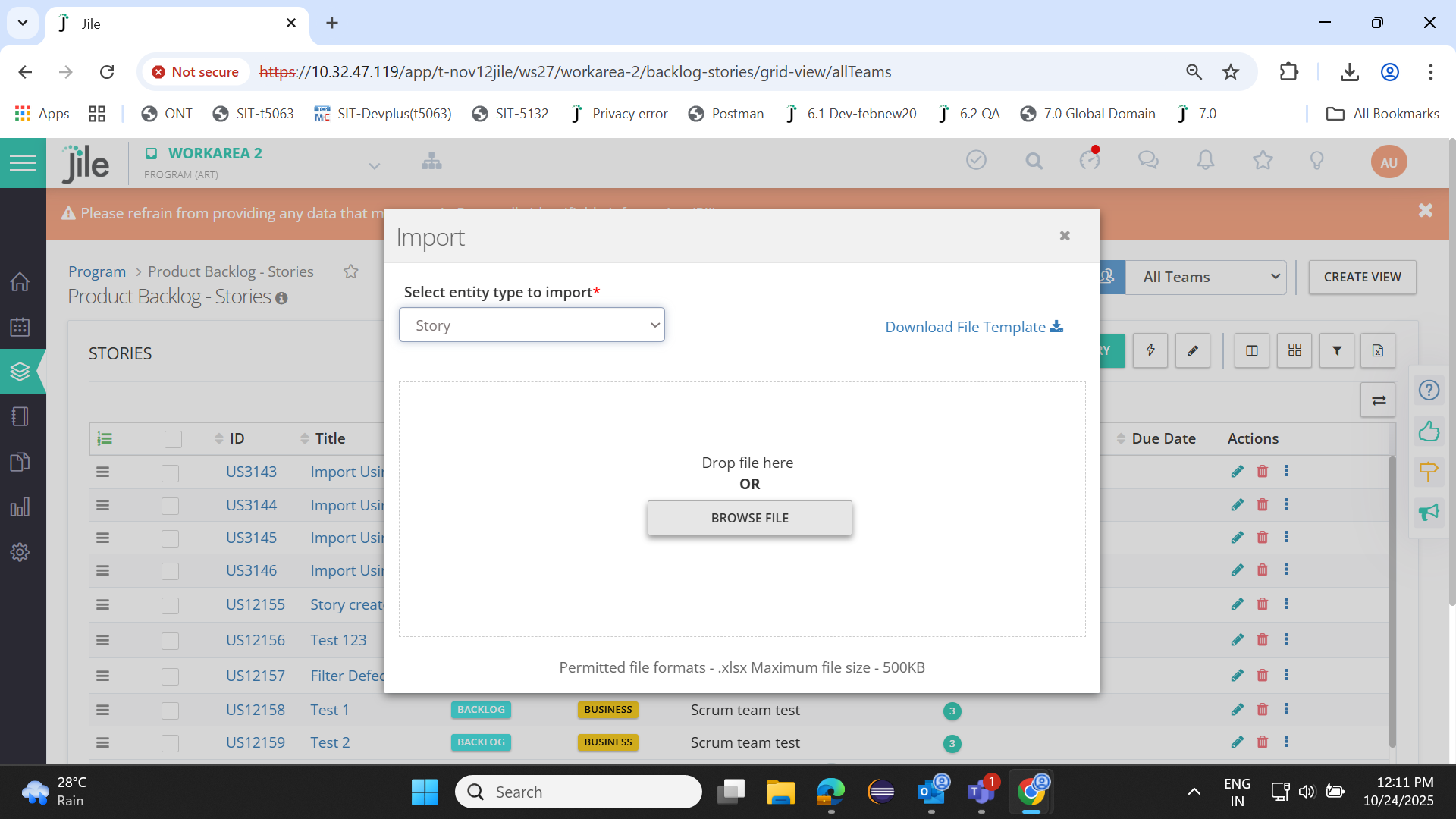
Step 2: Go to New Import Screen and Click on Browse.

Step 2

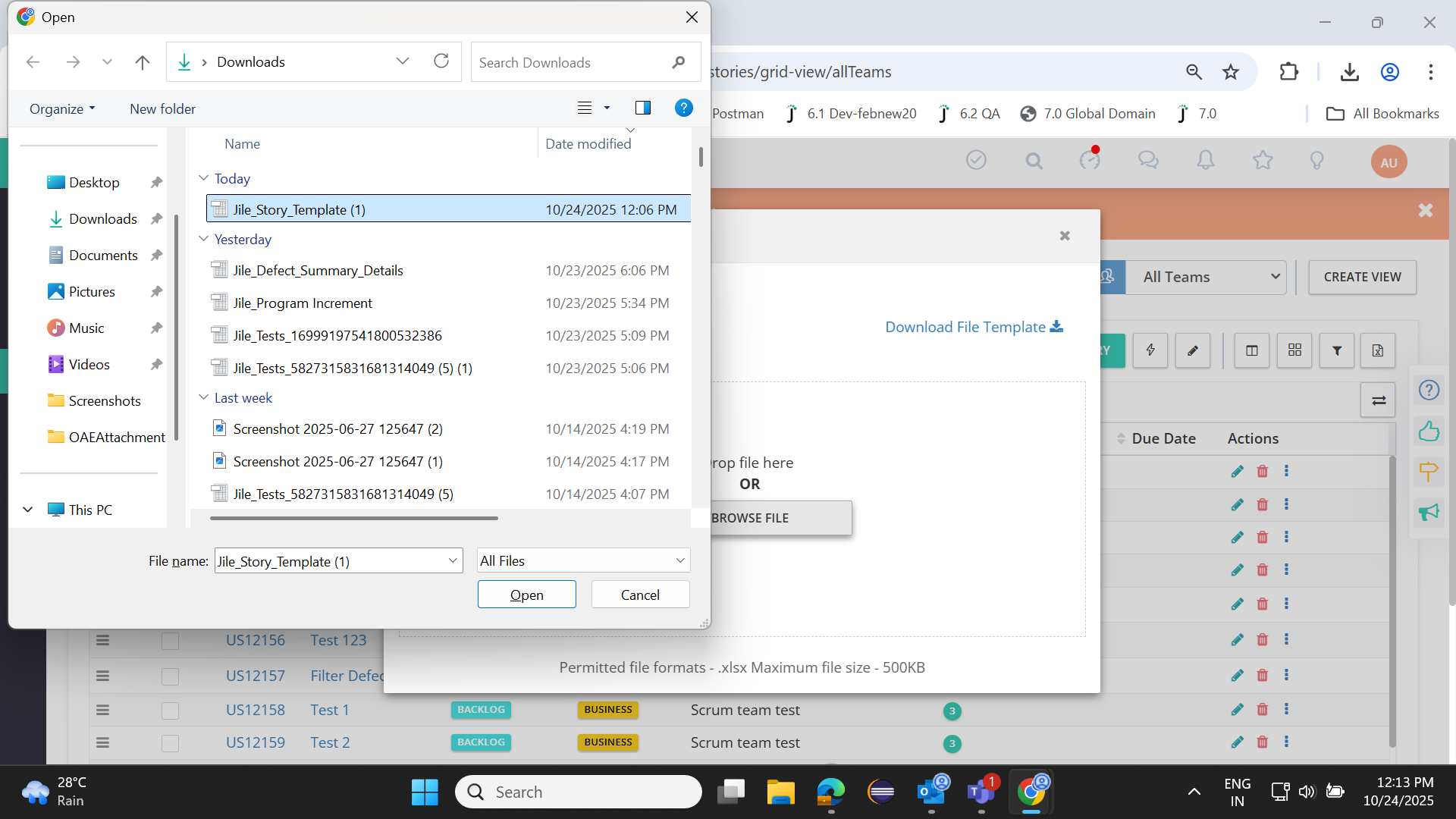
Step 3: Select the updated Story file.

Step 3

Step 4: Click on the Import Now button.

Step 4

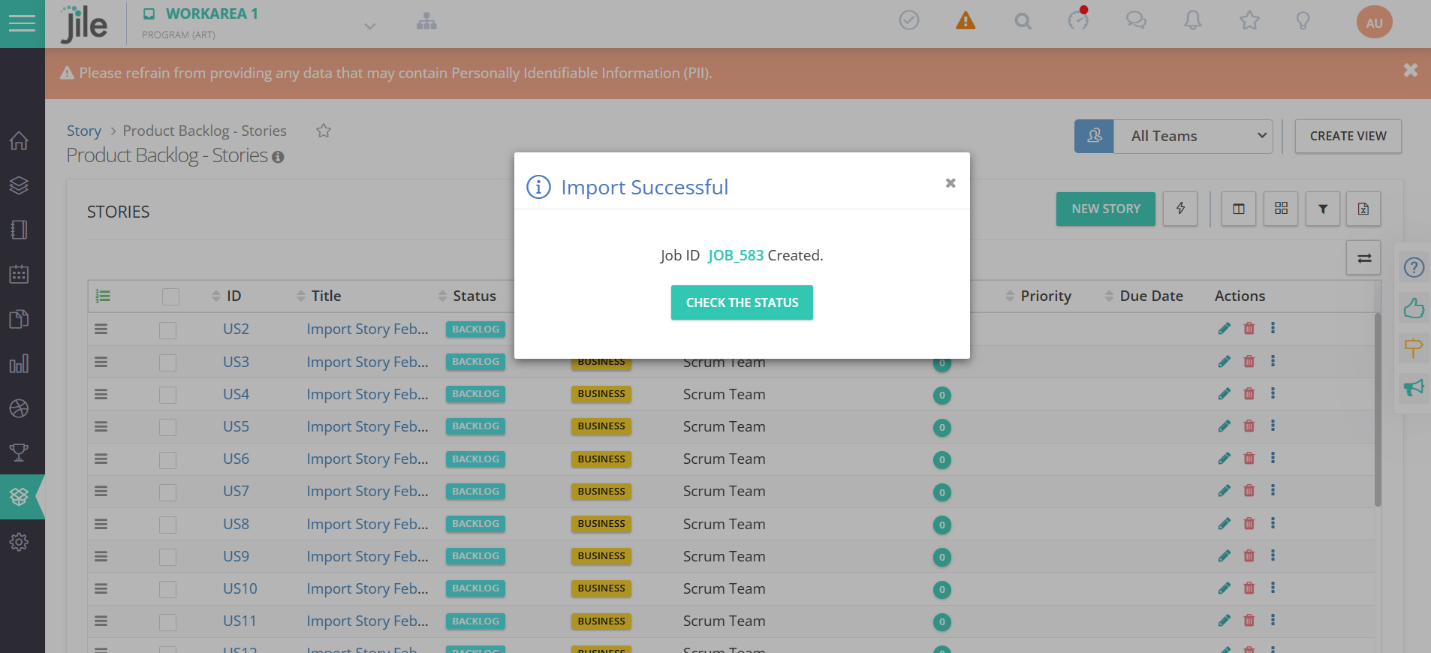
Step 5: Job ID is created.

Step 5

Addition of custom fields in Test suite creation

Follow these steps to add custom field(s) for a Test Suite.

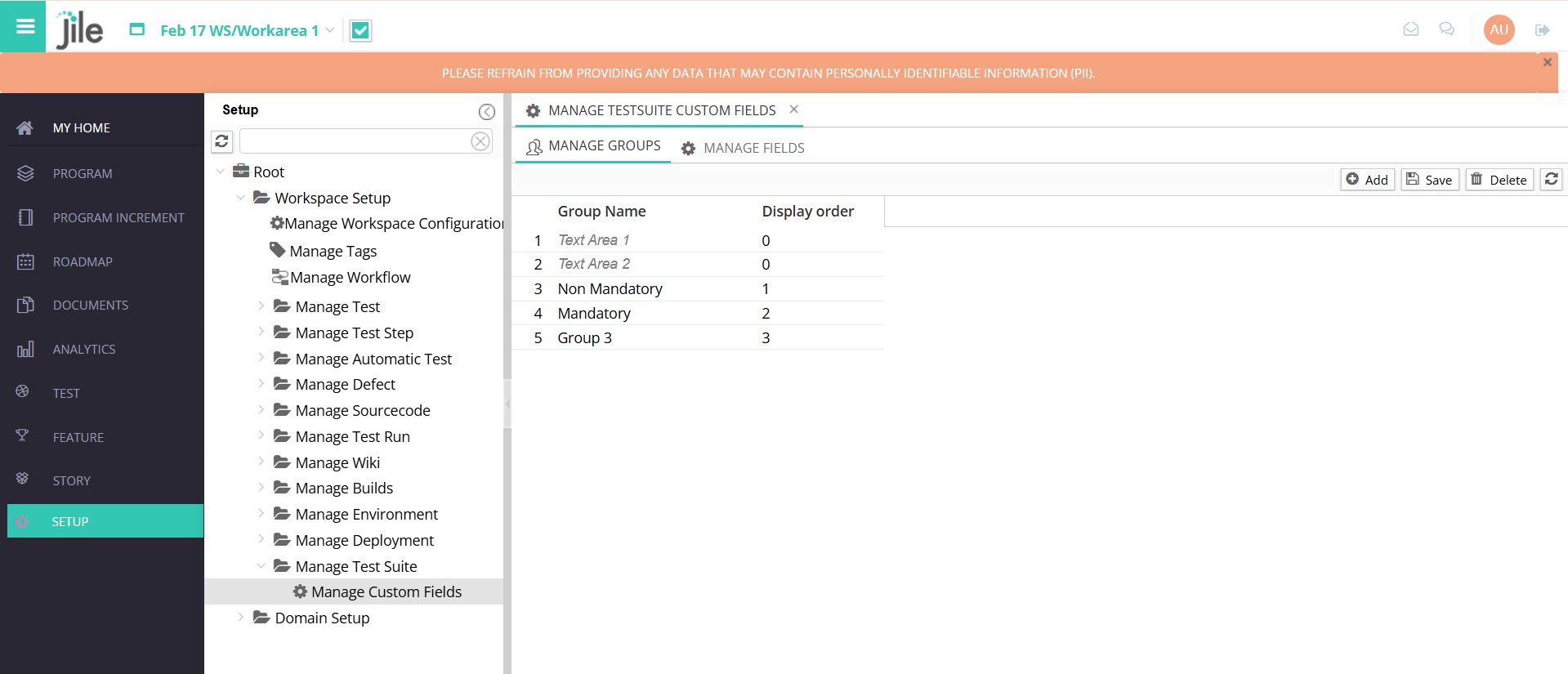
Step 1: Go to Workspace Setup -> Manage Test Suite -> Manage Custom Fields.

Step 1

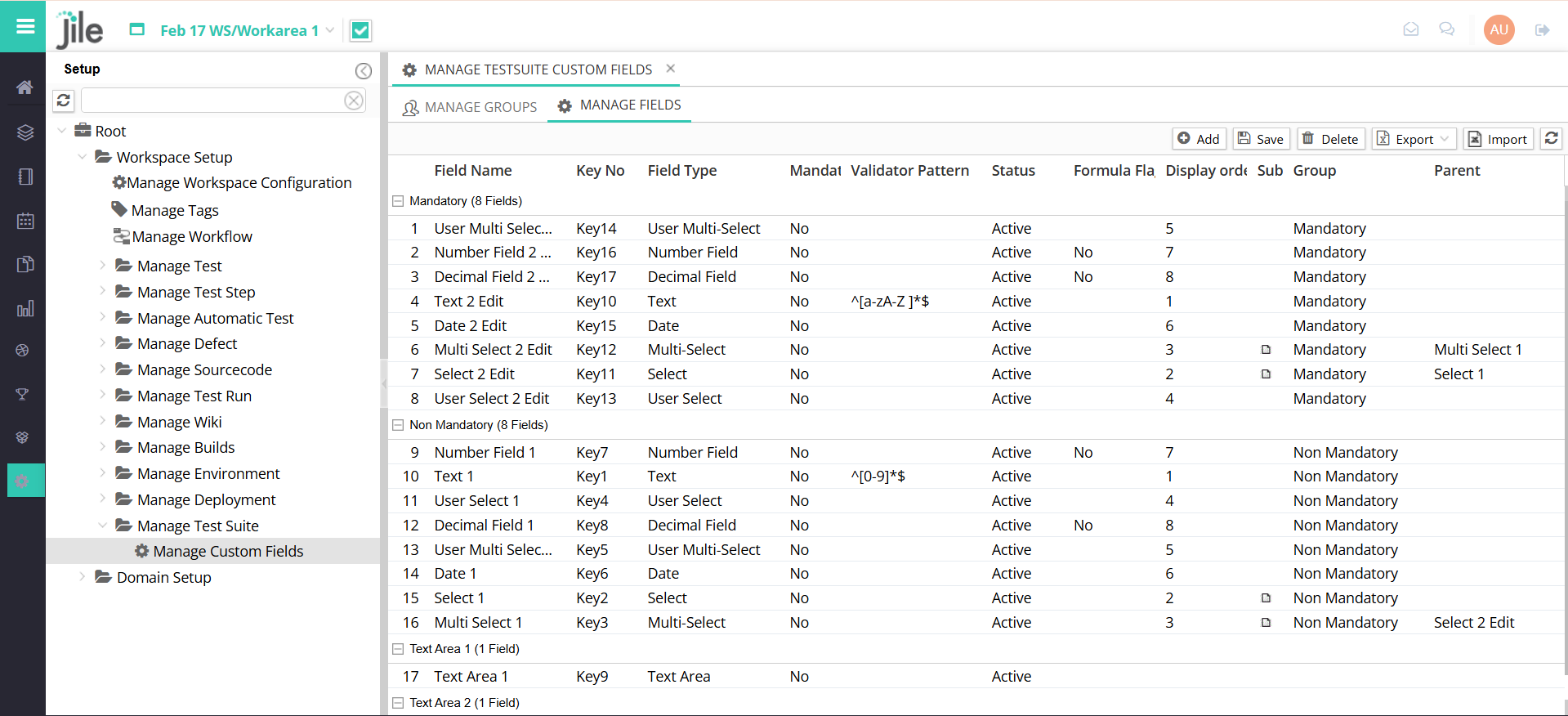
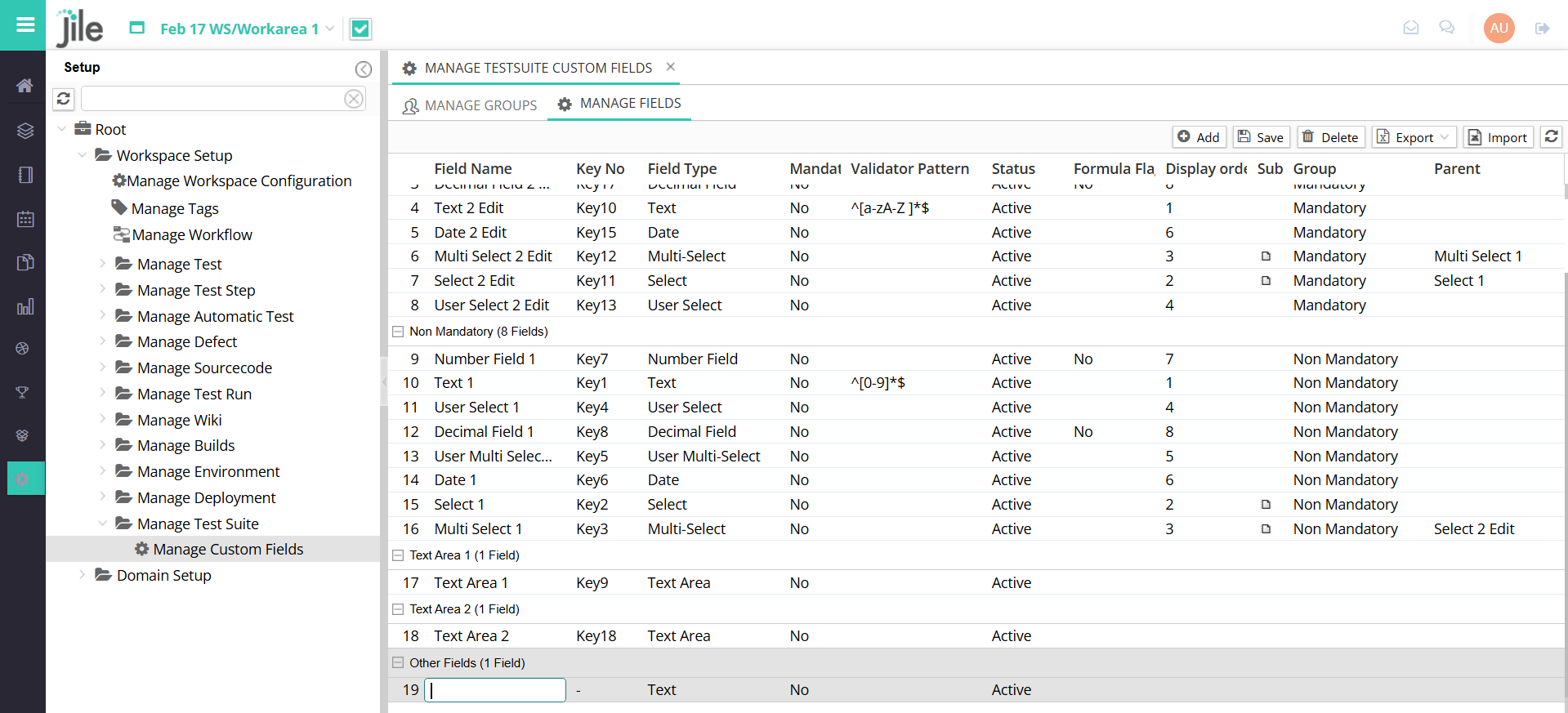
Step 2: Go to MANAGE FIELDS tab to add new custom fields.

Step 2

Step 3: Click on Add and enter required details.

Step 3

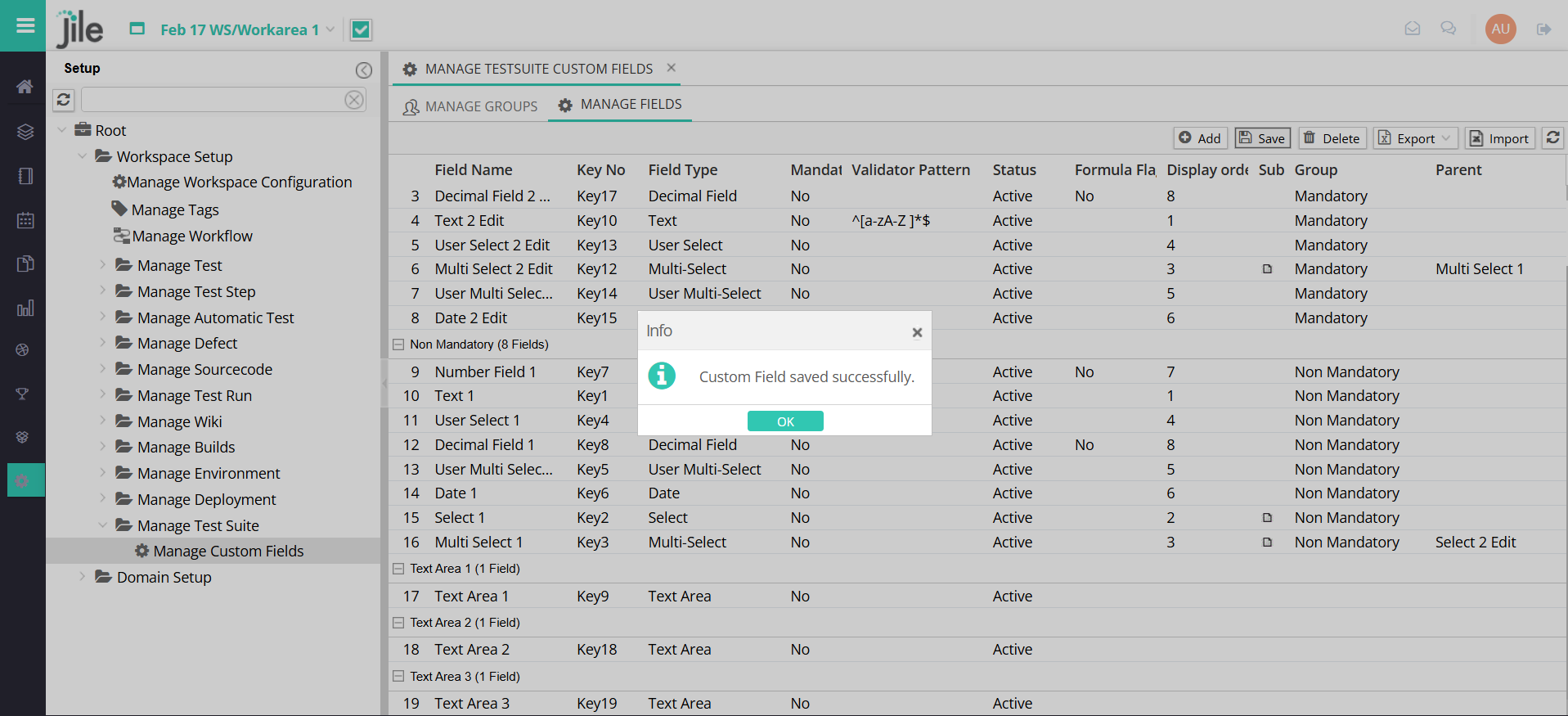
Step 4: Click on Save to save the details.

Step 4

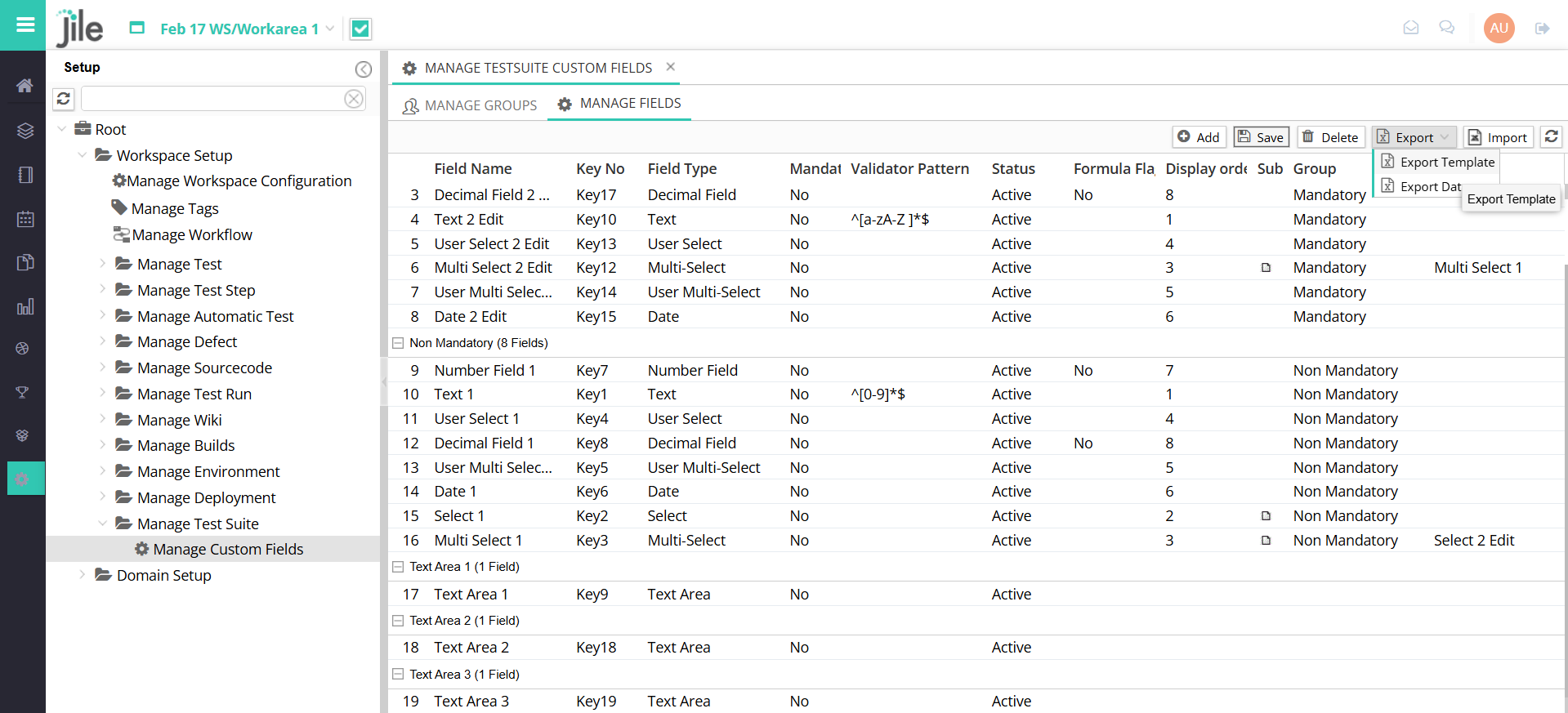
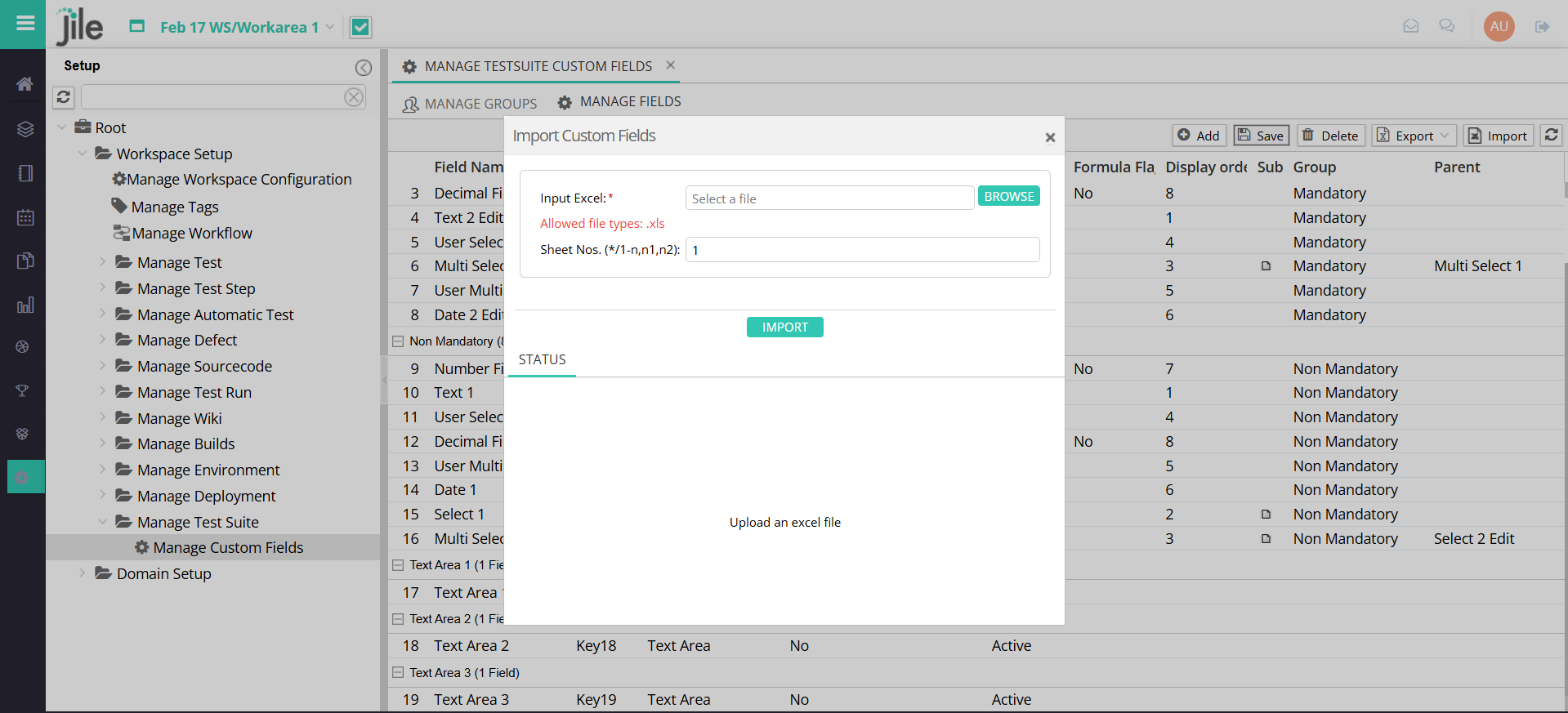
Follow these steps to Export/ Import custom field(s) for a Test Suite.

Step 1: Click on the Export button to Export the custom fields in an excel with or without custom field data.

Step 1

Step 2: Click on the Import button to Import the custom field details saved in an excel .

Step 2

Follow these steps to Create a New Suite with the created custom field(s).

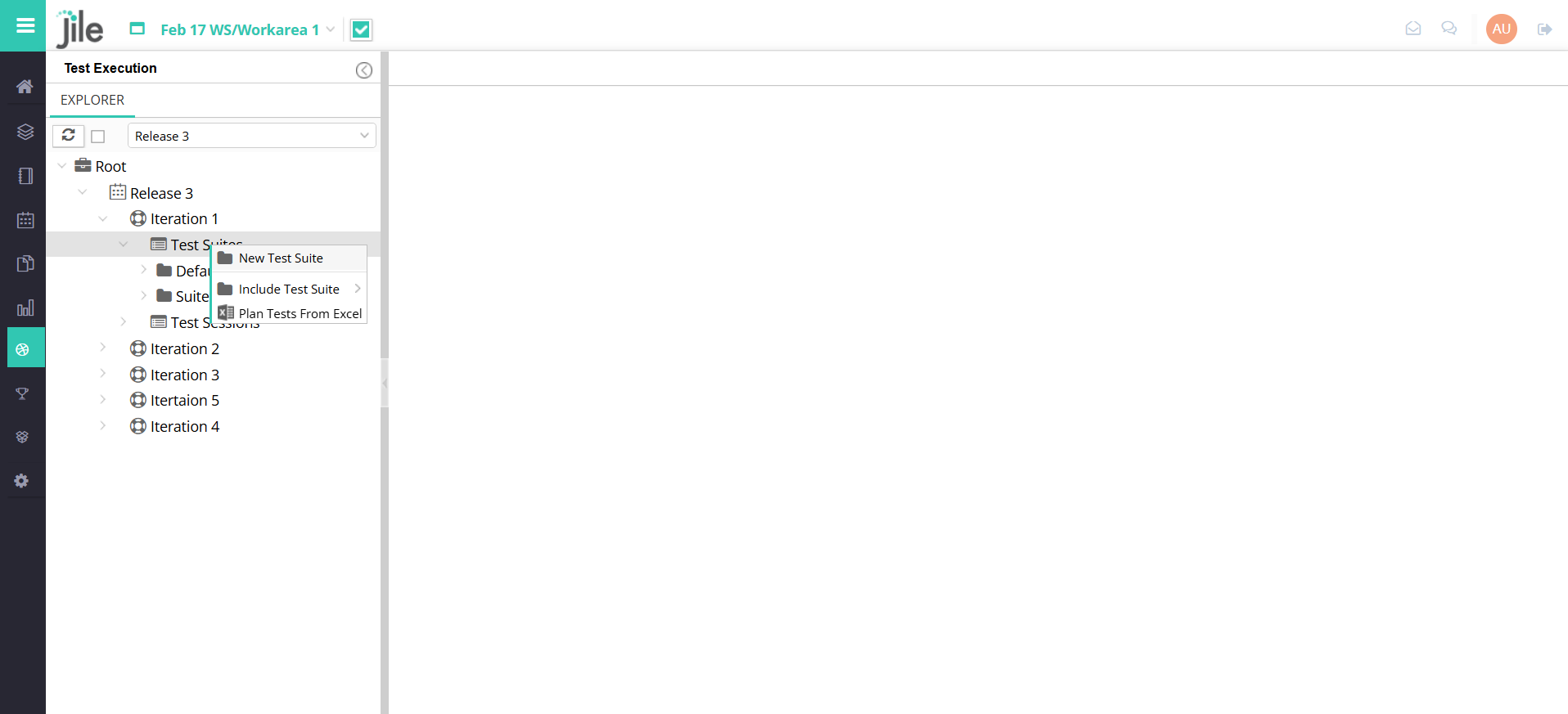
Step 1: Navigate the Test Execution Module and Create a New Suite.

Step 1

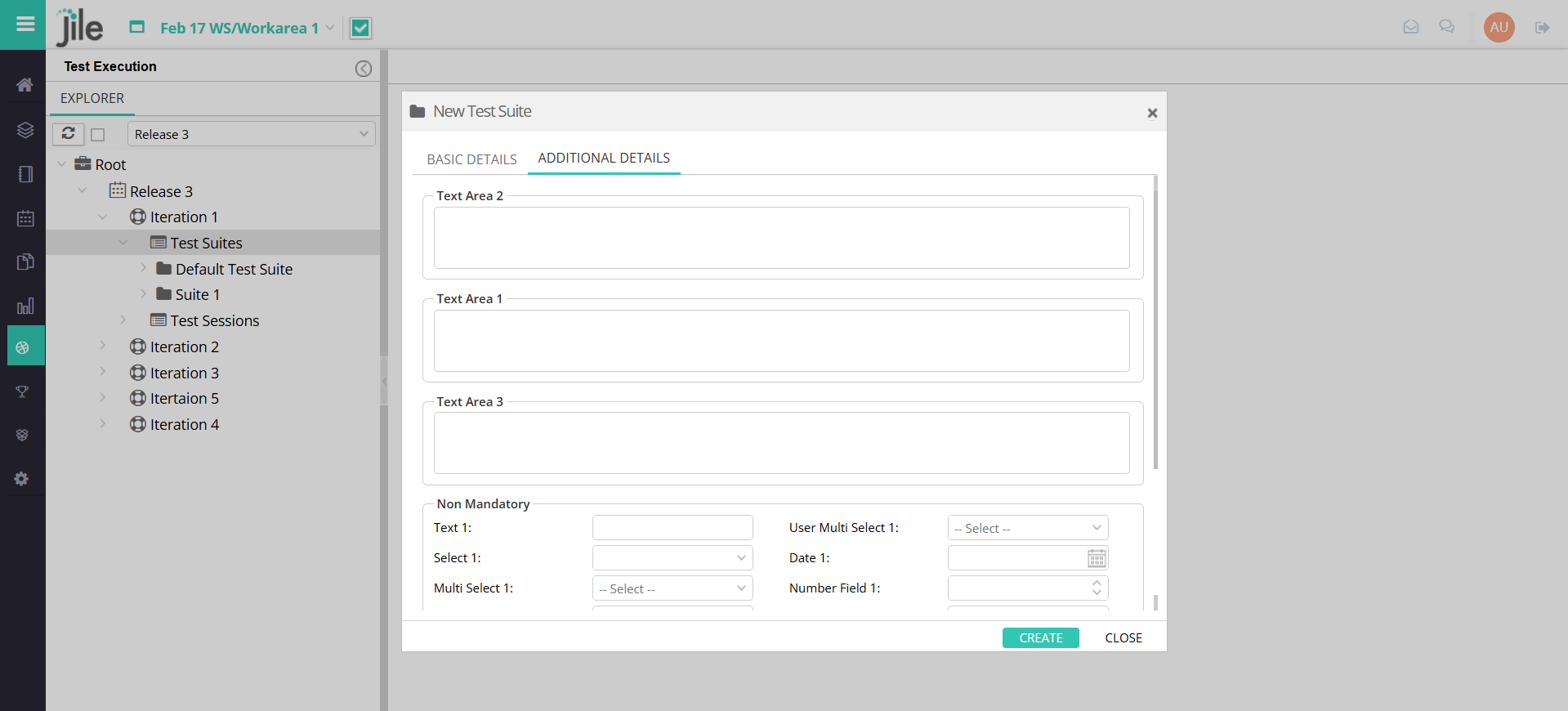
Step 2: In the New Suite Creation window, click on ADDITIONAL DETAILS tab where you can view all the custom fields created.

Step 2

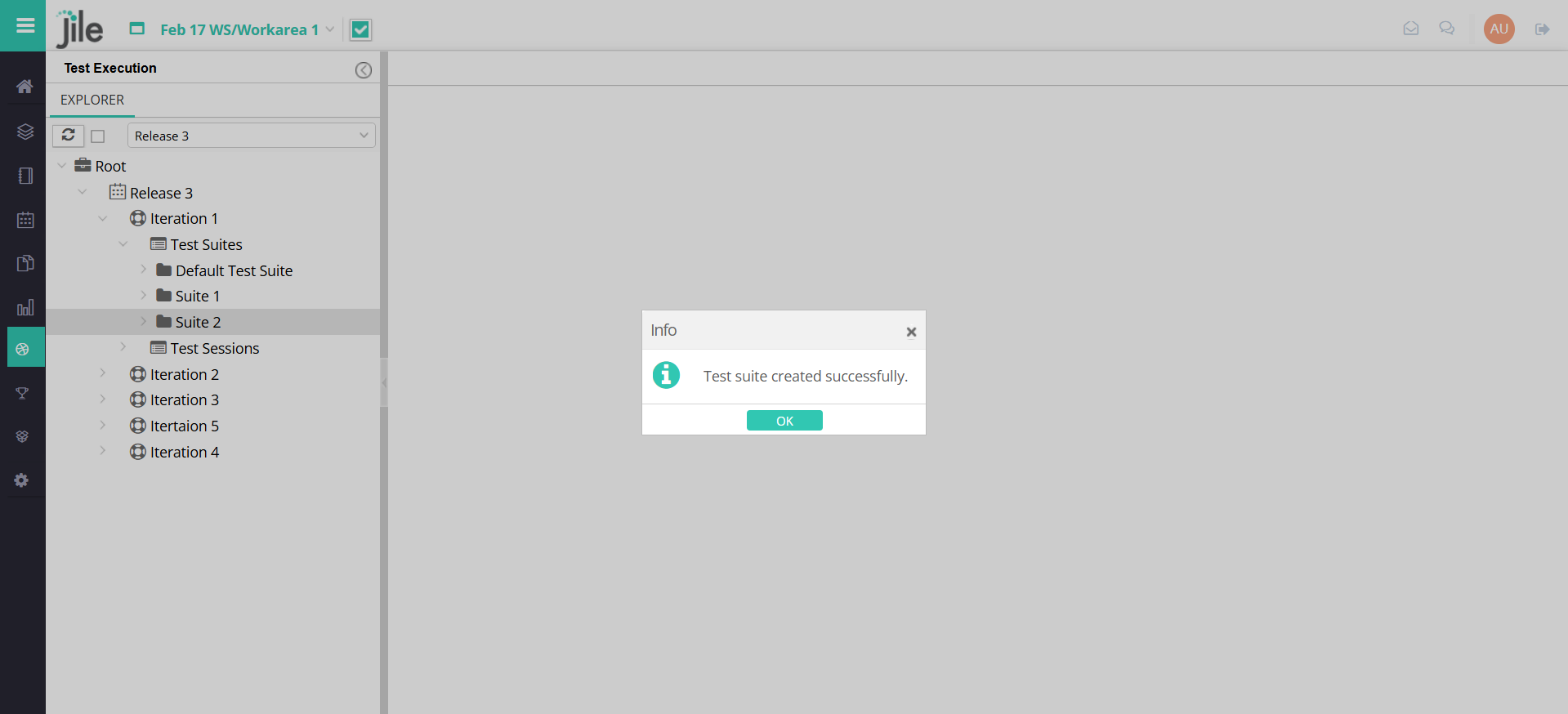
Step 3: Enter all required details (Basic and Additional details) and Click on Create. New Test Suite is created with Custom fields.

Step 3

Follow these steps to View and update the custom field(s).

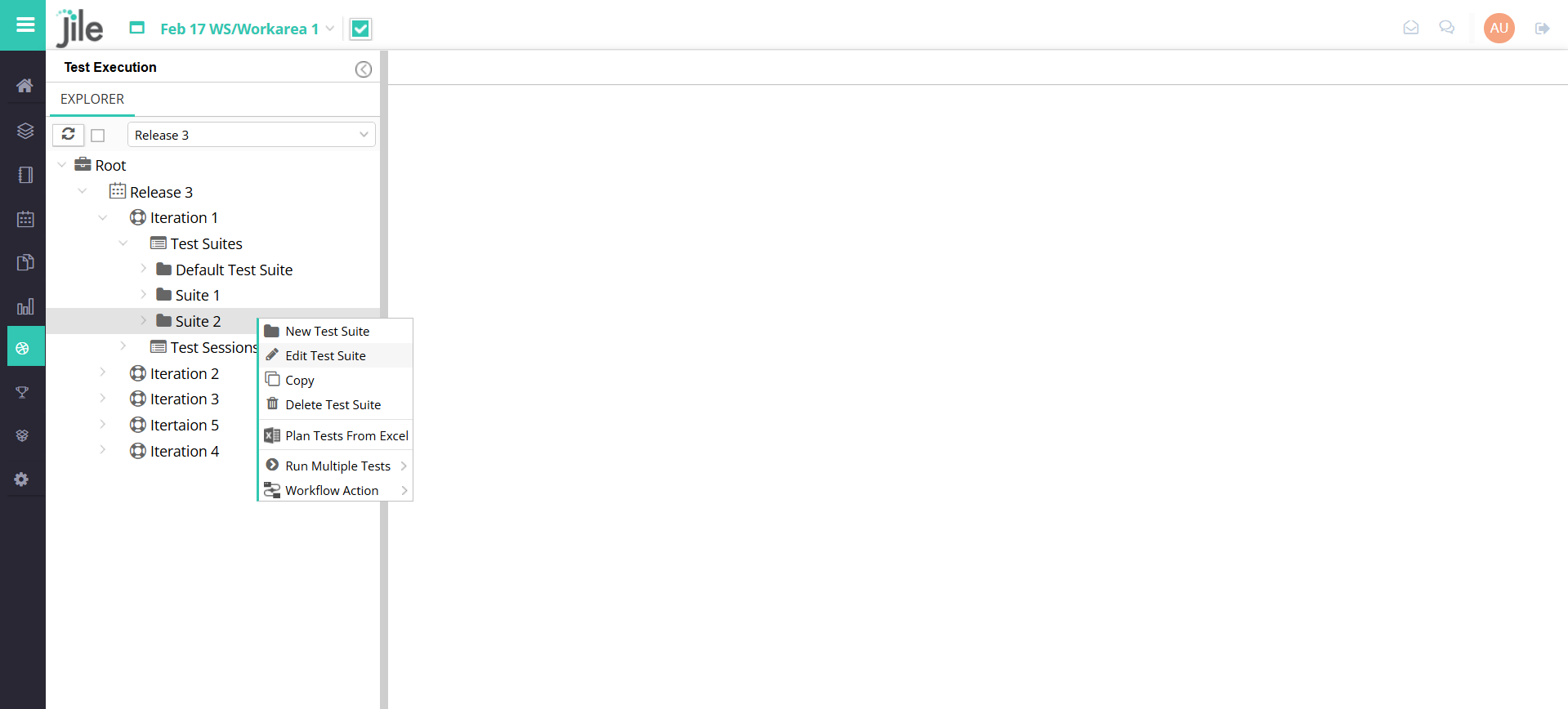
Step 1: Right click on the created Test Suite and Click on Edit Test Suite.

Step 1

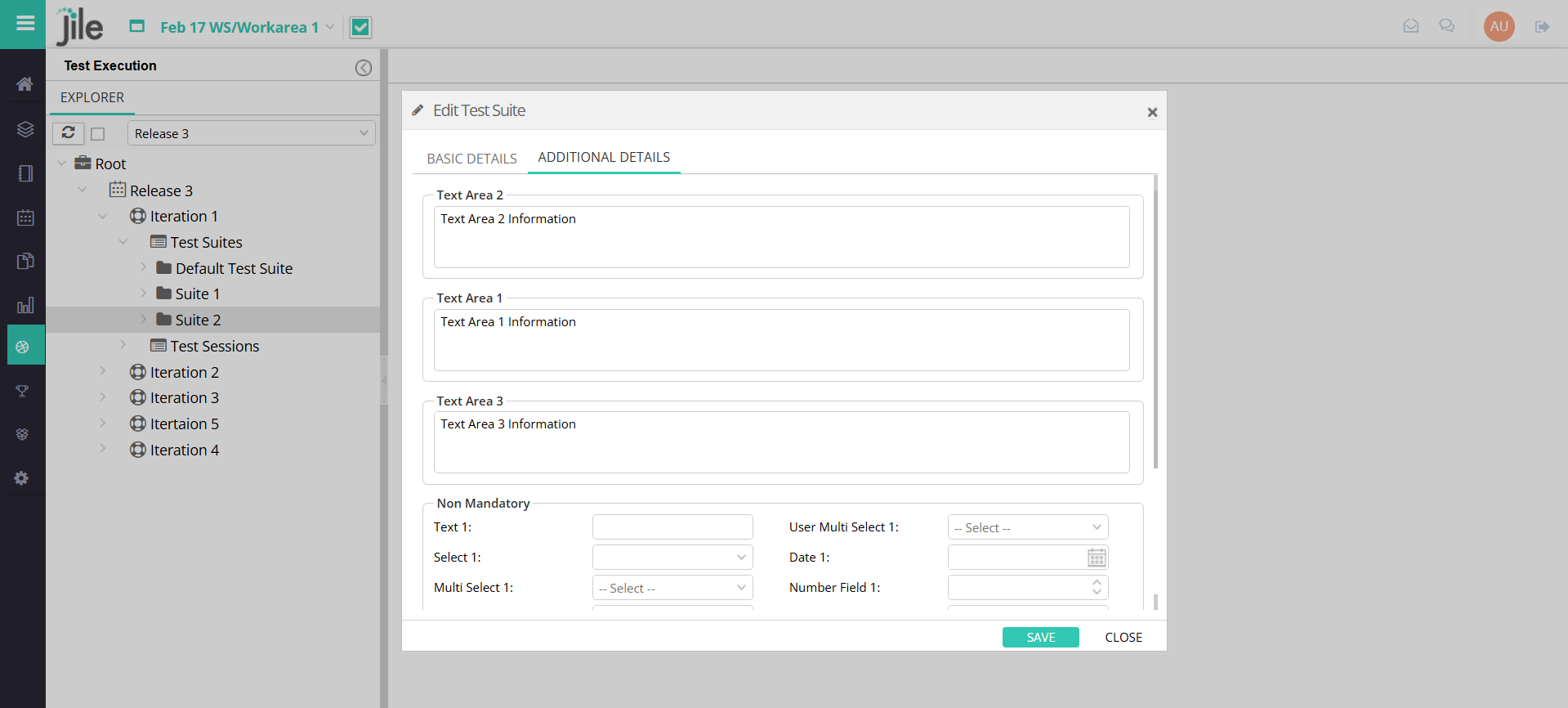
Step 2:Existing details appear in the Edit Test Suite pop up window

Step 2

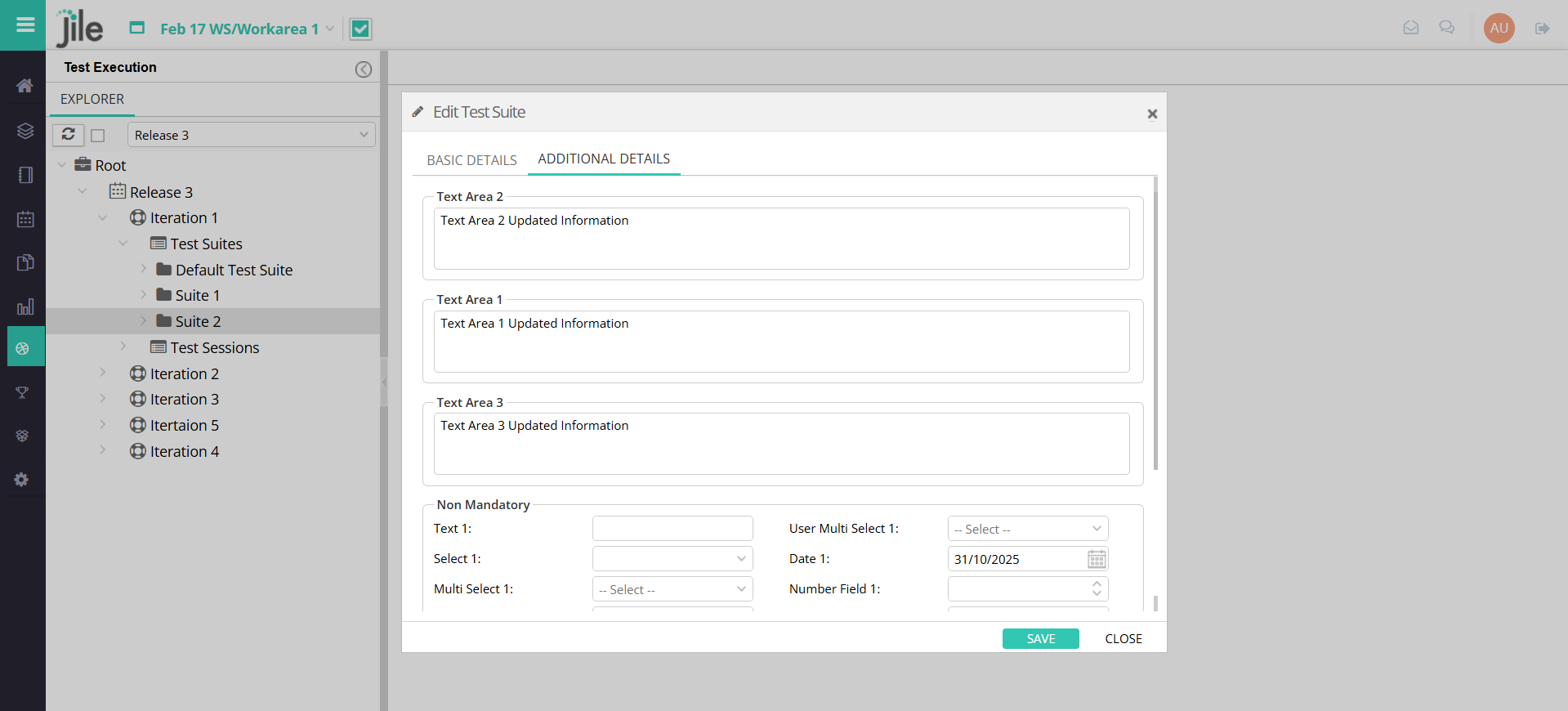
Step 3: You can View and Update the custom fields and click on Save to update.

Step 3

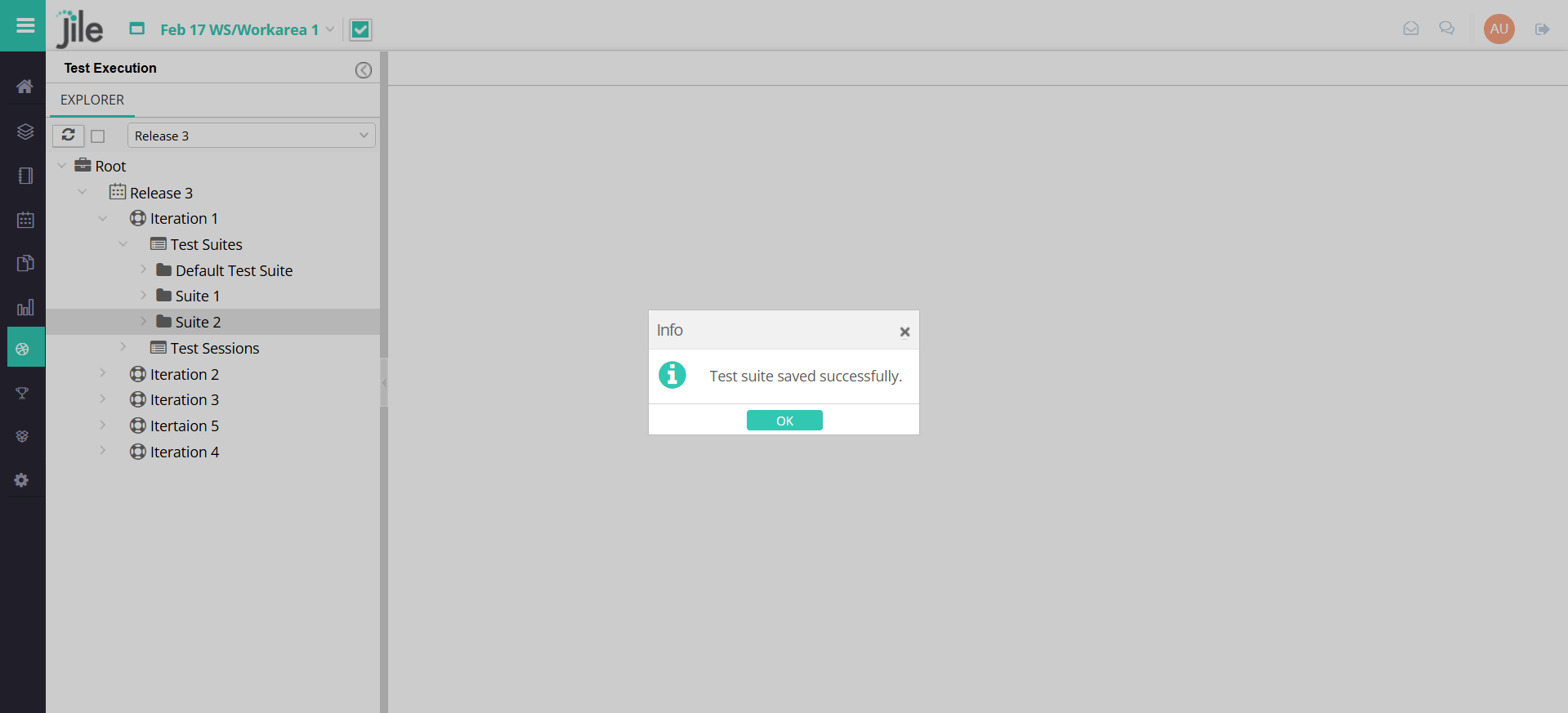
Step 4: Existing Test Suite is updated with Custom fields.

Step 4

Generating User Stories from Features Using Jile AI Assist

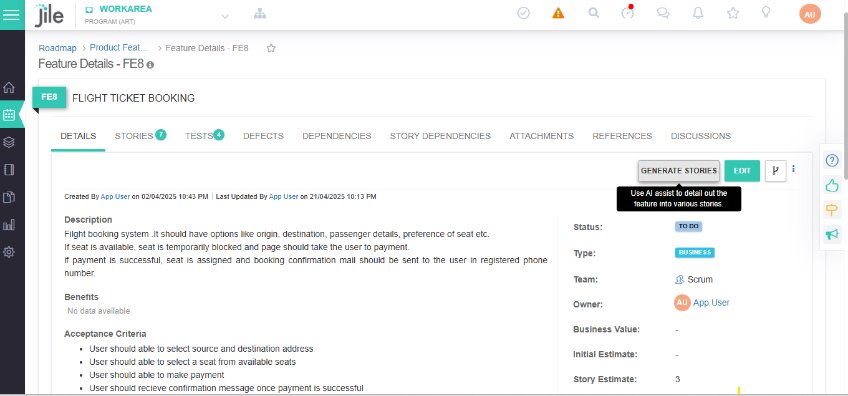
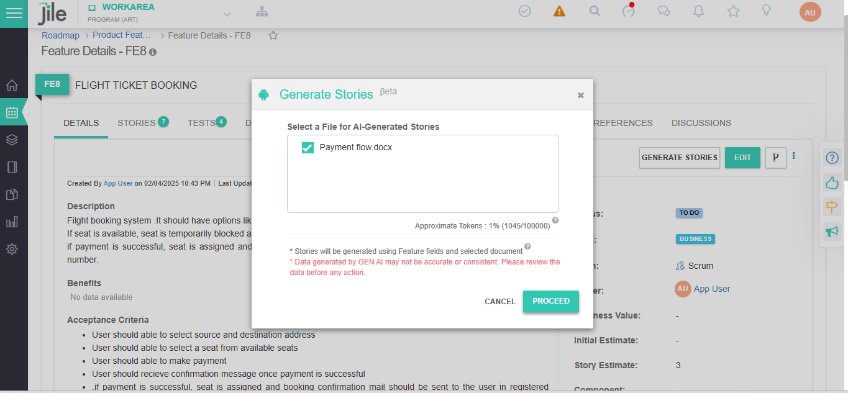
Step 1: Goto Product Feature single page view. Click "Generate Stories"

Step 1

Step 2: Select the attachment to consider and Proceed to Generate

Step 2

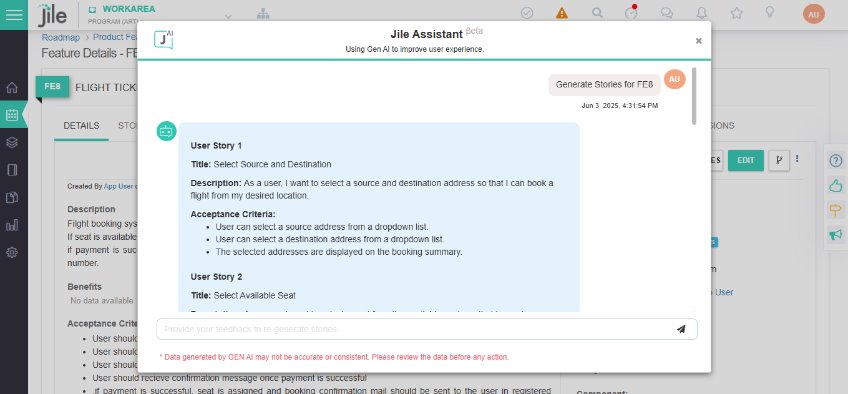
Step 3: Jile Assistant modal popup, Review the generated stories

Step 3

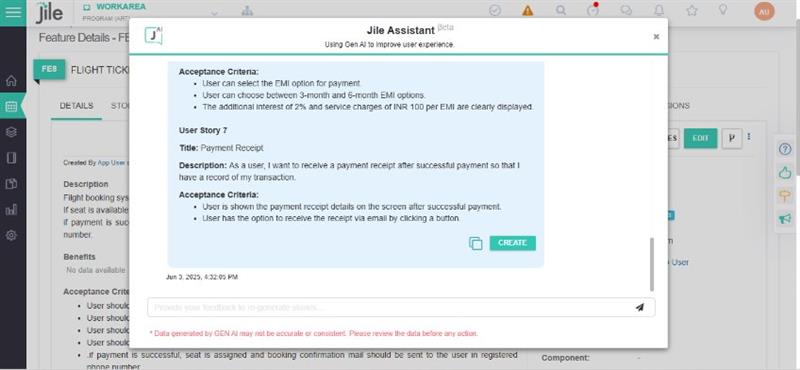
Step 4: Click the "Create" to generate the final Stories

Step 4

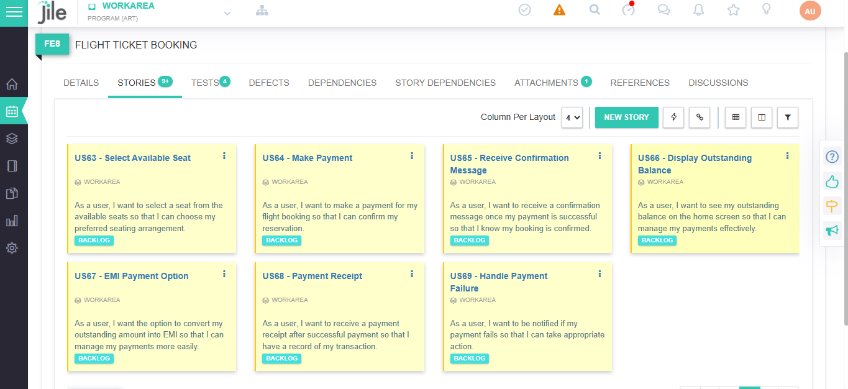
Step 5: Stories are generated and visible under "Stories" tab of Feature

Step 5

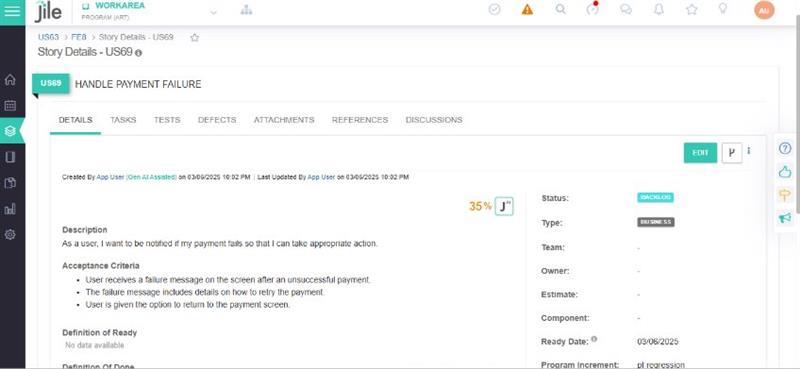
Qualifying User Stories Using AI Assist

Step 1: Goto Story single page view

Step 1

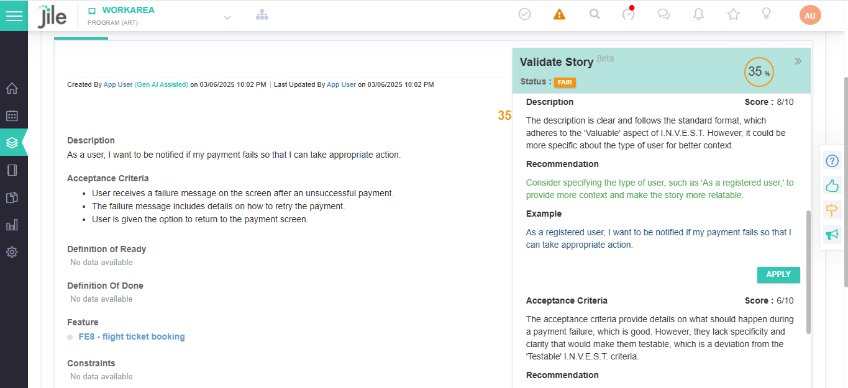
Step 2: AI Assistant will summarize the quality aspect of the story

Step 2

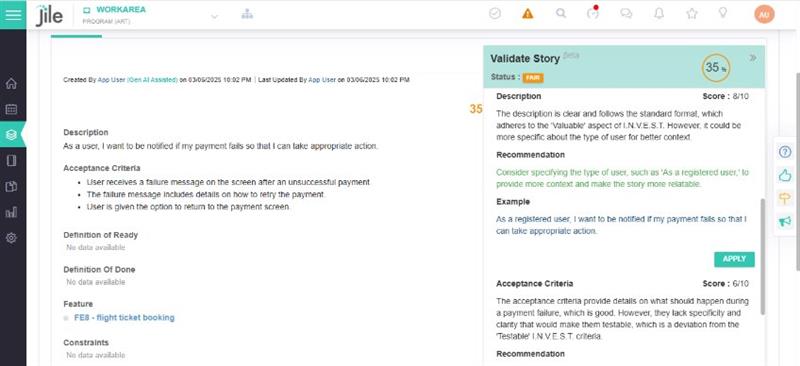
Step 3: Review the suggestions and click on "Apply"

Step 3

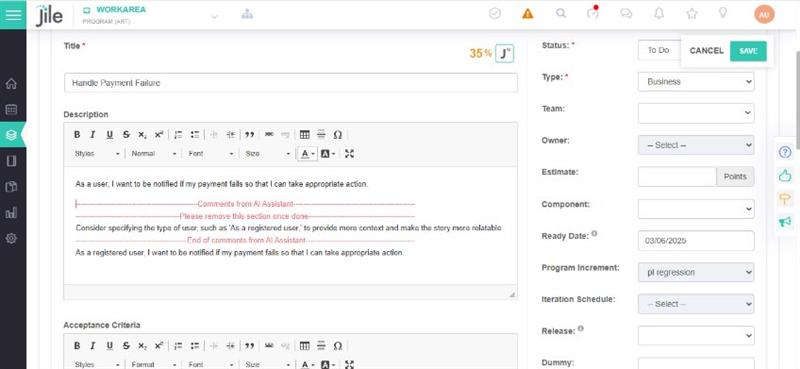
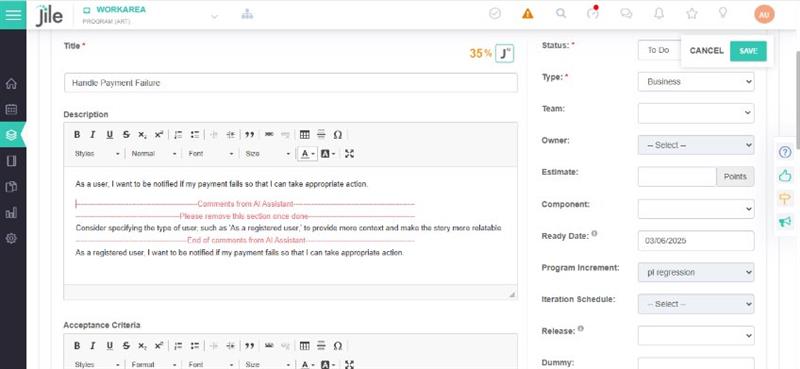
Step 4: Story will open in edit mode with applied suggestions

Step 4

Step 5: Update the content as per suggestion and click "Save"

Step 5

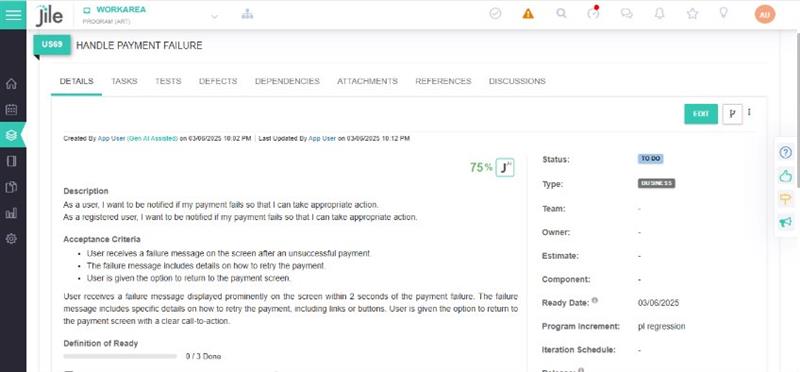
Step 6: Story after applying the suggestions

Step 5

Generating Test Cases for User Stories using AI Assist

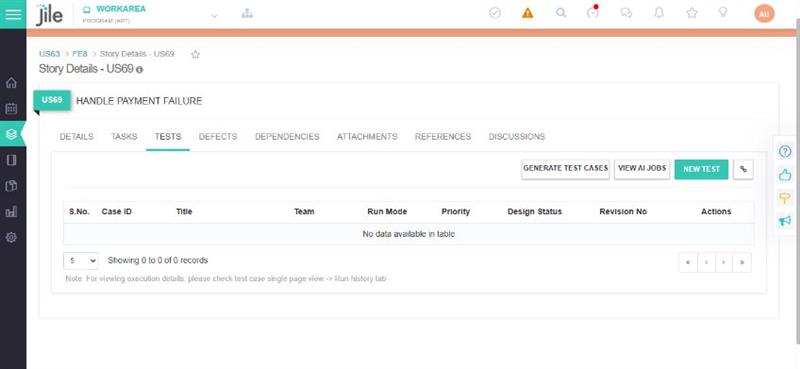
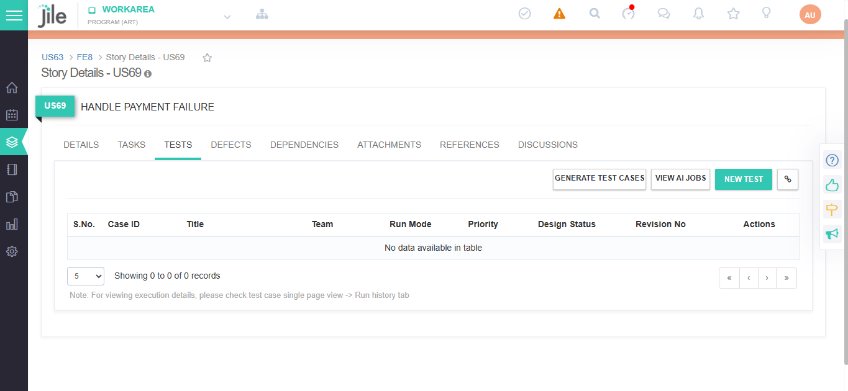
Step 1: Goto a Story/Feature Single page view Tests tab

Step 1

Step 2: Click on "Generate Test cases" Button

Step 2

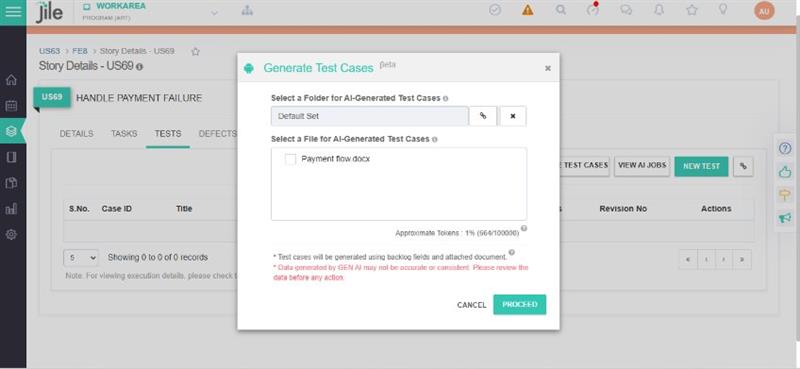
Step 3: In the popup dialog will appear

Step 3

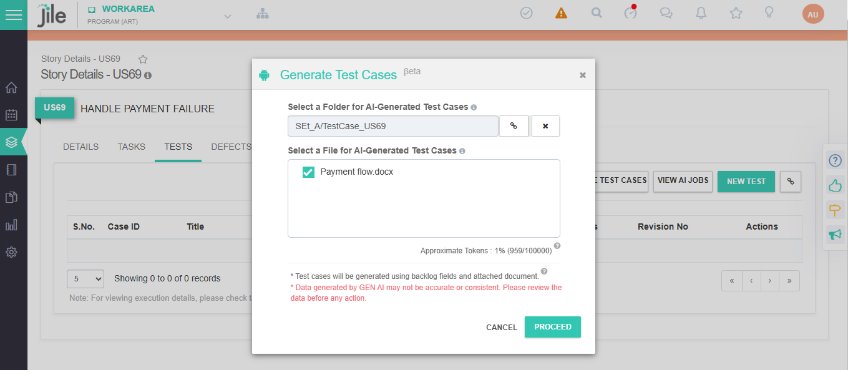
Step 4: Select the attachment, folder location and click on "Proceed"

Step 4

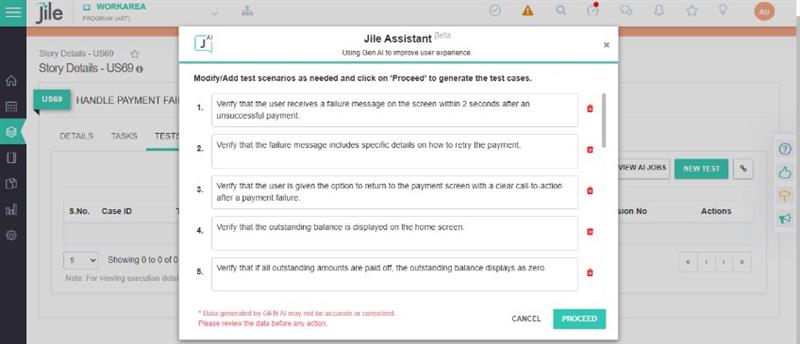
Step 5: Jile Assistant will provide test scenarios/ considerations for review

Step 5

Step 6: Add/Edit/Delete additional coverages and Proceed
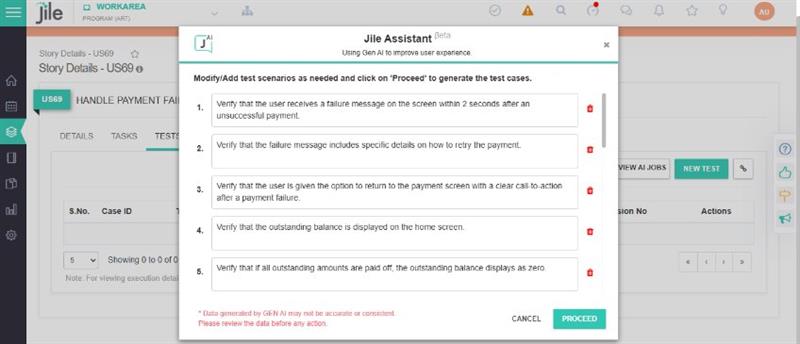
Step 5

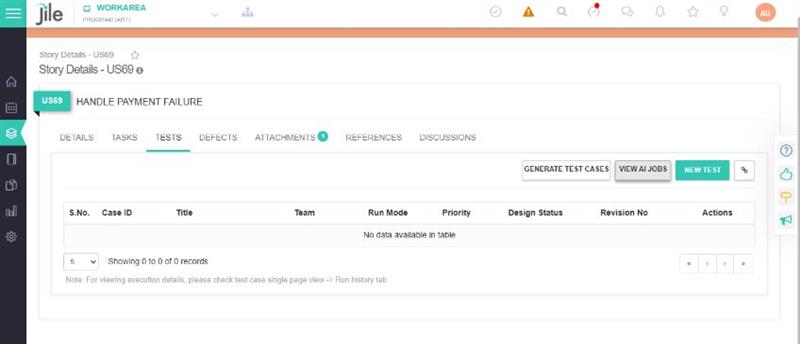
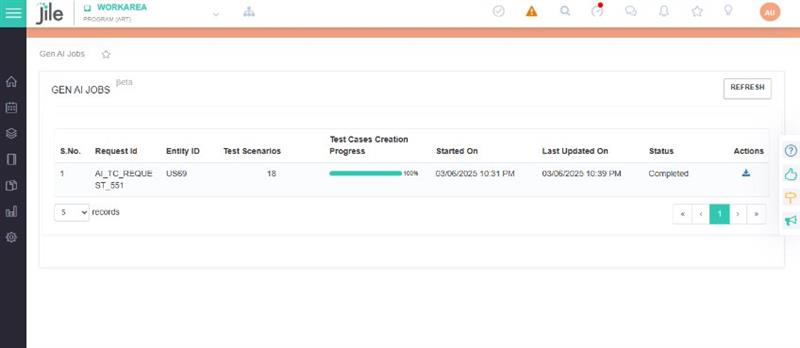
Step 7: AI Batch job will be submitted. Click "View AI Jobs" to see progress

Step 7

Step 8: In about 20-30 minutes, Job status will show "Completed"

Step 5

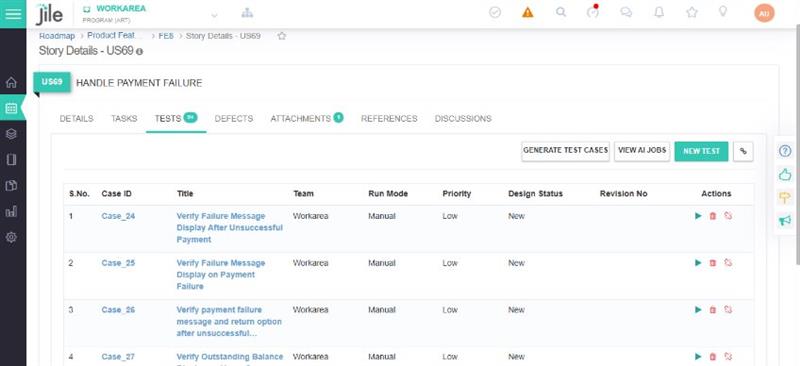
Step 9: Generated Tests will appear in "Tests" tab

Step 5

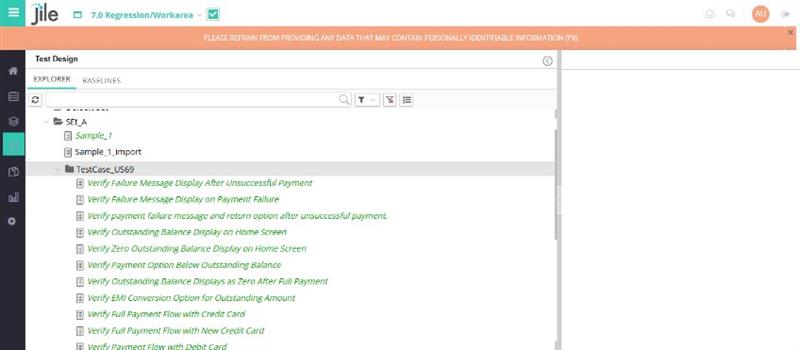
Step 10: Tests can also be viewed from "Test Design" Module in the selected folder as well

Step 5

A Power-packed Insights Framework with Numerous Outstanding Features for Better Visualization
The following features in Gen AI provide details of various visualizations that offer data analysis capabilities.
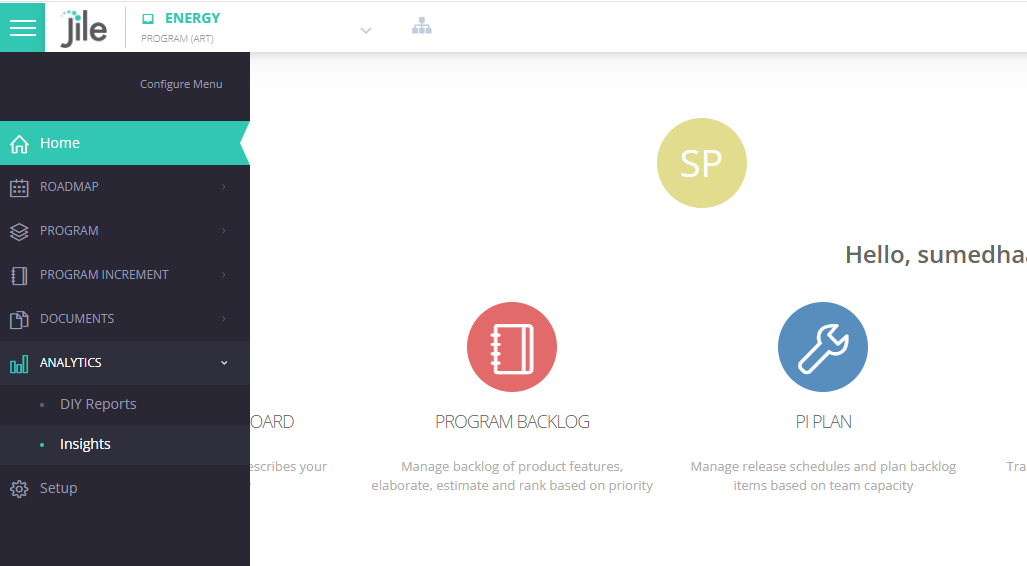
Follow these steps to View Program Dashboard

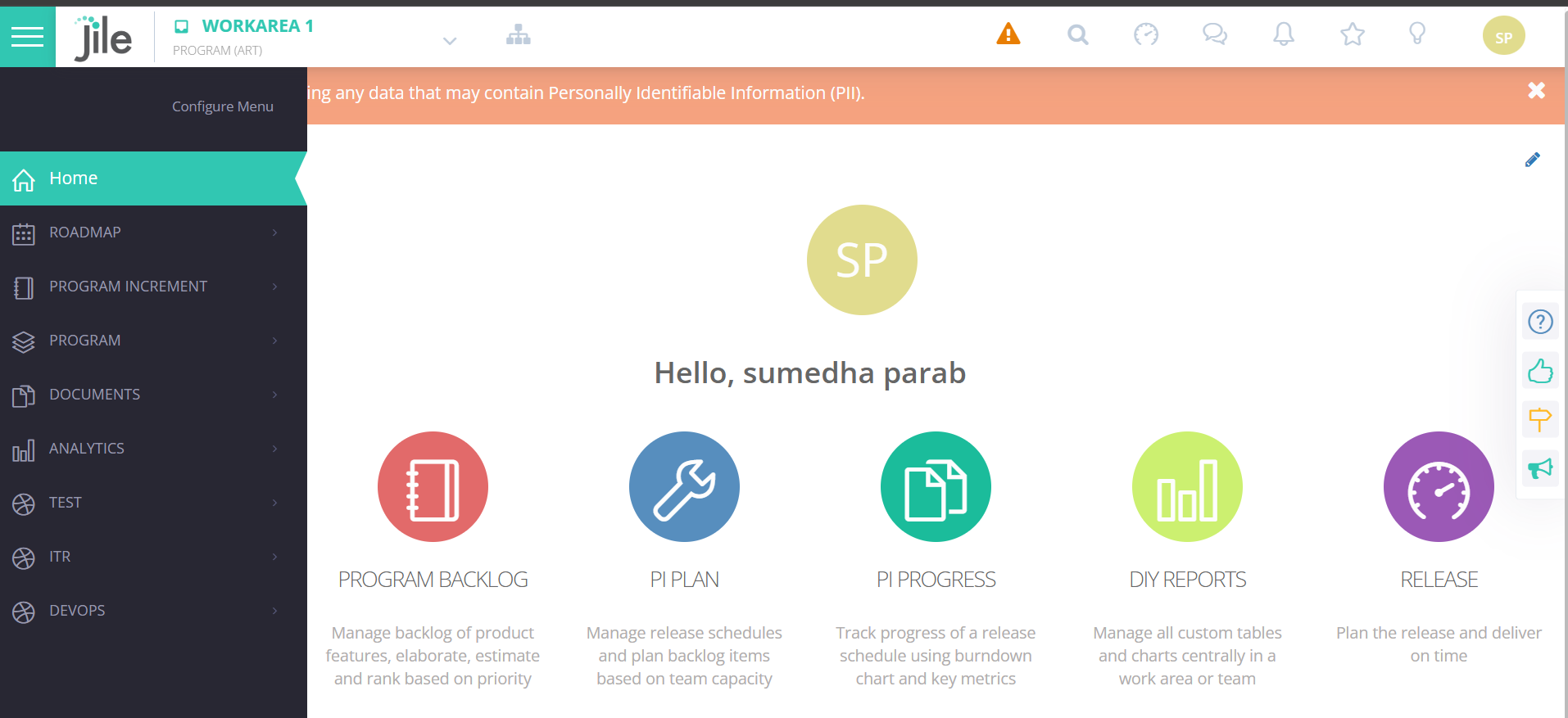
Step 1: Click on the hierarchical menu located at the top-left corner and click on Analytics.

Step 1

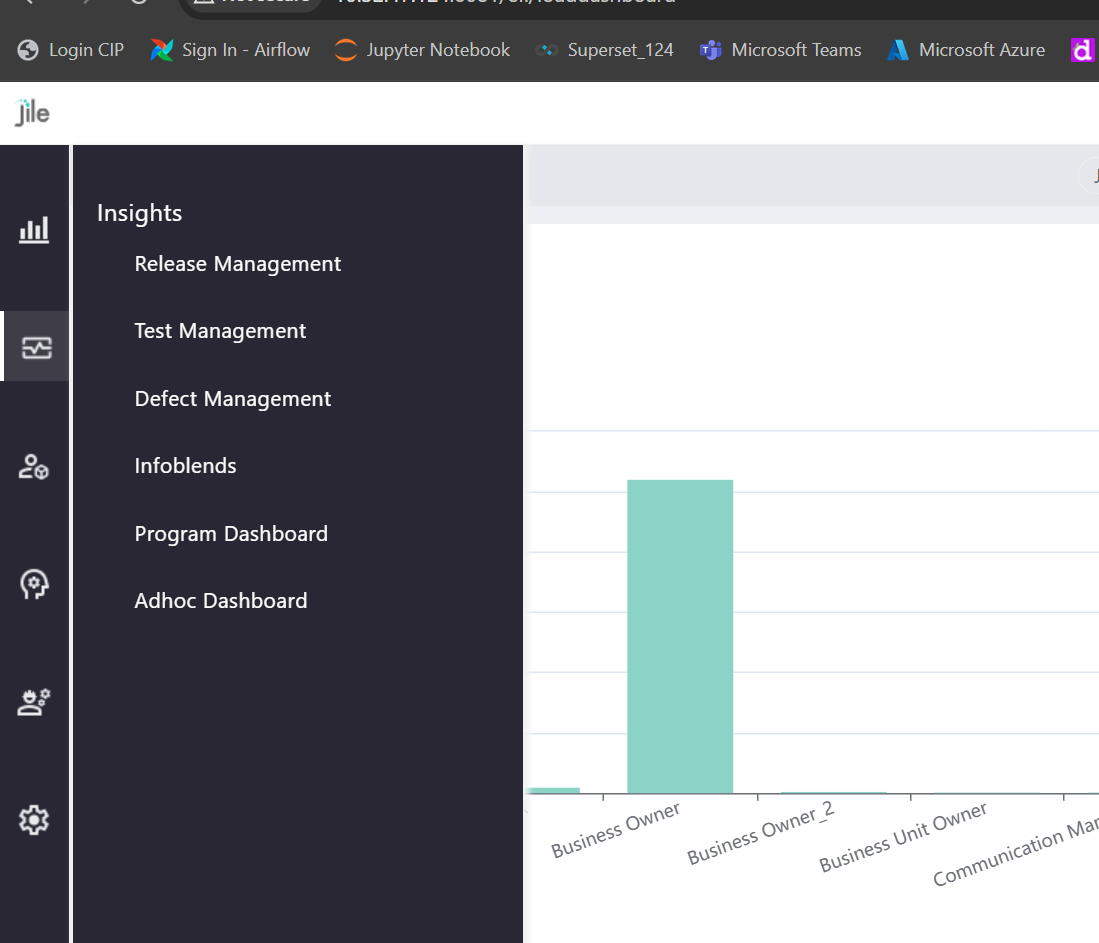
Step 2: Click on Insights and you will be redirected to the default landing page - the Program Dashboard - which provides a comprehensive overview of key metrics and analytics.

Step 2

Step 3: Select appropriate page-level filters such as Workspace, Work Area, and Date Range, based on your requirements.

Step 3

Step 4: Click on 'Apply' and you'll see insights based on your selection.

Step 4

Report Categories

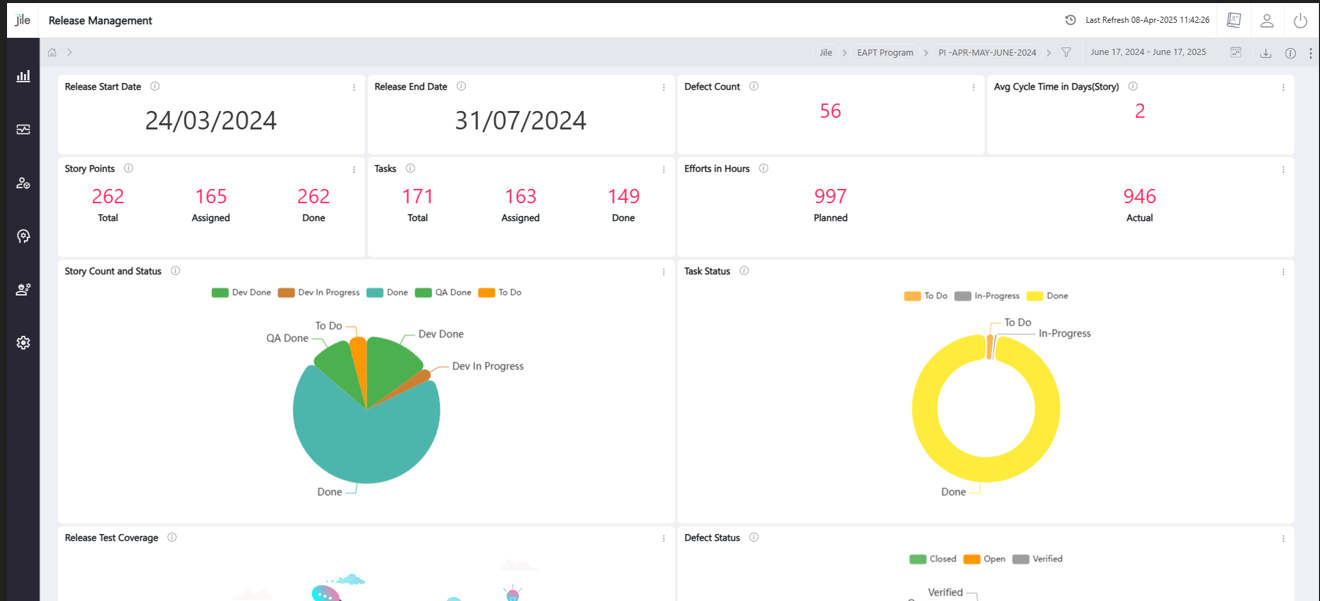
Release Management

Step 1: Select from Release Management

Step 1

Step 2: Select filters: Workspace, Work Area, Release name, and Date Range.

Step 2

Step 3: Click 'Apply' to refresh the view.

Step 3

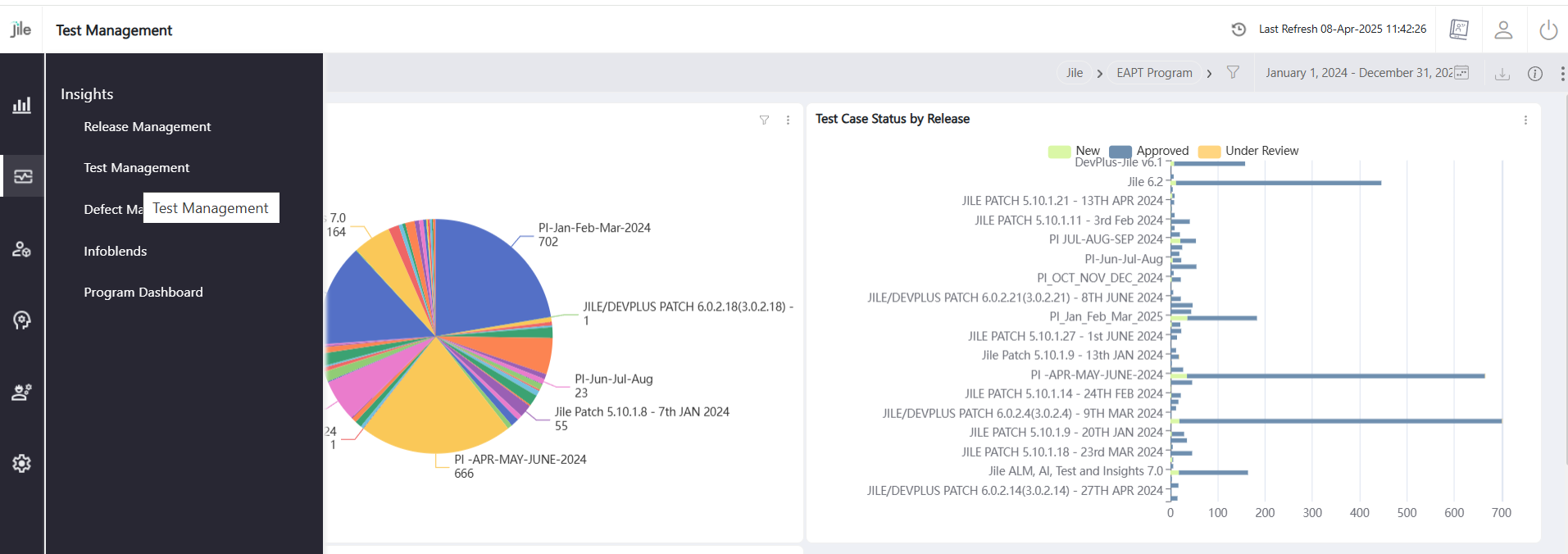
Test Management

Step 1: Click on the Test Management section.

Step 1

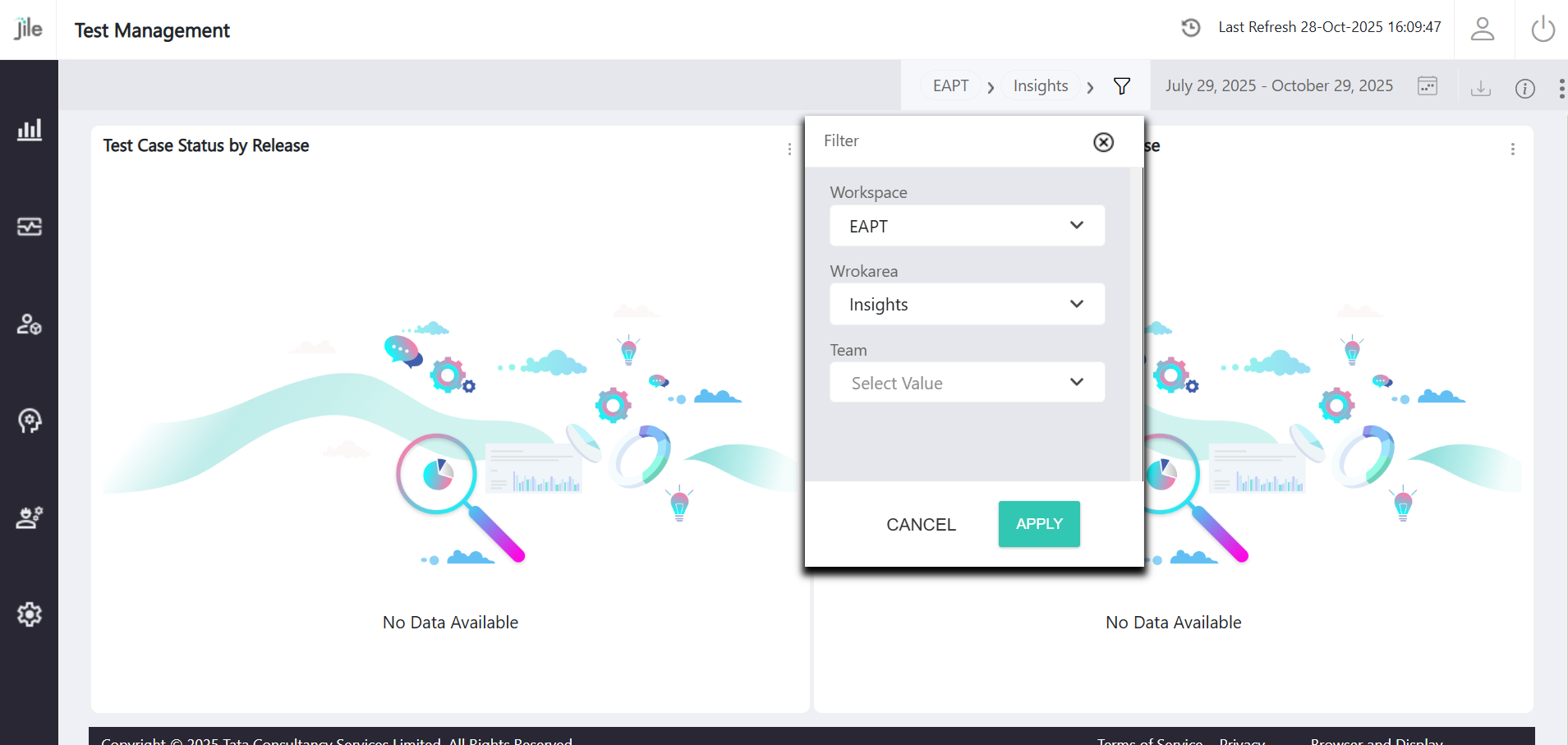
Step 2: Select filters: Workspace, Work Area, Release name, and Date Range.

Step 2

Step 3: Click 'Apply' to refresh the view.

Step 3

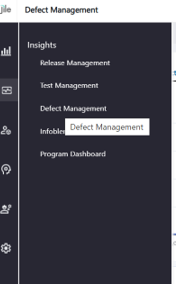
Defect Management

Step 1: Click on the Defect Management section.

Step 1

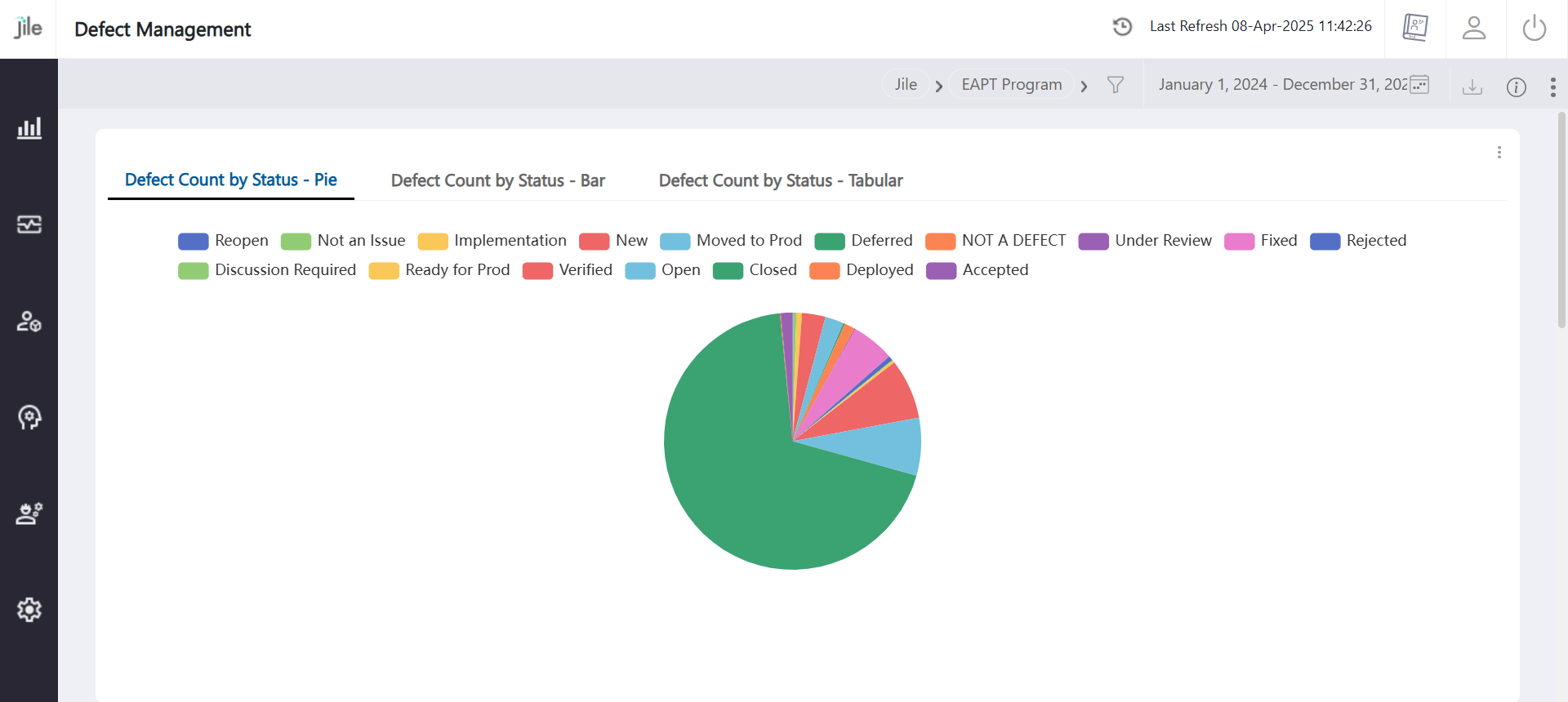
Step 2: Select filters: Workspace, Work Area, Release name, and Date Range.

Step 2

Step 3: View the comprehensive defect reports.

Step 3

Analytics

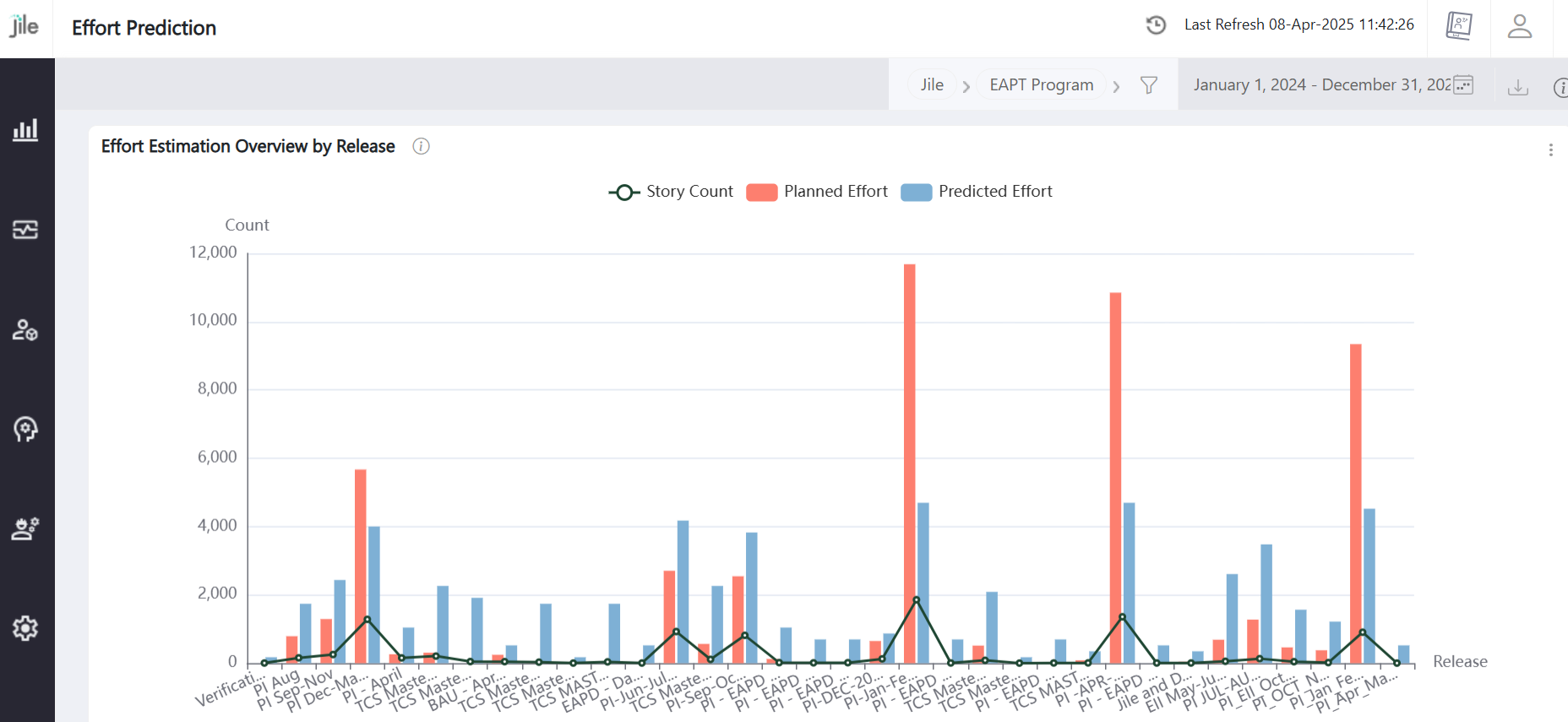
Effort Prediction

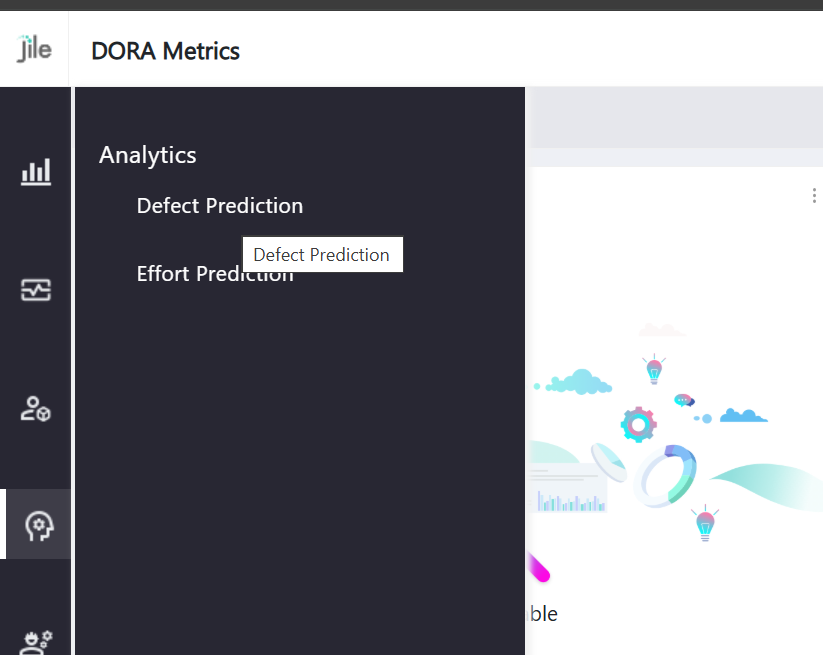
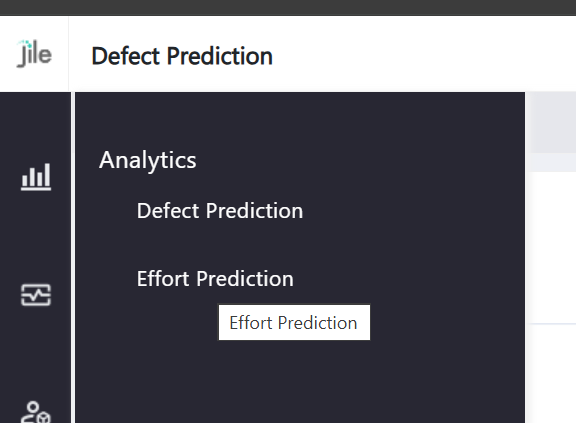
Step 1: Click the Analytics icon on the left menu.Access the Effort Prediction tabs.

Step 1

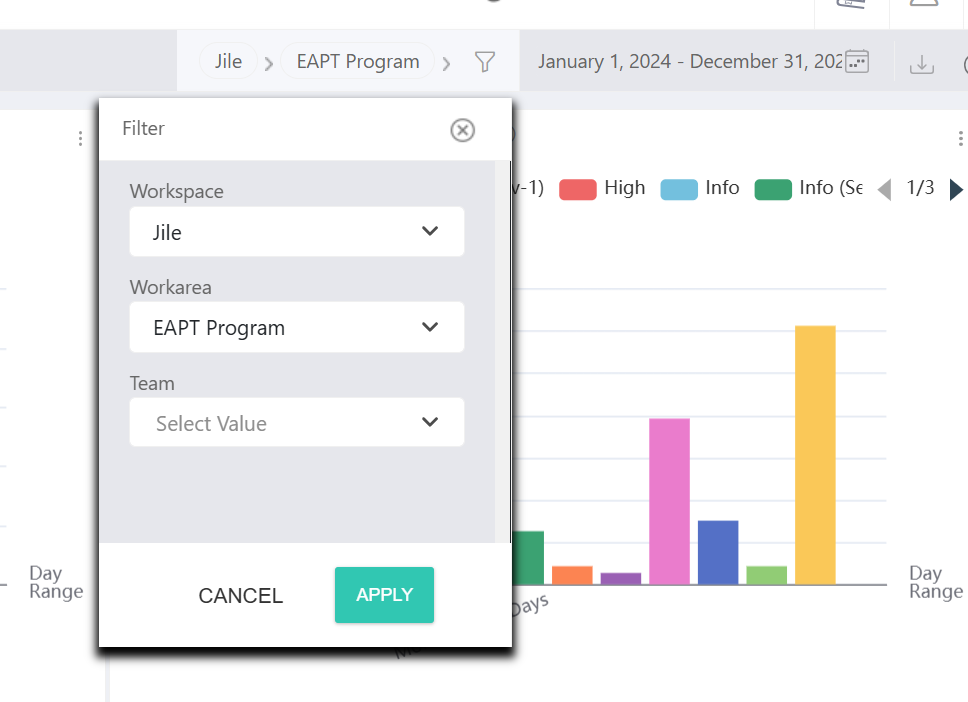
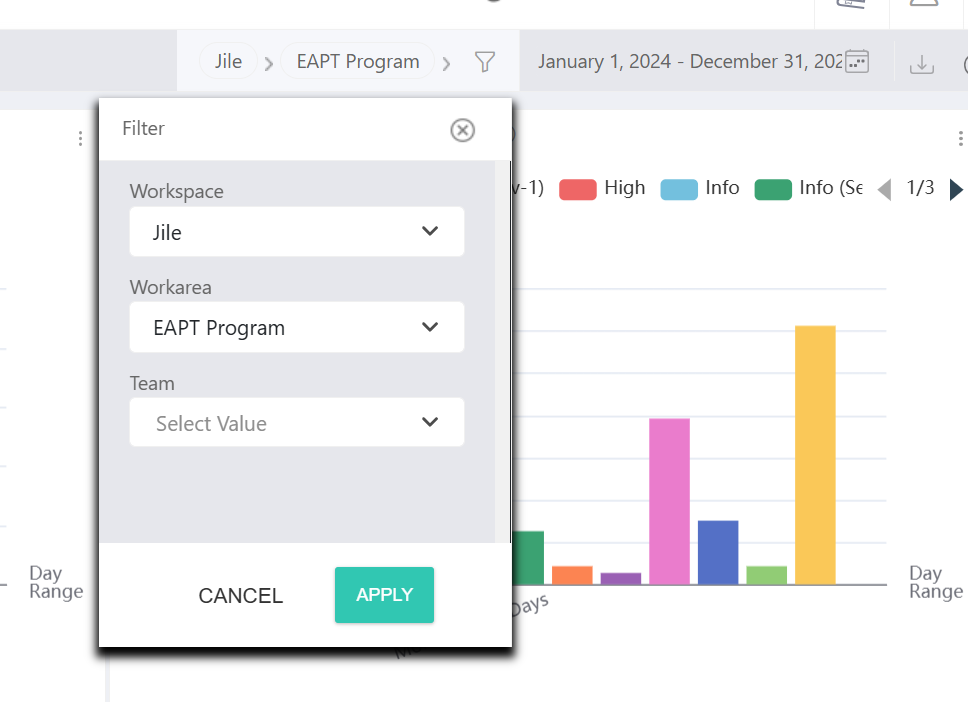
Step 2: Select Workspace, Work Area, Team (optional), and Date Range.

Step 2

Step 3: Click 'Apply' to refresh the view.

Step 3

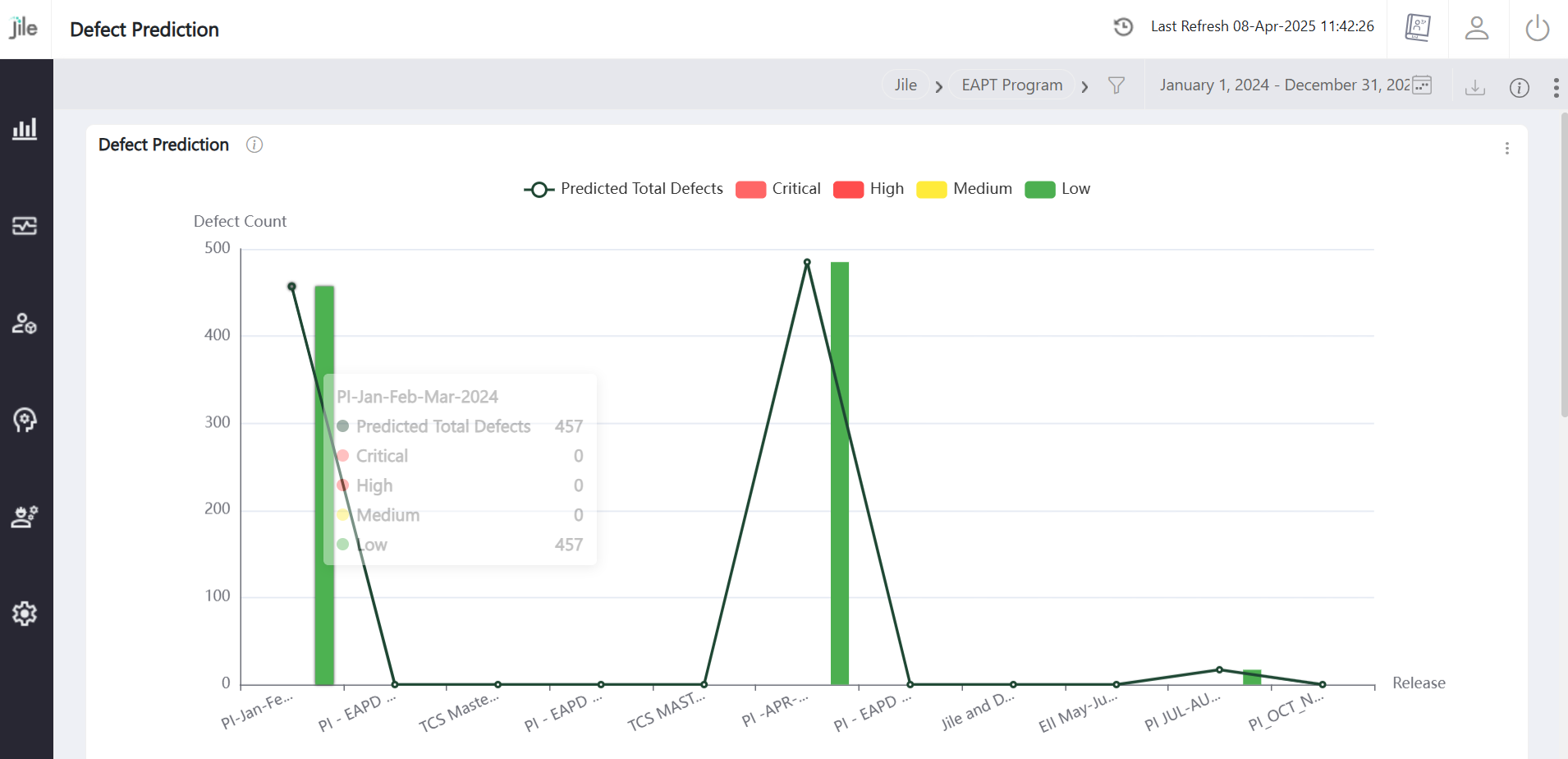
Defect Prediction

Step 1: Click the Analytics icon on the left menu.Access the Defect Prediction tabs.

Step 1

Step 2: Select filters: Workspace, Work Area, Team (optional), and Date Range.

Step 2

Step 3: Click 'Apply' to refresh the view.

Step 3

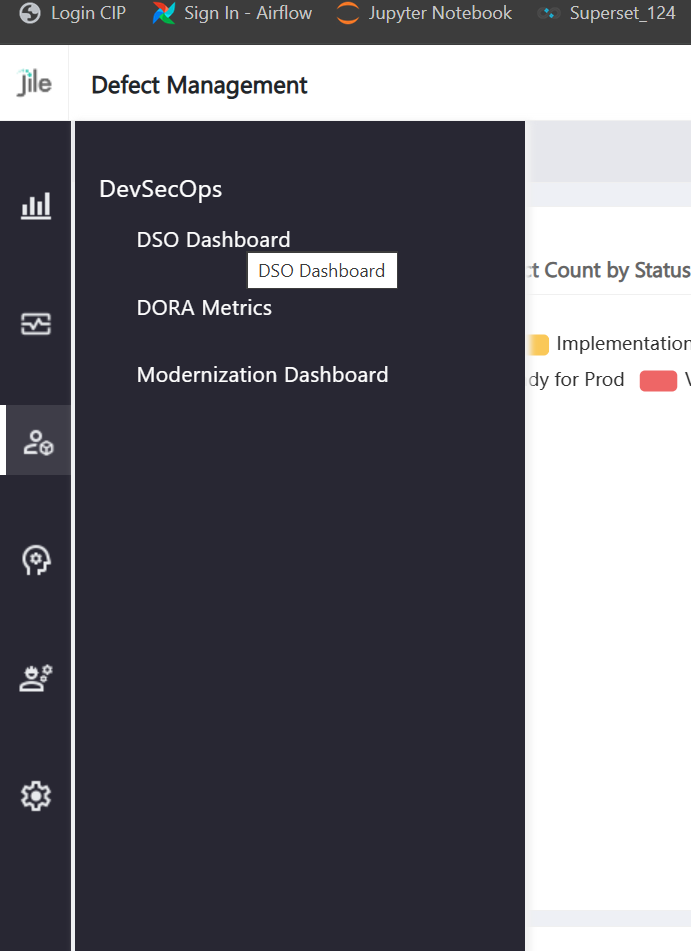
DSO Dashboard

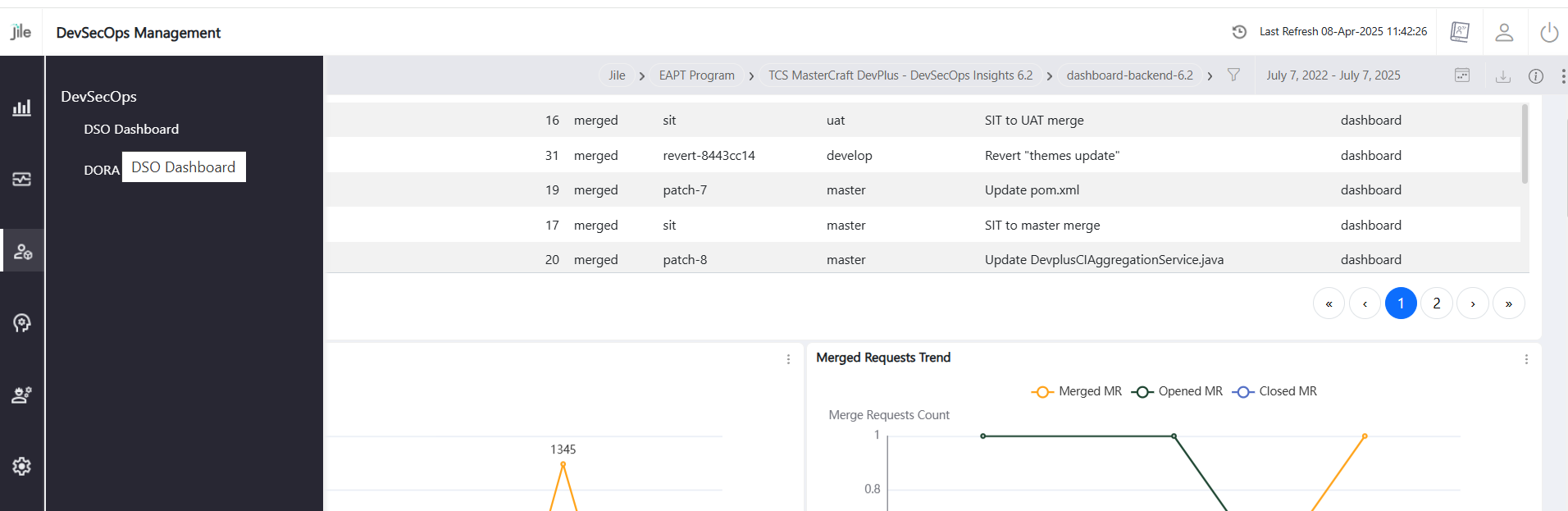
Step 1: Select the DSO Dashboard or DORA Metrics menu.

Step 1

Step 2: Choose filters: Work Area, Workspace, Release Name, Pipeline, and Date Range.

Step 2

Step 3: Click 'Apply' to refresh the view and see insights.

Step 3