Agile Work Management

Enhanced Risk Planning and Ownership

Follow these steps to configure Risk Repository and manage risks

    • Navigate to Jile Dashboard
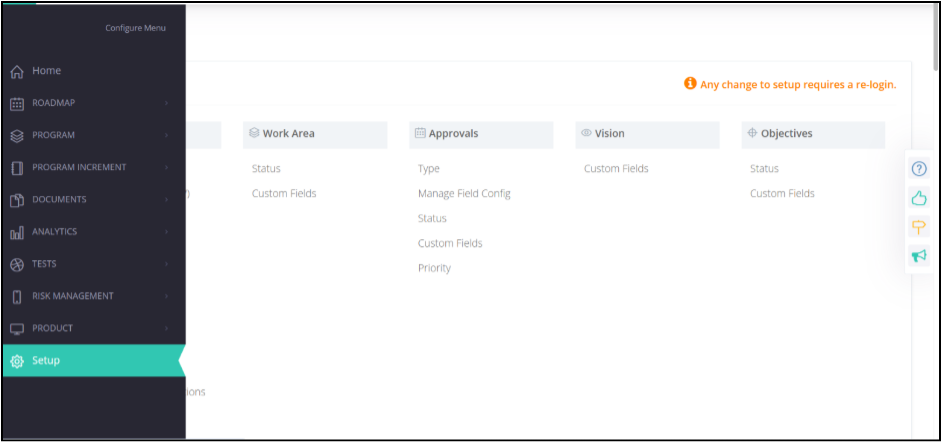
    • Navigate to Setup
    Step 1
  • Step 2
  • Step 3
  • Including Risks entity in DIY reports

    • Navigate to Jile Dashboard
    • Click DIY Reports
    Step 1
  • Step 2
  • Step 2
  • Step 2
  • Tagging Program Increment to Risk

    • Navigate to Jile Dashboard
    • Navigate to Setup
    Step 1
  • Step 2
  • Step 2
  • Step 2
  • Risk Tagging to Capability

    • Navigate to Jile Dashboard
    • Click DIY Reports
    Step 1
  • Step 2
  • Step 2
  • Step 2
  • More Power to the Centralized Review Teams

    Audit History for Approvals

    • Navigate to Jile Dashboard
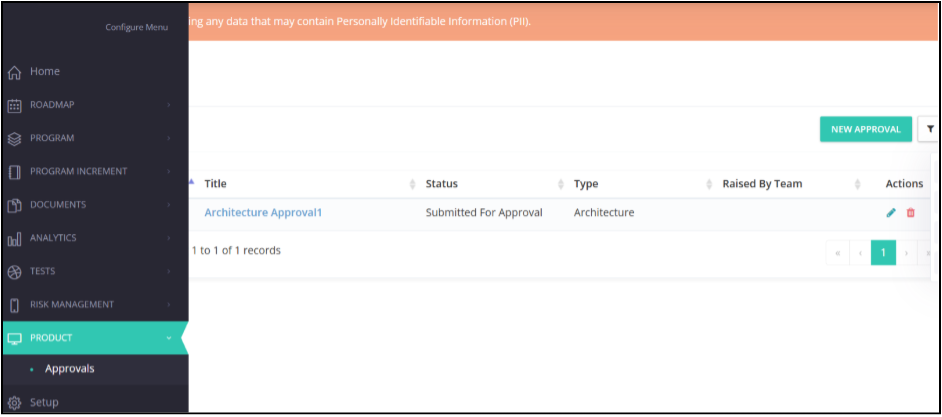
    • From the left menu, within PRODUCT, click Approvals.
    Step 1
  • Step 2
  • Step 3
  • Using Preferred Terminology for Approval

    • Navigate to Jile Dashboard
    • From the left menu, click Setup..
    Step 1
  • Step 2
  • Step 3
  • Including Approval Entity under DIY Reports

    • Navigate to Jile Dashboard
    • From the left menu, within ANALYTICS, click DIY Reports.
    Step 1
  • Step 2
  • Step 3
  • Step 3
  • Flexible, Framework-Agnostic Workspace Creation

    Follow these steps to view the changes

  • Step 2
  • Step 3
    • Fill up the required details for workspace creation and click CREATE.
    • A new workspace is created with universal terminology.
    Step 1

Enhanced Test Management with Key Features

Revamped Help Content for Test and Defect Management Modules

    • Navigate to Jile Dashboard
    • On the right-hand corner, locate the Help icon and click it.
    Step 1
  • Step 2
  • Step 3
  • Step 4

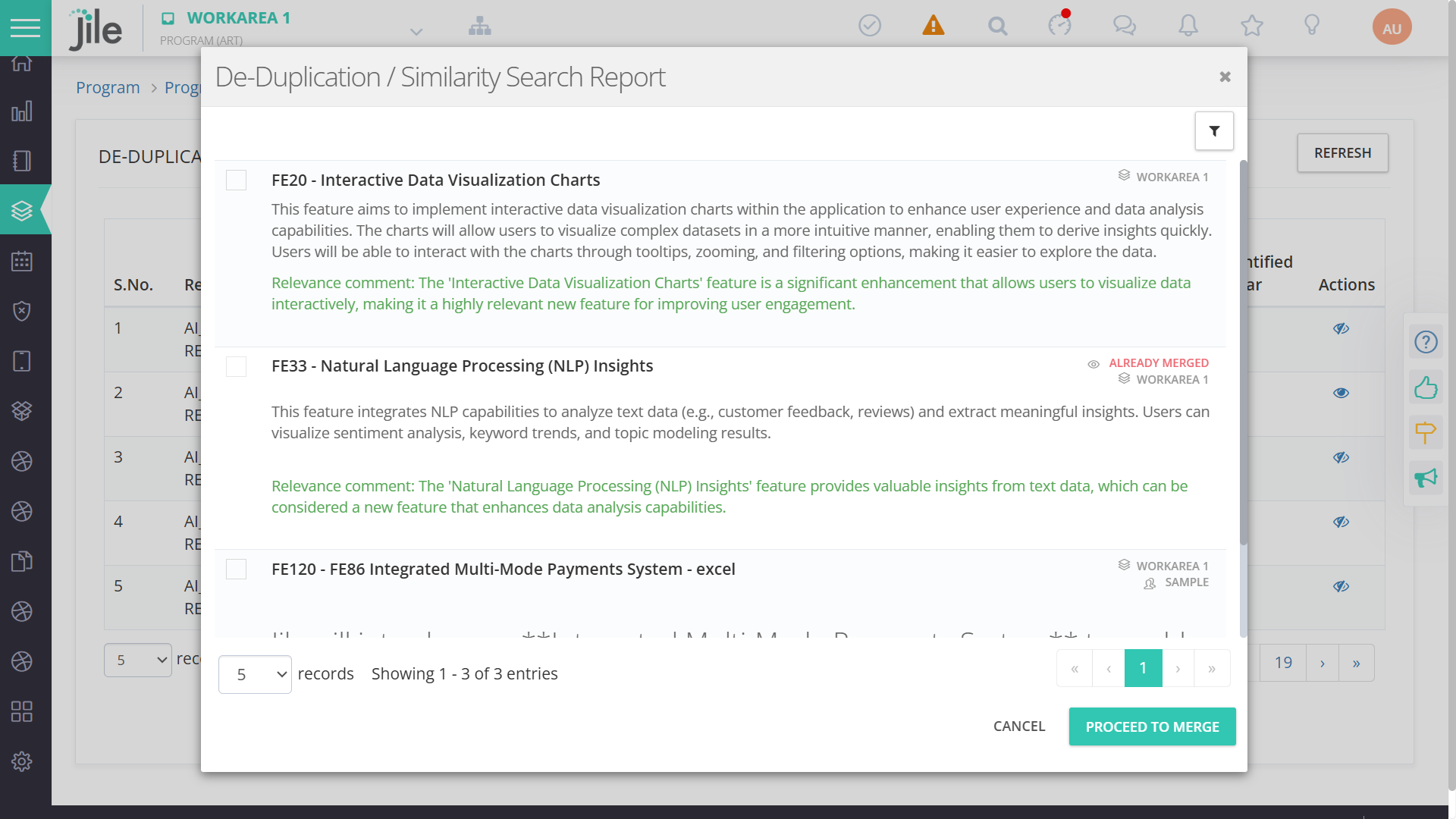
AI Assist - Deduplication/Similarity Search for Features in the Backlogs with merging actions

  • Step 5
  • Step 5
  • Step 5
  • Step 5
  • Step 5
  • Step 2
  • Step 2
  • Step 2
  • Step 2
  • Jile AI Assist - Release Tracking

  • Step 5
  • Step 5
  • Step 5
  • Generating Test Cases for User Stories using AI Assist

  • Step 5
  • Step 5
  • Step 5
  • Step 5

A Power-packed Insights Framework with Numerous Outstanding Features for Better Visualization

Follow these steps to View Program Dashboard

  • Step 5
  • Step 5
  • Step 5
  • Step 5
  • Defect Management

  • Step 5
  • Step 5
  • Step 5
  • Reporting Dashboard

    Execution Reports

  • Step 5
  • Step 5
  • Iteration wise Reports

  • Step 5
  • Step 5
  • Step 5
  • Kanban Reports

  • Step 5
  • Step 5
  • Step 5
  • Program Increment

  • Step 5
  • Step 5
  • Step 5
  • User

  • Step 5
  • Step 5
  • Step 5
  • Report Categories

    Release Management

  • Step 5
  • Step 5
  • Step 5
  • Test Management

  • Step 5
  • Step 5
  • Step 5
  • Defect Management

  • Step 5
  • Step 5
  • Step 5
  • DSO Dashboard

  • Step 5
  • Step 5
  • Step 5
  • DORA Metrics

  • Step 5
  • Step 5
  • Step 5

Agile Work Management

Enhanced Risk Planning and Ownership

Follow these steps to configure Risk Repository and manage risks

Including risks in email notifications

Step 1:

  • Login to Jile ALM UI
  • Navigate to Jile Dashboard
  • Navigate to Setup
Step 1

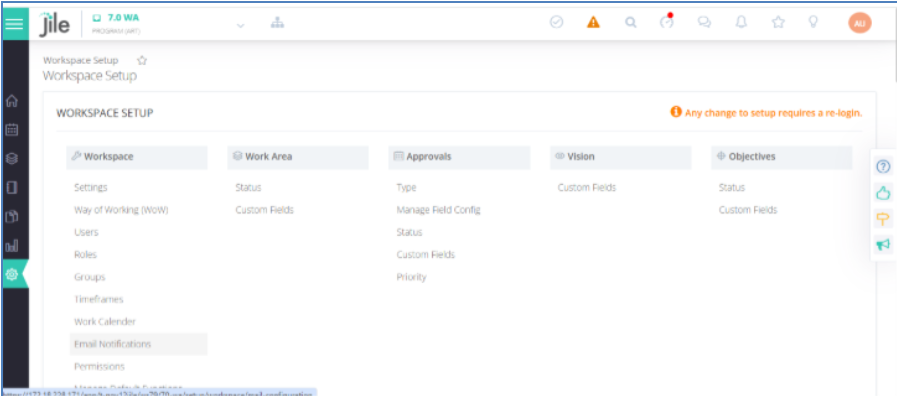
Step 2: Click Email Notifications.

Step 2

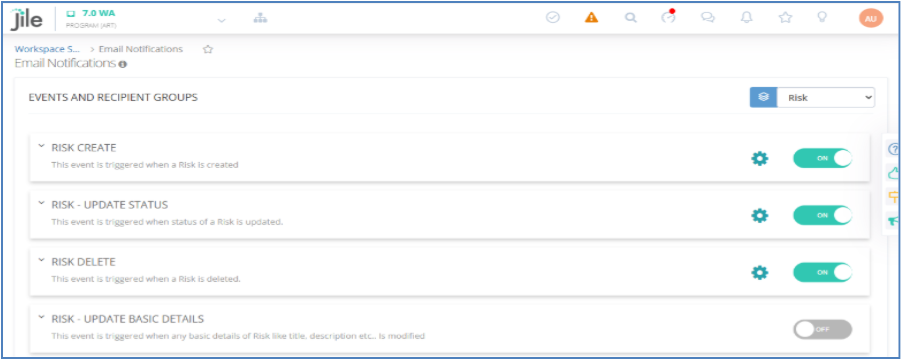
Step 3: Enable risk events

Step 3

Including Risks entity in DIY reports

Step 1:

  • Login to Jile ALM UI
  • Navigate to Jile Dashboard
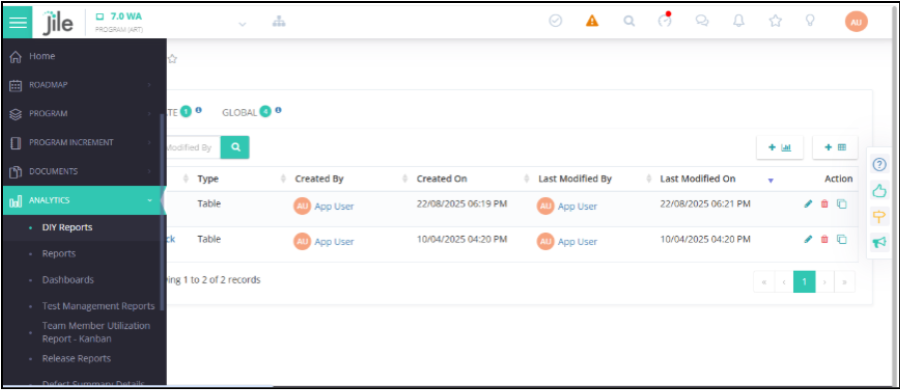
  • Click DIY Reports
Step 1

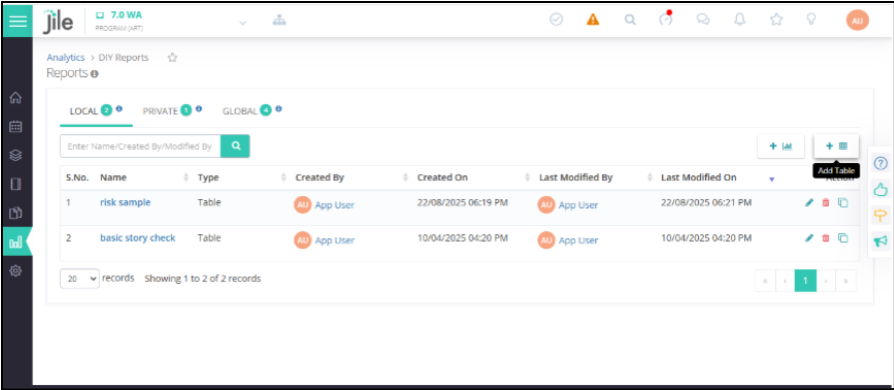
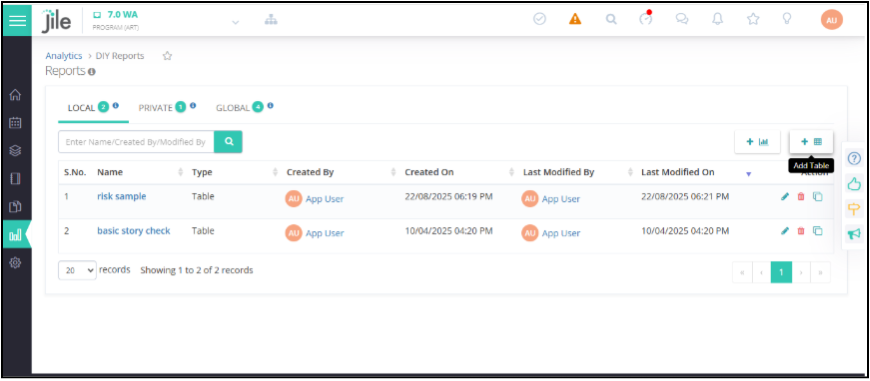
Step 2: Click the Add Table icon.

Step 2

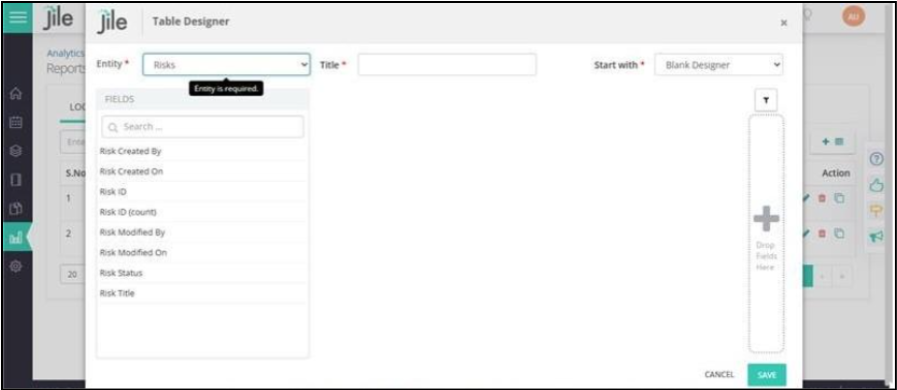
Step 3: From the Entity drop-down, choose Risks.
Step 3

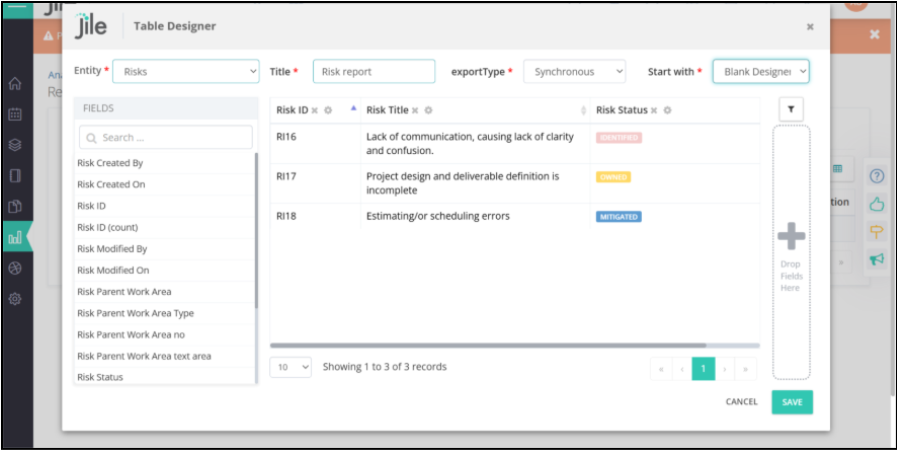
Step 4: Add the required fields and click SAVE to generate the report.
Step 3

Tagging Program Increment to Risk

Step 1:

  • Login to Jile ALM UI
  • Navigate to Jile Dashboard
  • Navigate to Setup
Step 1

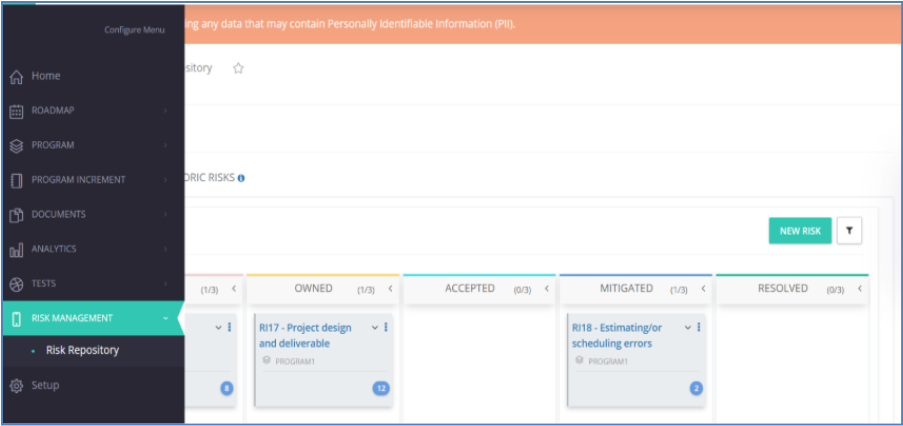
Step 2: From the left menu, within RISK MANAGEMENT, click Risk Repository.
Step 2

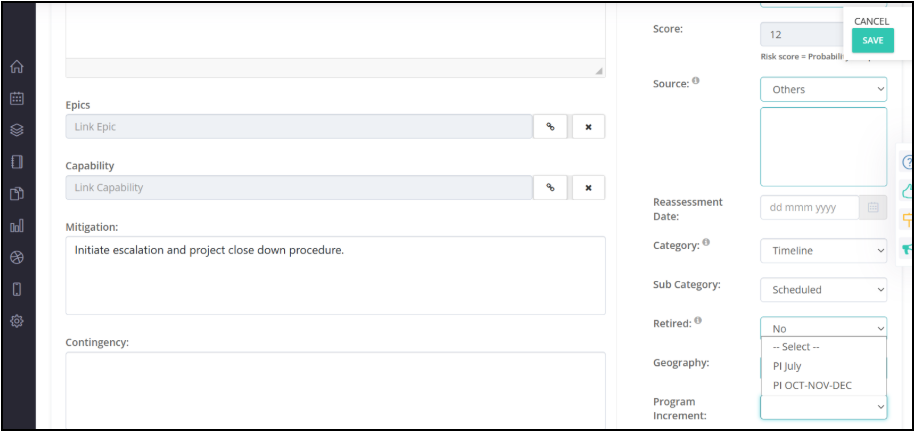
Step 3: In the New Risk page,from the Program Increment drop-down, choose the required option.
Step 3

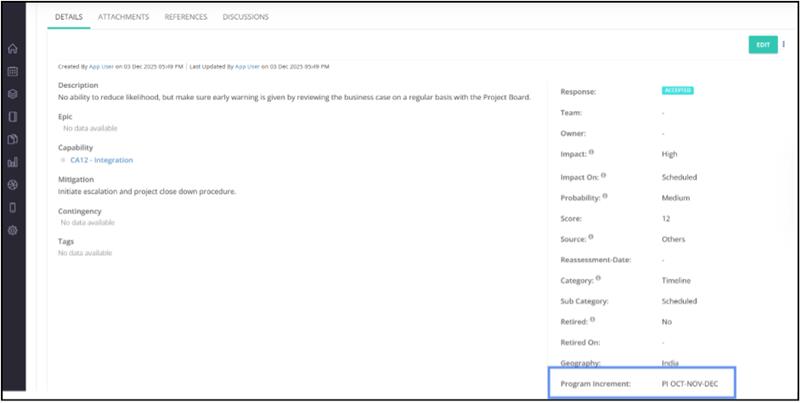
Step 4: After selecting the Program Increment, click SAVE.
Step 3

Risk Tagging to Capability

Step 1:

  • Login to Jile ALM UI
  • Navigate to Jile Dashboard
  • Navigate to Setup
Step 1

Step 2: From the left menu, within RISK MANAGEMENT, click Risk Repository.
Step 2

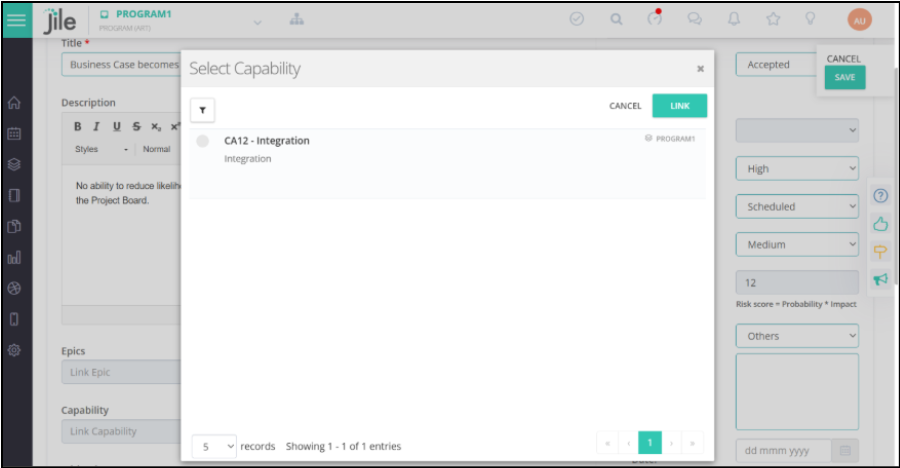
Step 3: Select the capability to be linked and click the LINK button.

Step 3

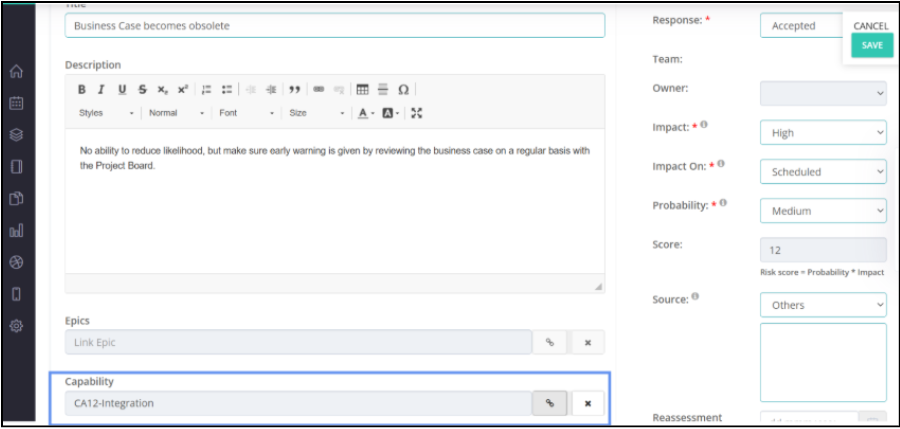
Step 4: The selected capability gets linked to the risk. .
Step 3

More Power to the Centralized Review Teams

Follow these steps for tagging Approvals under ODR

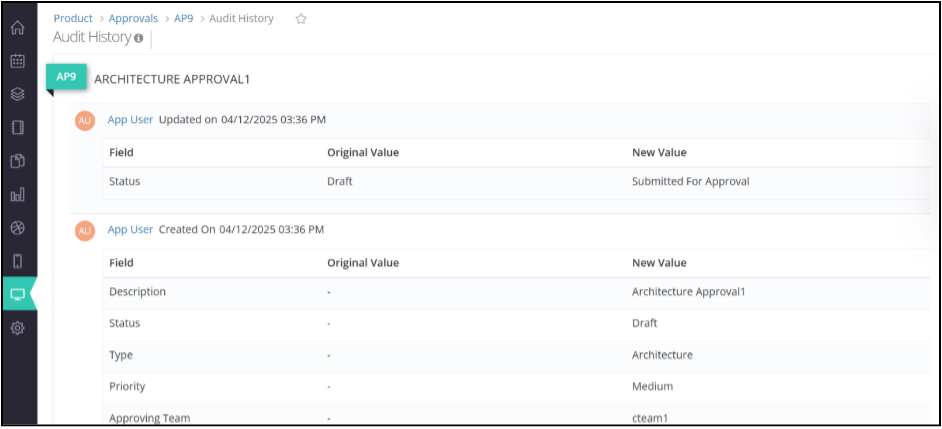
Audit History for Approvals

Step 1:

  • Login to Jile ALM UI
  • Navigate to Jile Dashboard
  • From the left menu, within PRODUCT, click Approvals.
Step 1

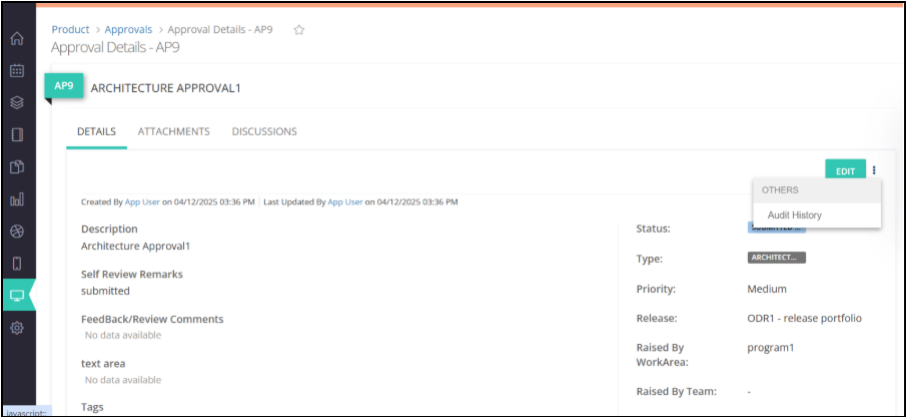
Step 2: Select an approval and open it in Single Page View. Click Context menu.
Step 2

Step 3: From the Context menu options, click Audit History.
Step 3

Using Preferred Terminology for Approval

Step 1:

  • Login to Jile ALM UI
  • Navigate to Jile Dashboard
  • From the left menu, click Setup.
Step 1

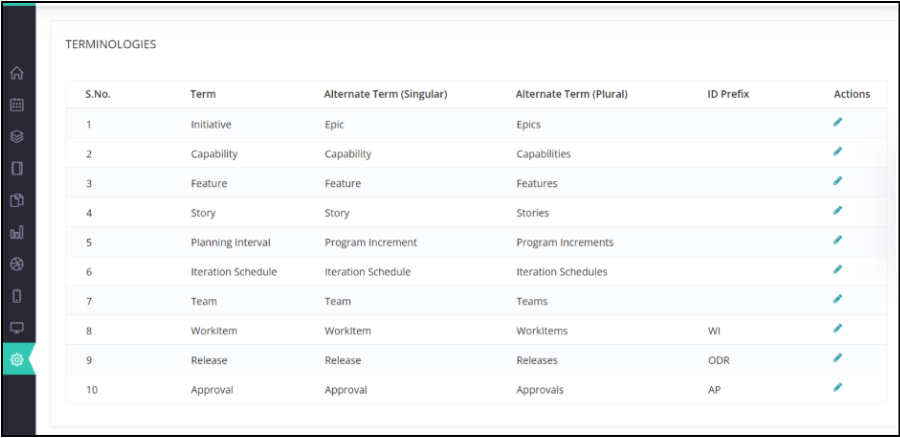
Step 2: Access the Way of Working (WoW) section and scroll down to Terminologies.
Step 2

Step 3: Modify the terminology based on your preference and click the tick mark to save.
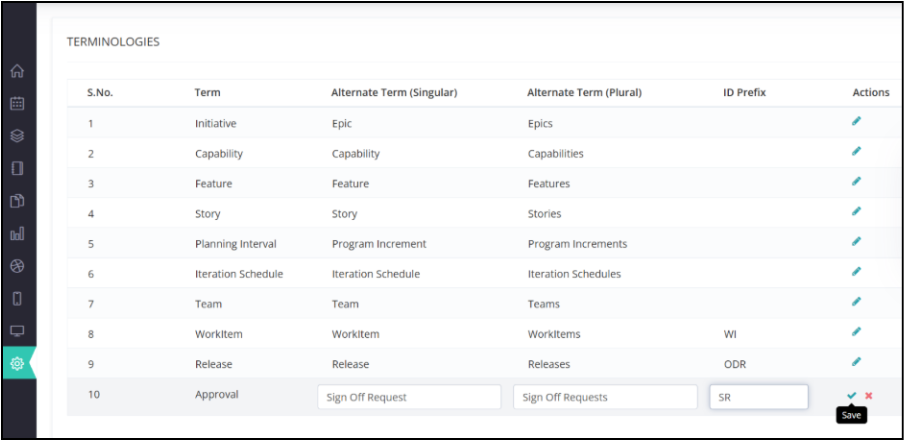
Step 3

Including Approval Entity under DIY Reports

Step 1:

  • Login to Jile ALM UI
  • Navigate to Jile Dashboard
  • From the left menu, within ANALYTICS, click DIY Reports.
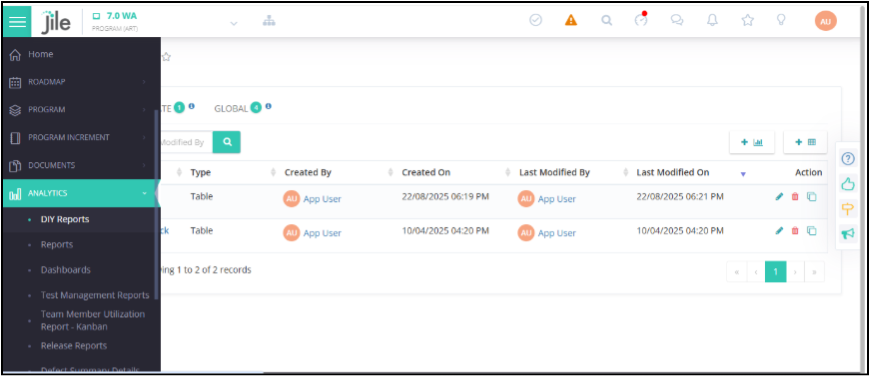
Step 1

Step 2: Click the Add Table icon.

Step 2

Step 3: From the Entity drop-down, choose Approvals.
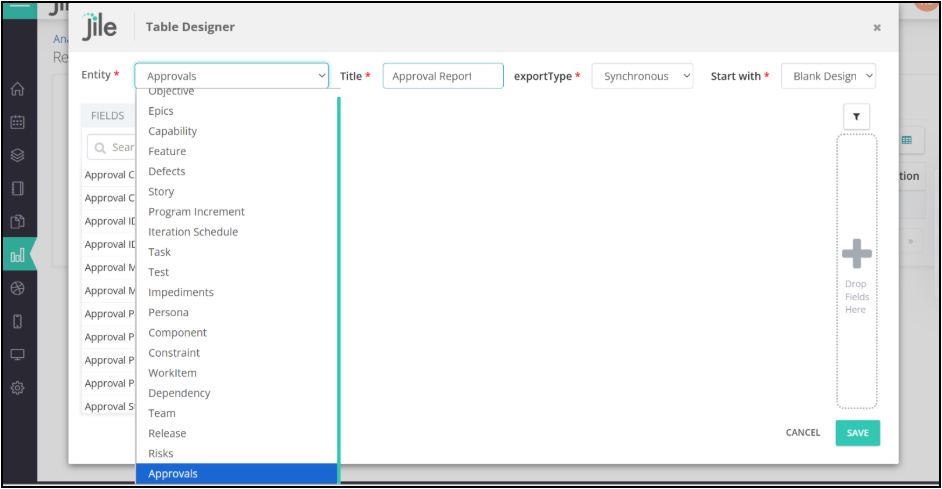
Step 3

Step 4: Add the required fields and click SAVE to generate the report.
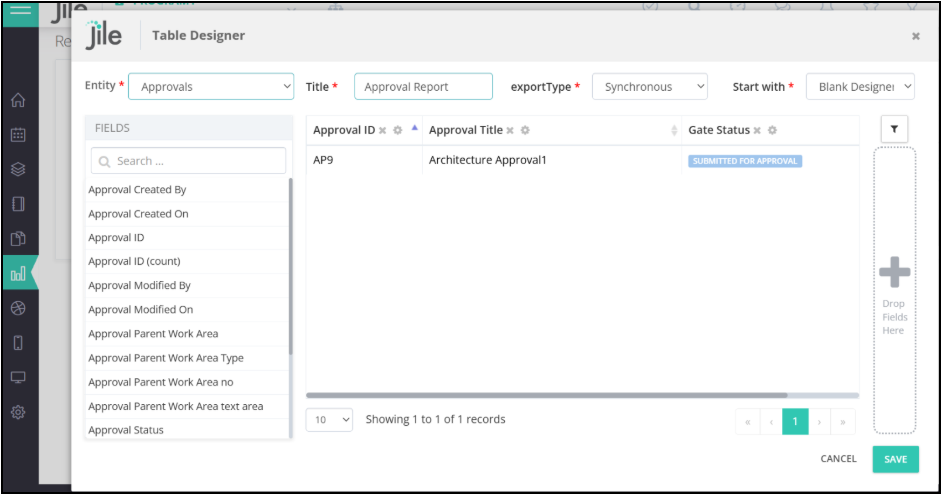
Step 3

Flexible, Framework-Agnostic Workspace Creation

Follow these steps to view the changes

Step 1: Click the drop-down located next to the workspace name. In the popover, click New Workspace.
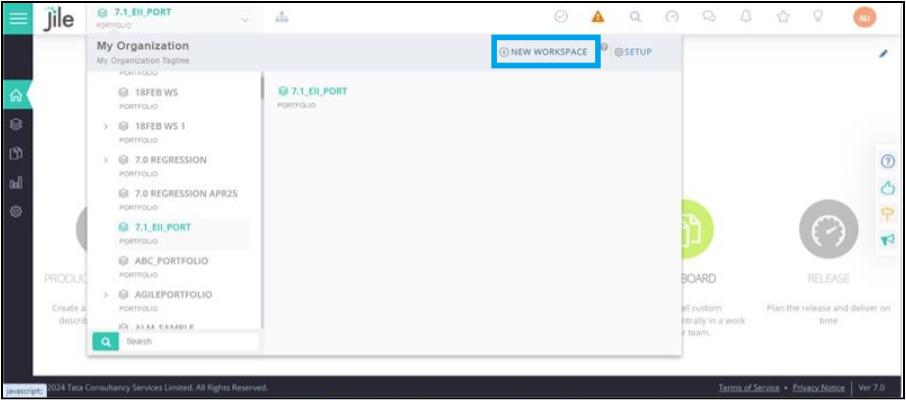
Step 1

Step 2: From the list of Wow types, click let me congfigure my own way.
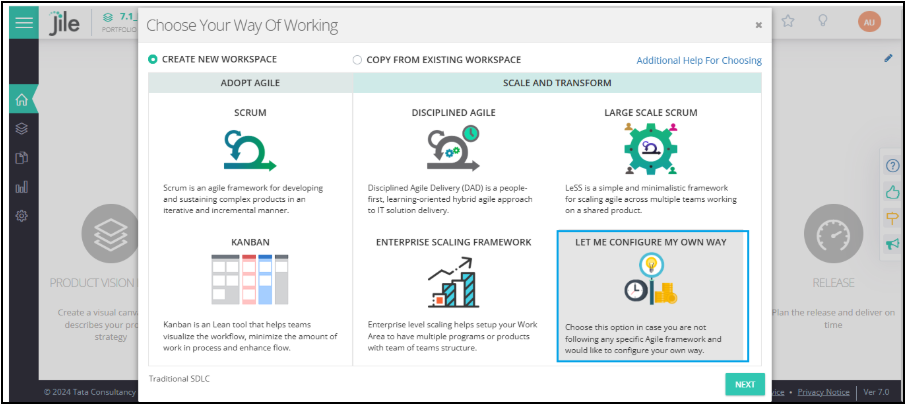
Step 2

Step 3:

  • Enter workspace details and Create
  • Fill up the required details for workspace creation and click CREATE.
  • A new workspace is created with universal terminology.
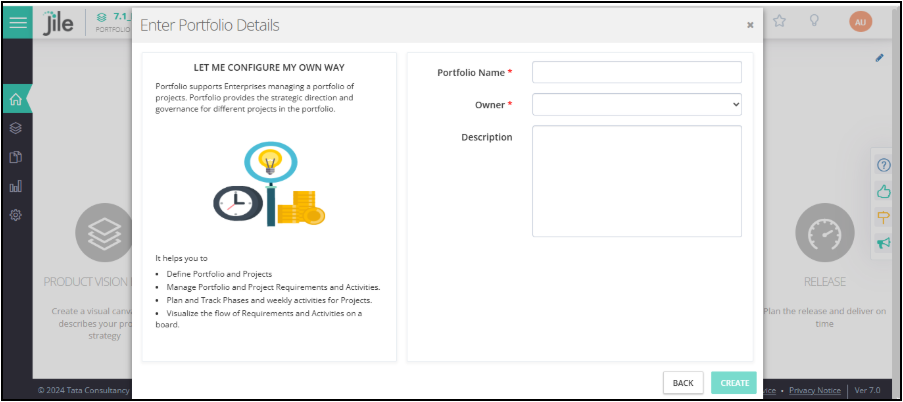
Step 3

Enhanced Test Management with Key Features
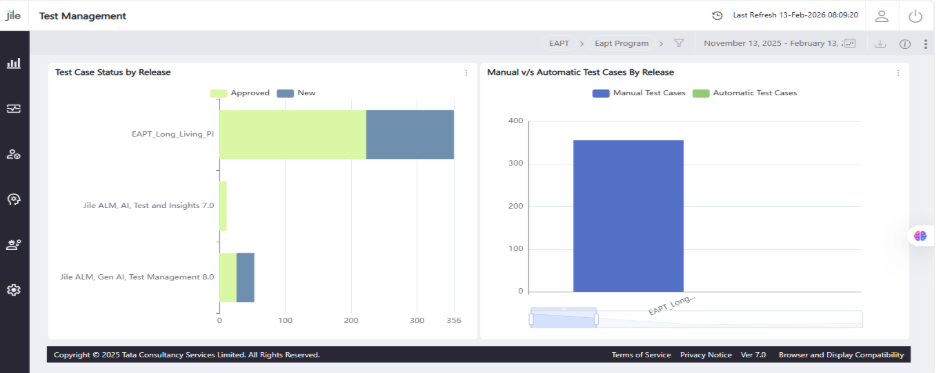
Revamped Help Content for Test and Defect Management Modules
Step 1:

  • Login to Jile ALM UI
  • Navigate to Jile Dashboard
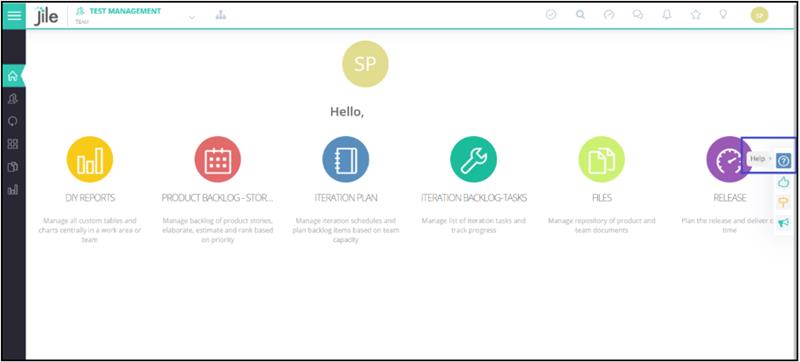
  • On the right-hand corner, locate the Help icon and click it.
Step 1

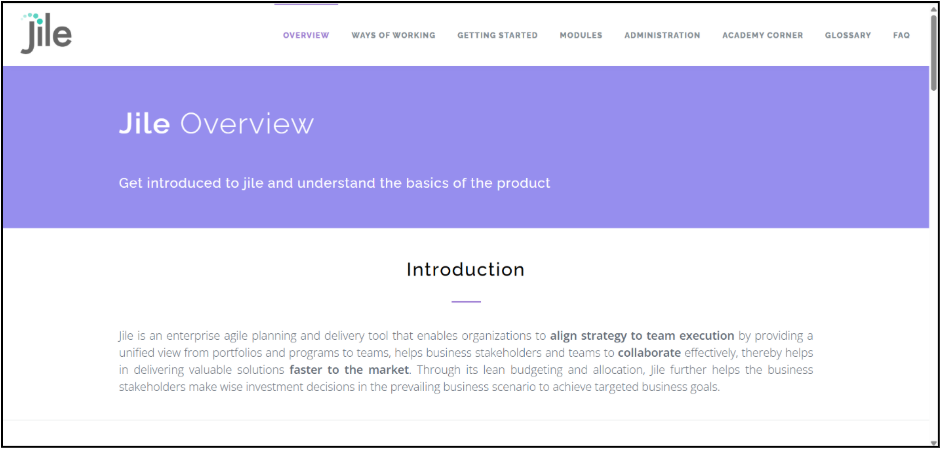
Step 2: The Jile Overview page appears.

Step 2

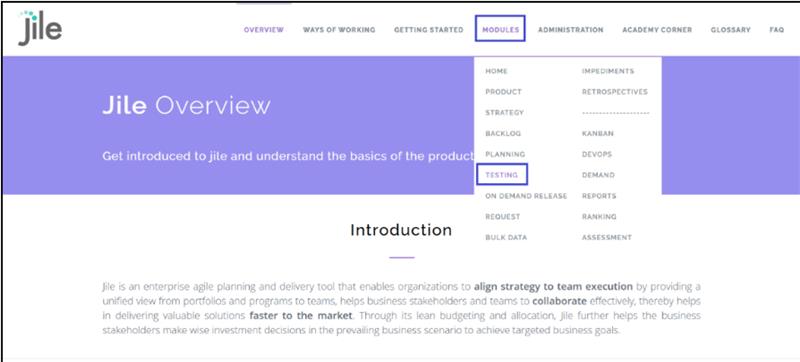
Step 3: On the Jile Overview page, hover over the MODULES tab and select TESTING.

Step 3

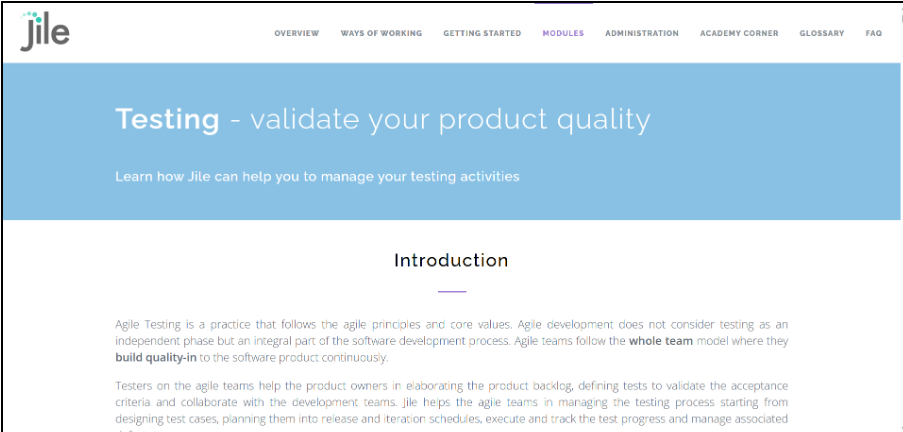
Step 4:The revamped help content for Test and Defect Management appears.

Step 4

AI Assist - Deduplication/Similarity Search for Features in the Backlogs with merging actions

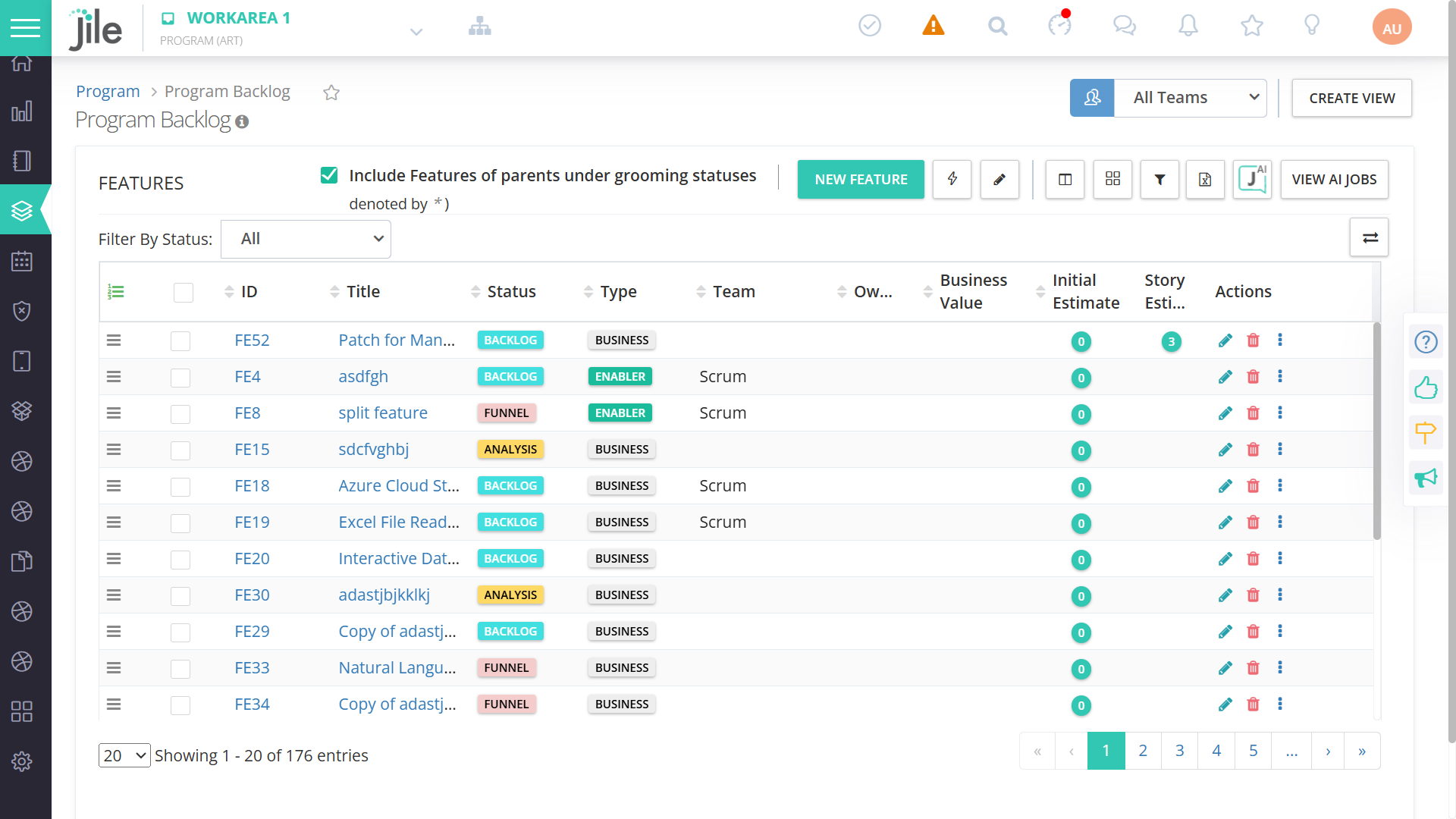
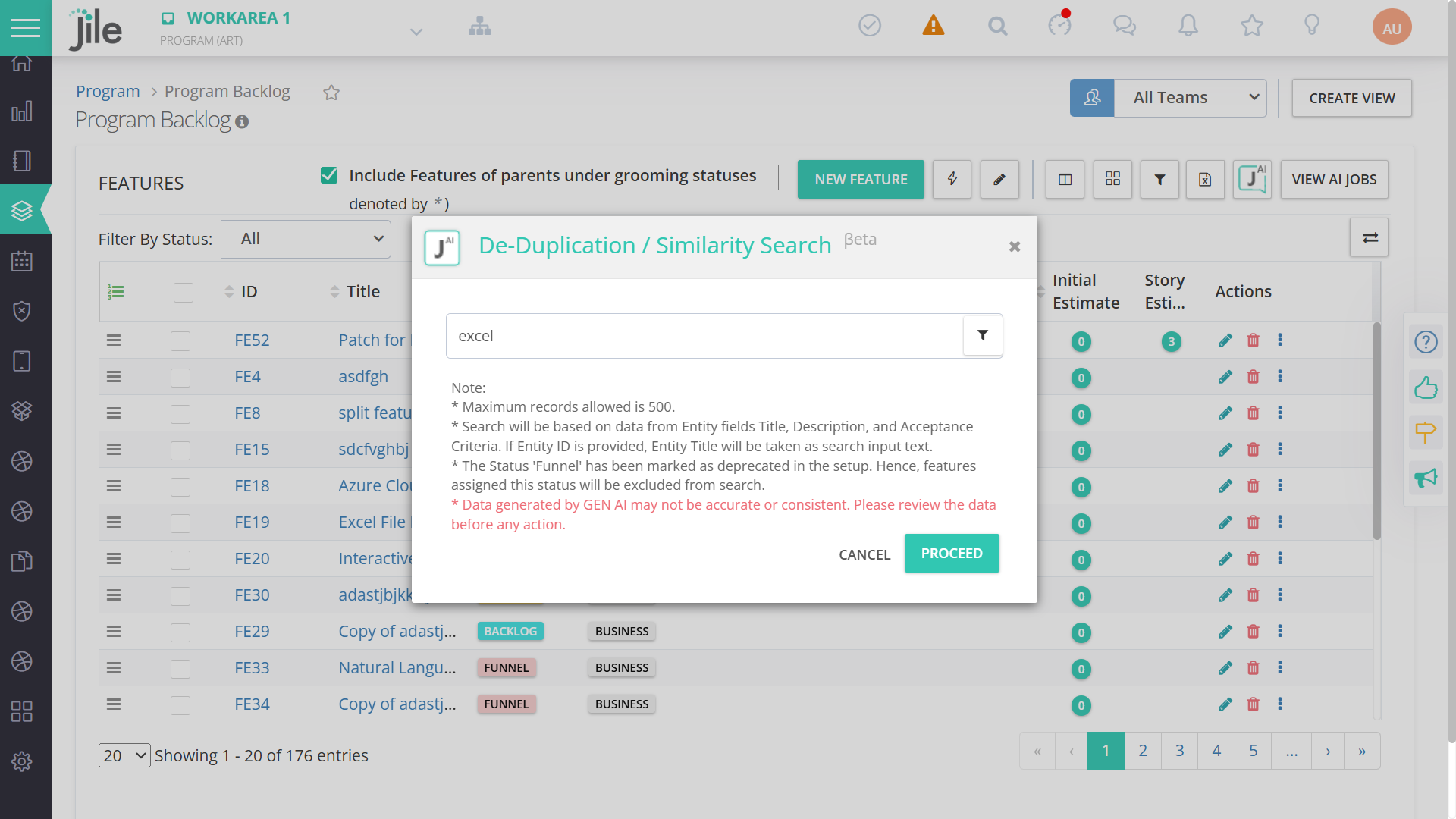
Step 1: Goto Program Backlog. Click Jile GENAI logo next to export

Step 1

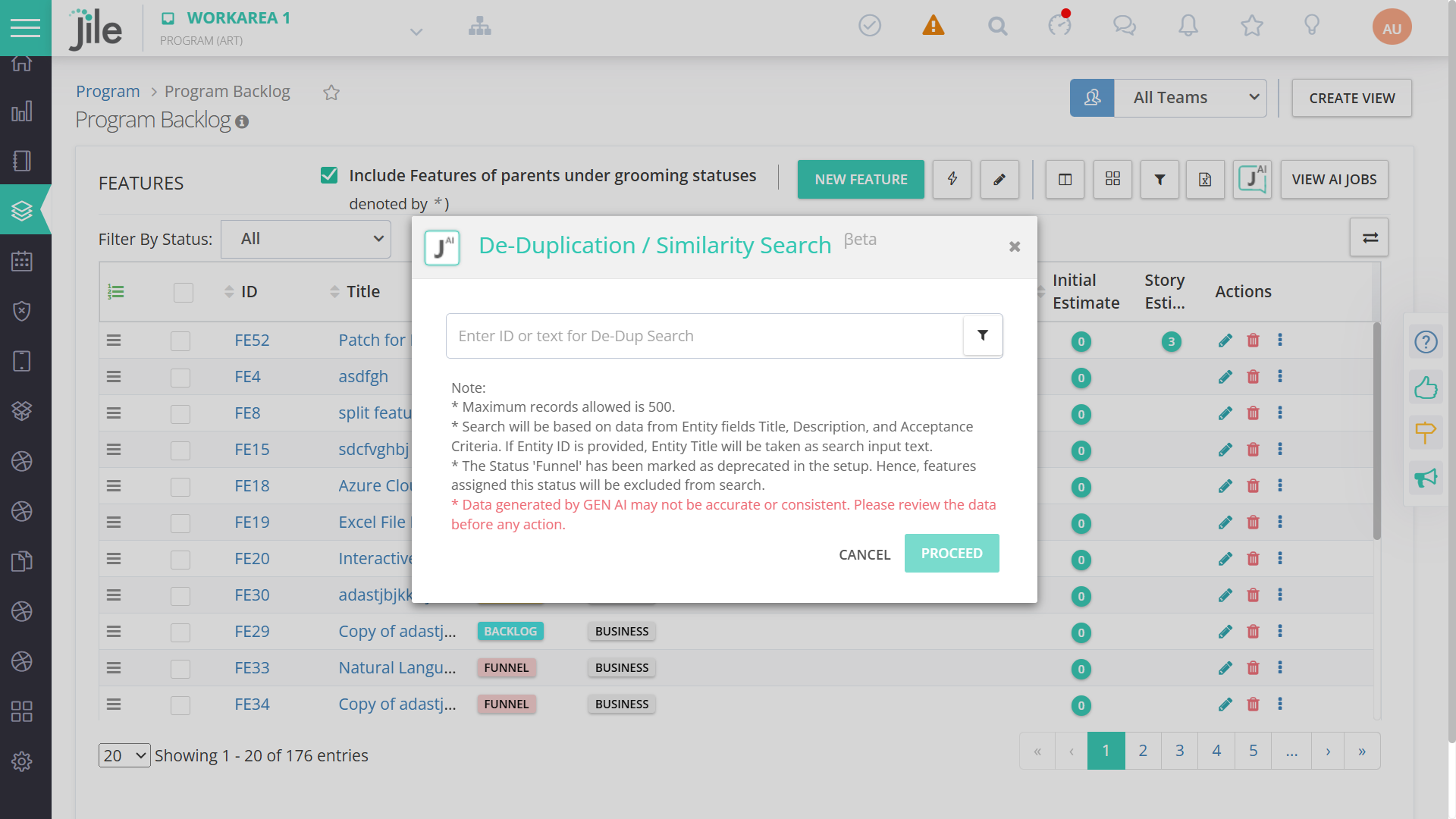
Step 2: De-Dup/Similarity Search dialog appears.

Step 2

Step 3: Enter text or Feature id ( with or without filter) and click Proceed

Step 3

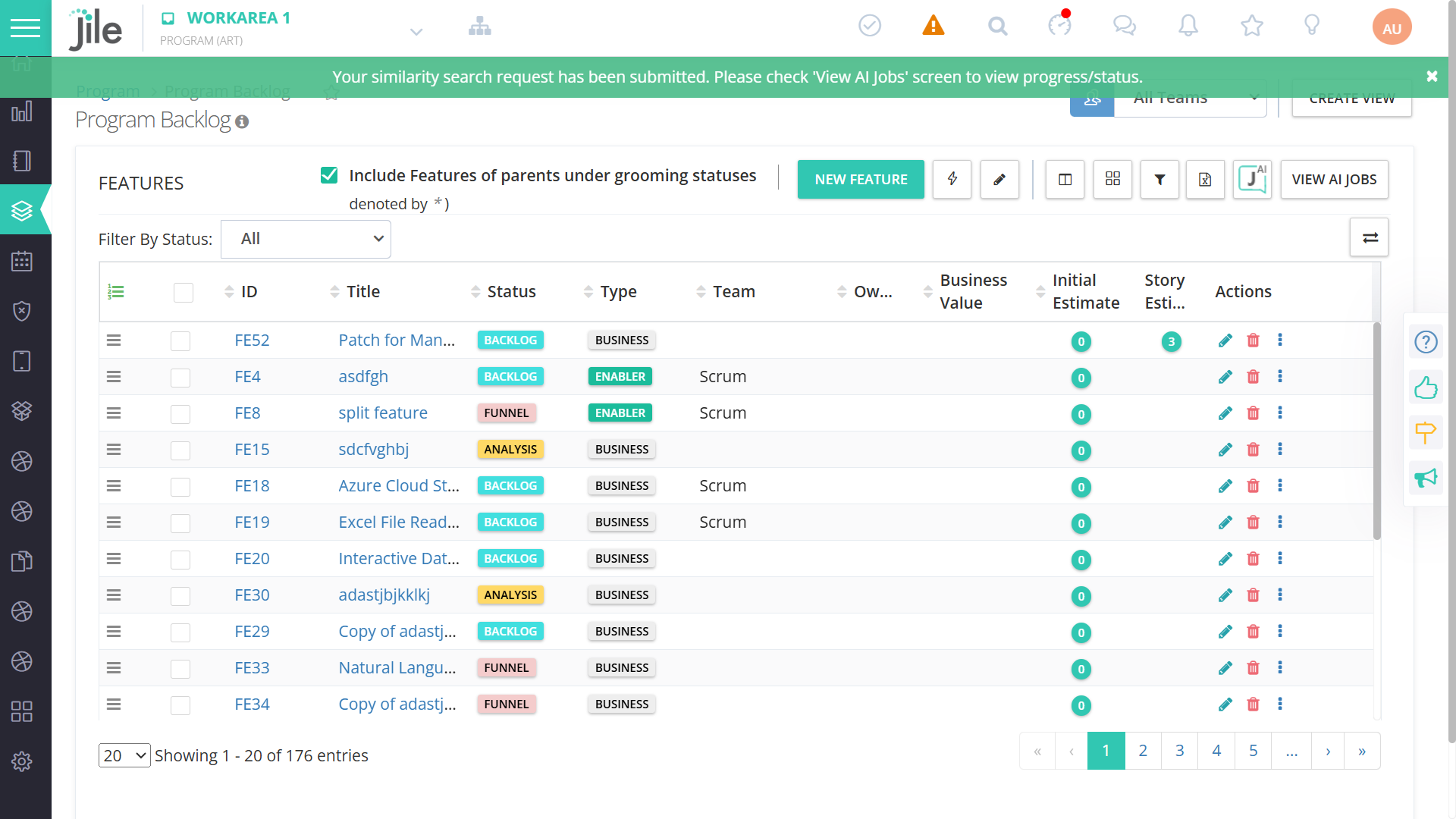
Step 4: Success Toaster message will appear. Click "View AI Job" to view progress.

Step 4

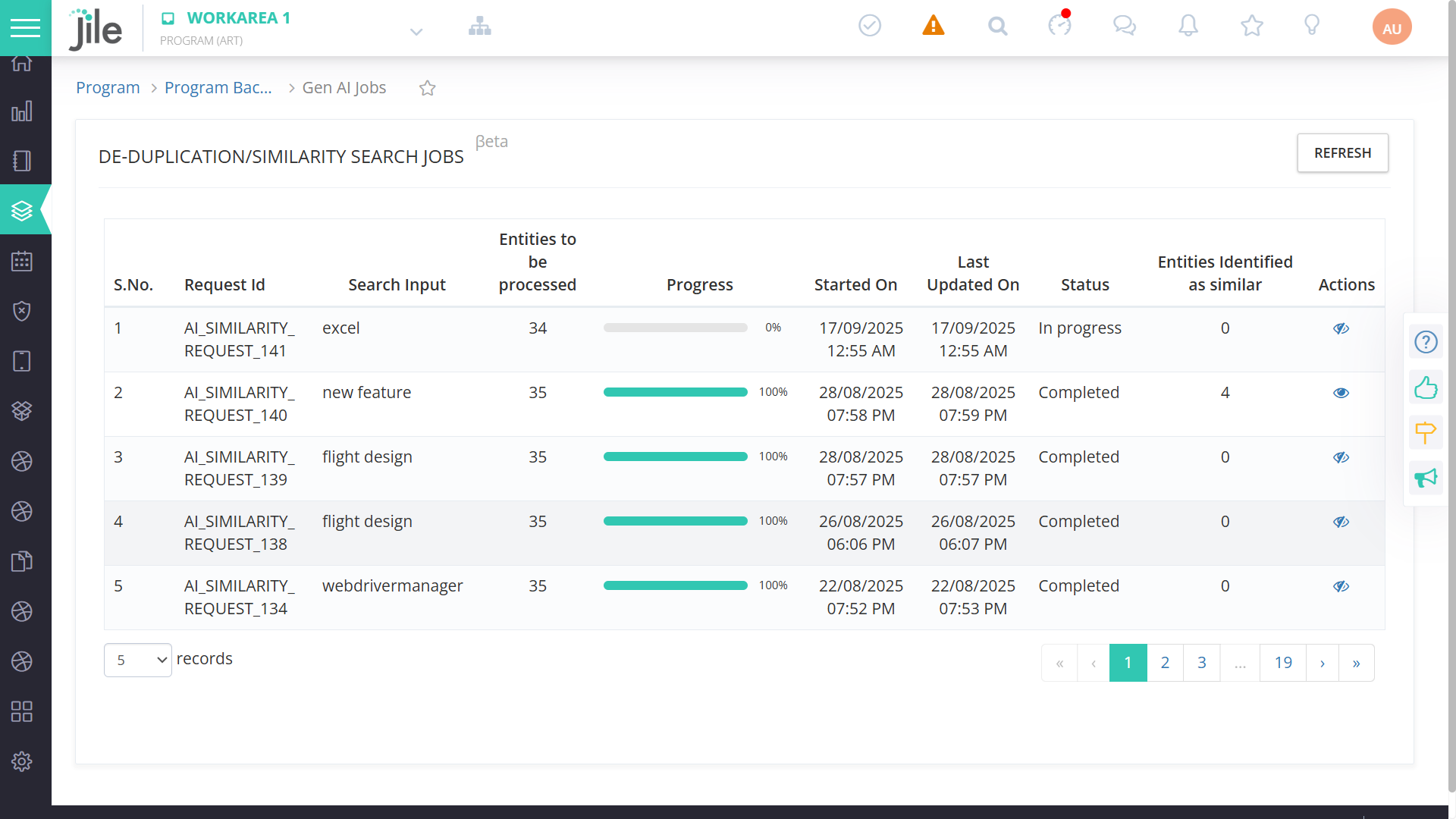
Step 5: AI Jobs list/progress will appear. ( only to requestor)

Step 5

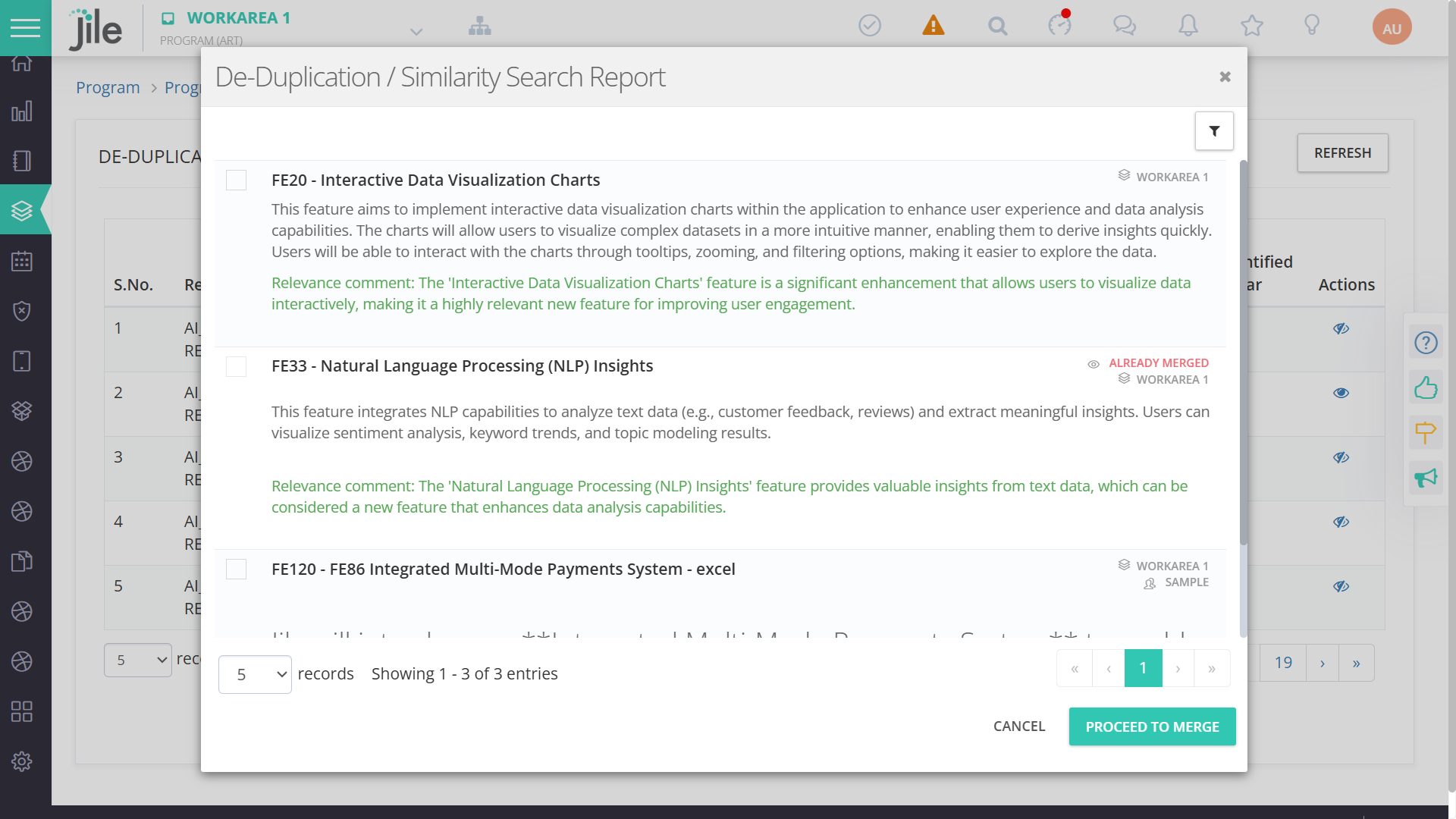
Step 6: Click Eye action icon once status is complete. Search result will appear.

Step 5

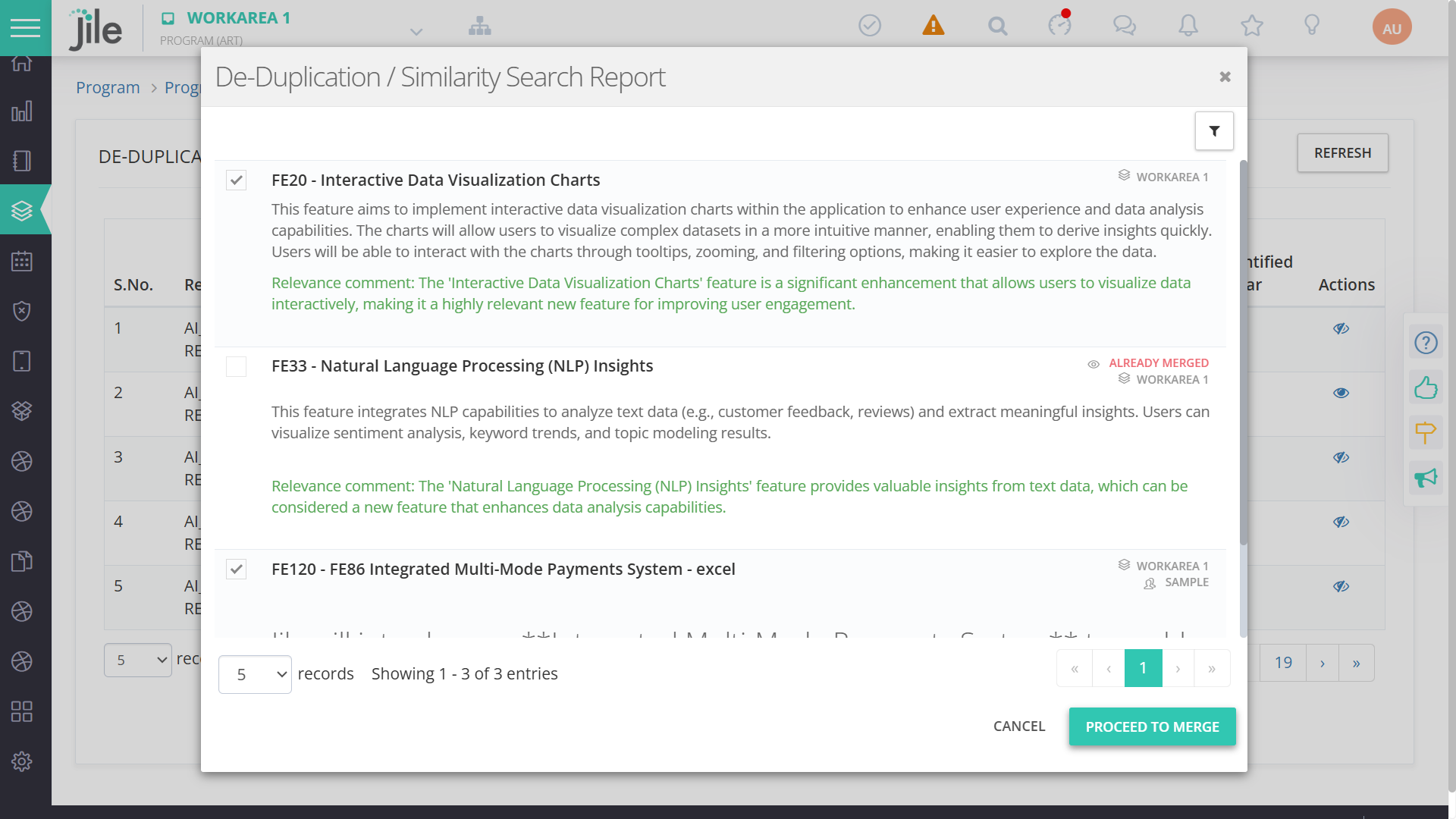
Step 7: Select items which are similar and select Proceed to merge.

Step 5

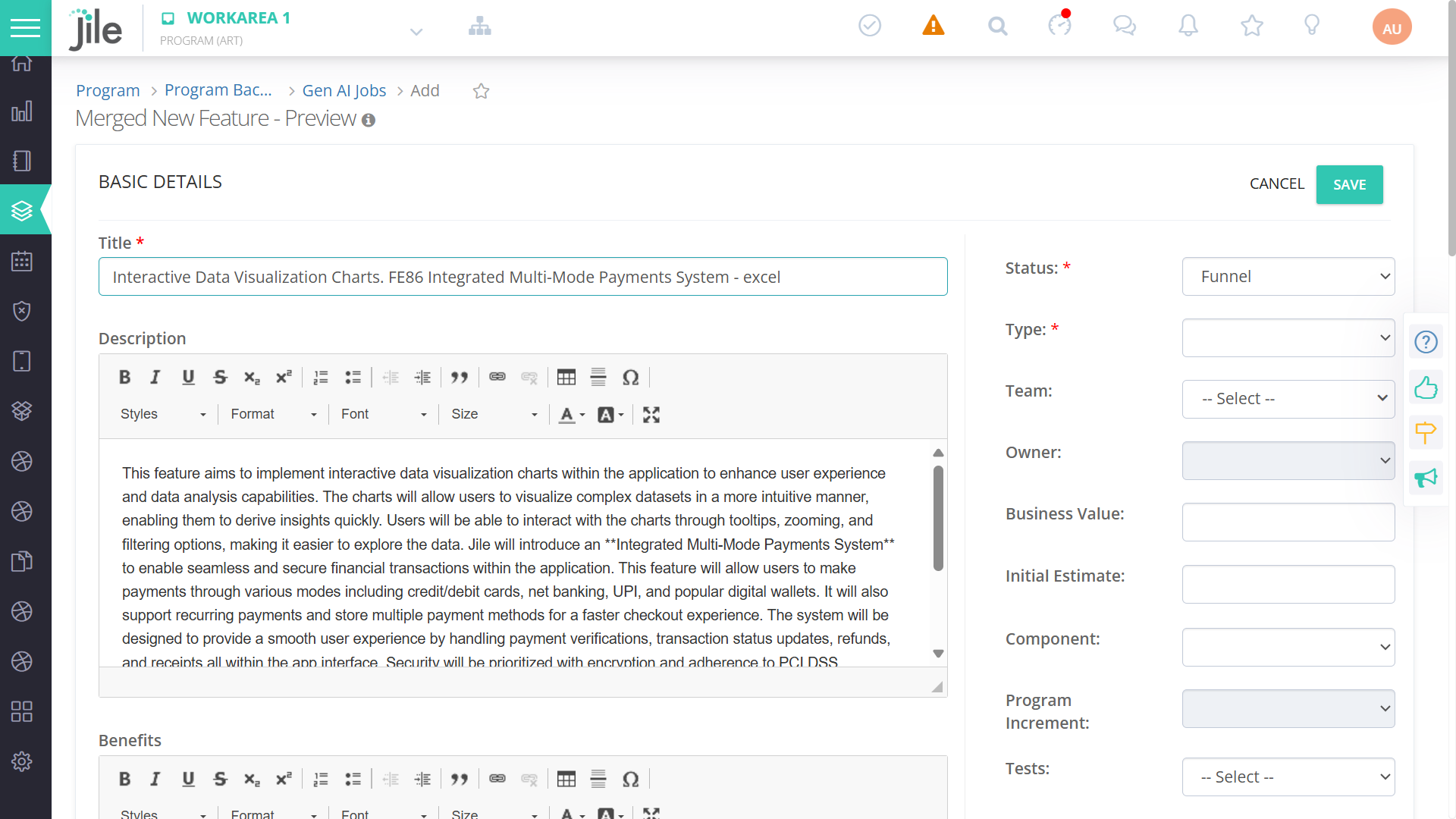
Step 8: Merge Preview Screen will Appear. Update as needed and Save

Step 5

Step 9:Already Merged entries will show indicator as highlighted in the report

Step 5

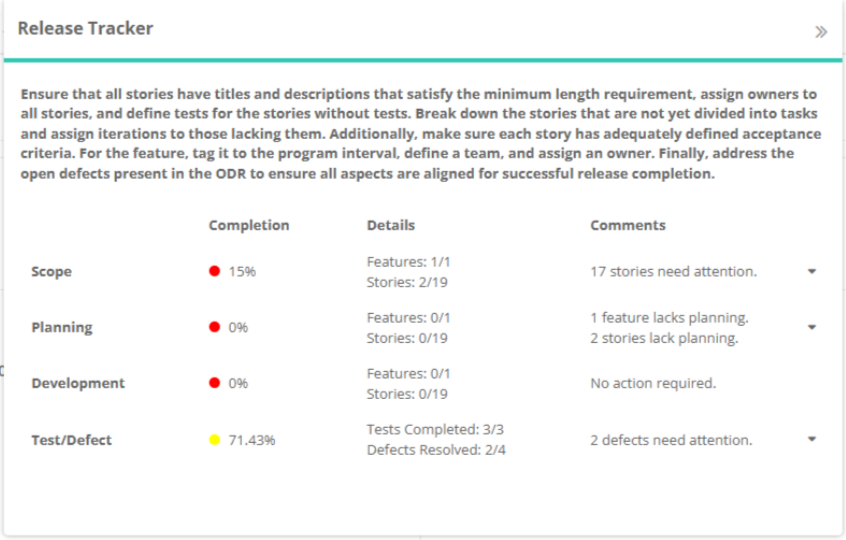
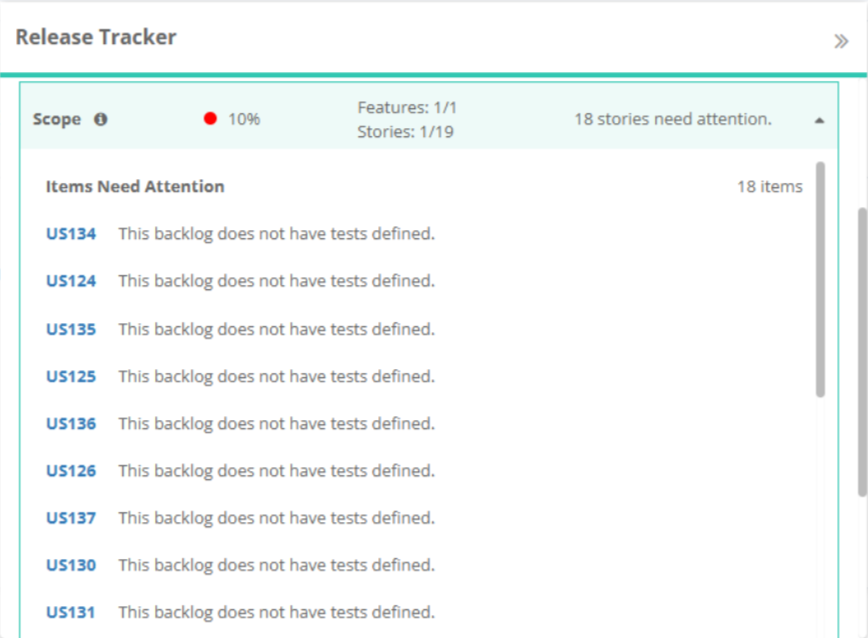
Jile AI Assist - Release Tracking

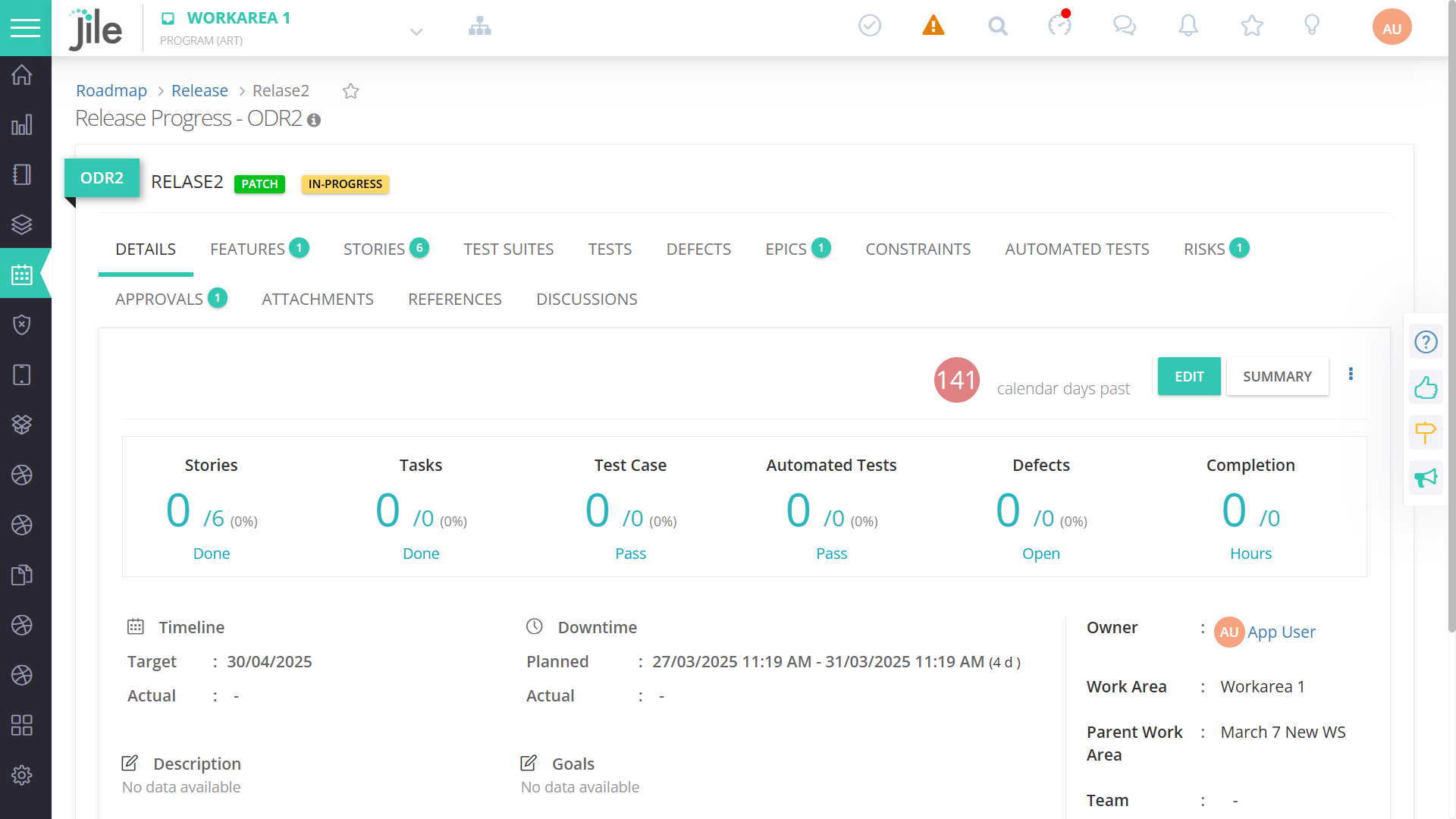
Step 1: Goto a Release > Select one ODR > Click on Summary

Step 1

Step 2: Release summary will come as pop over with summarized info

Step 2

Step 3: Click on expand to get specific details on the issues/gaps

Step 3

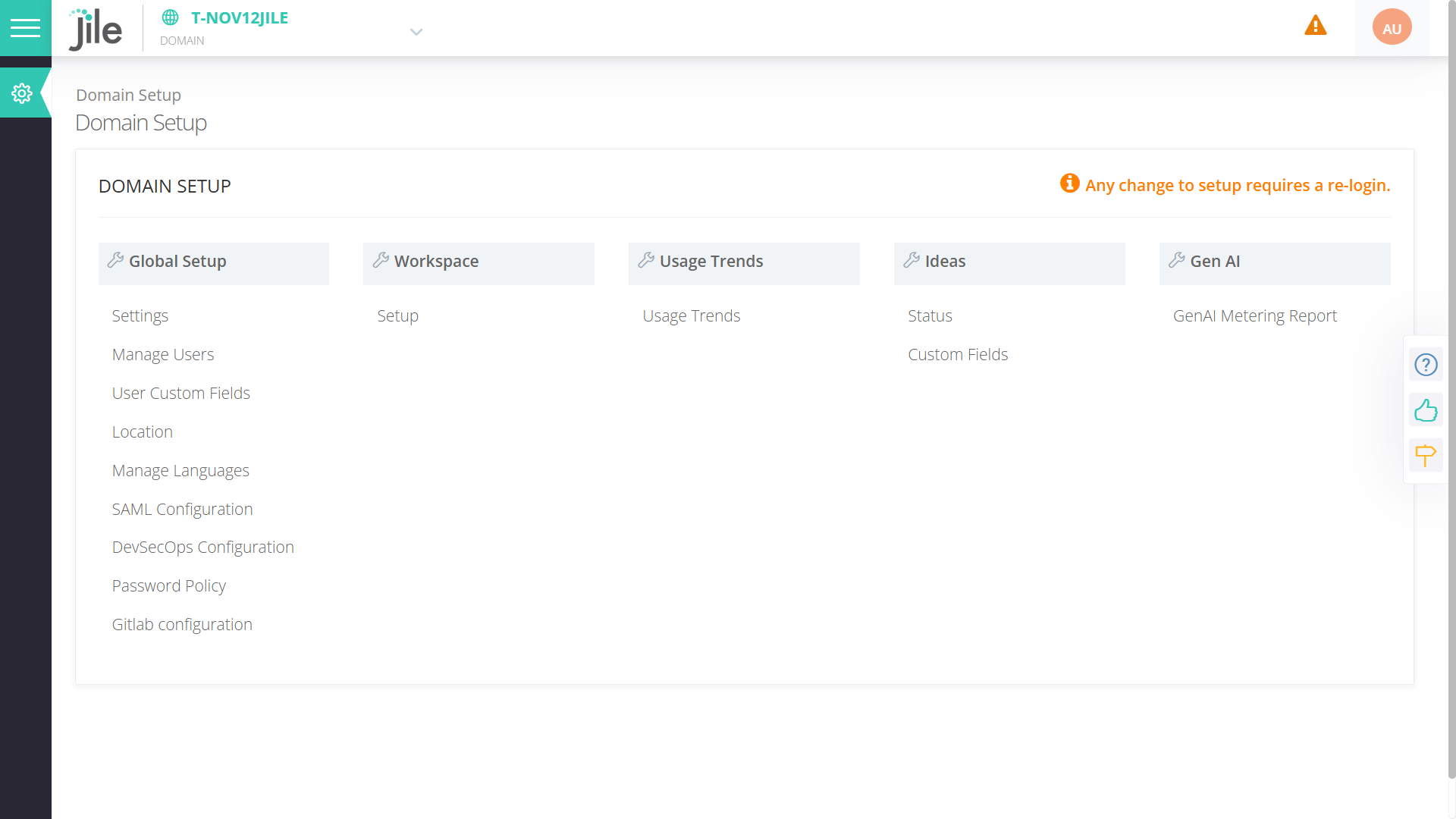
Generating Test Cases for User Stories using AI Assist

Step 1: Goto Domain Setup

Step 1

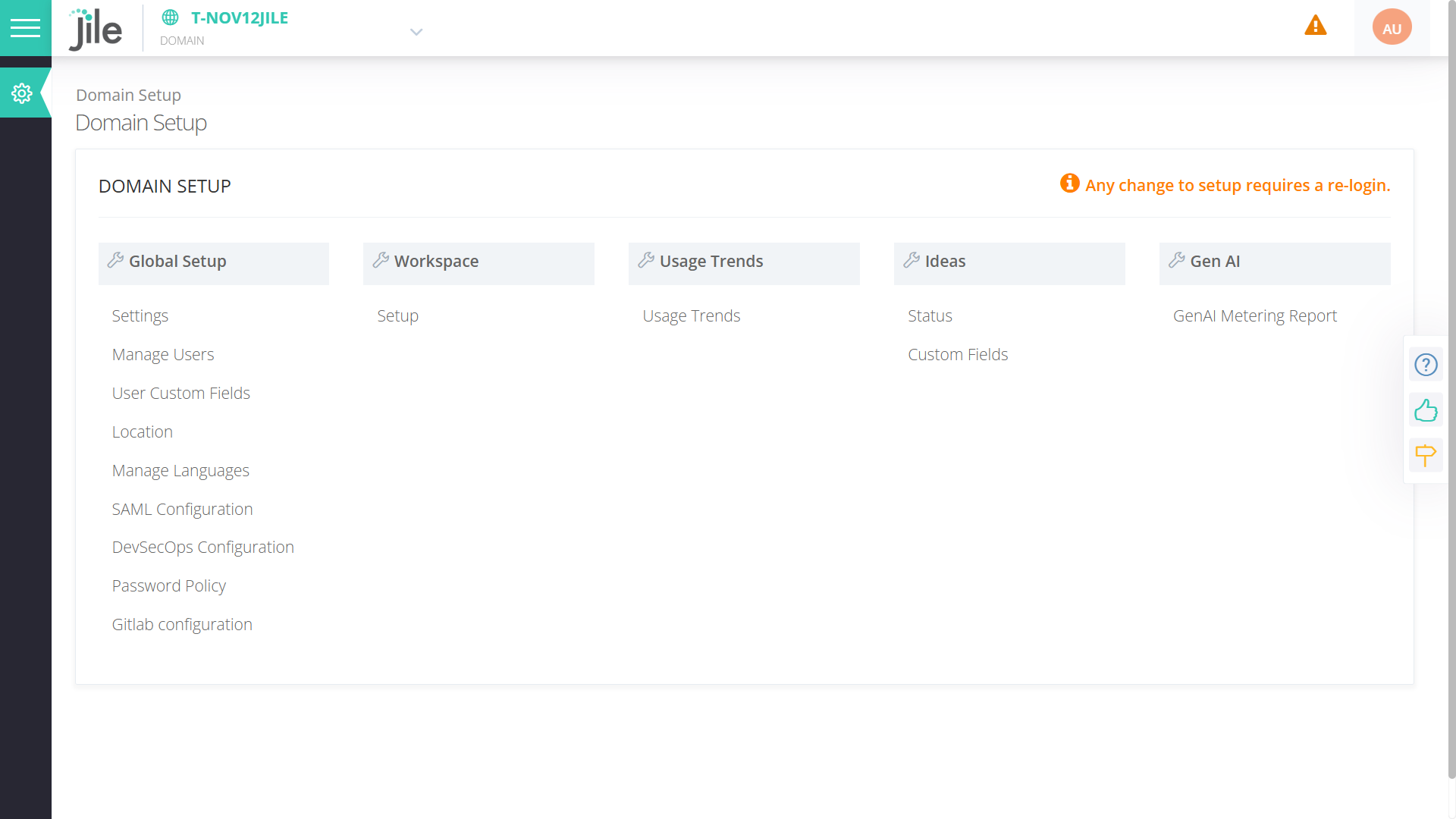
Step 2: Select GENAI Metering Report

Step 2

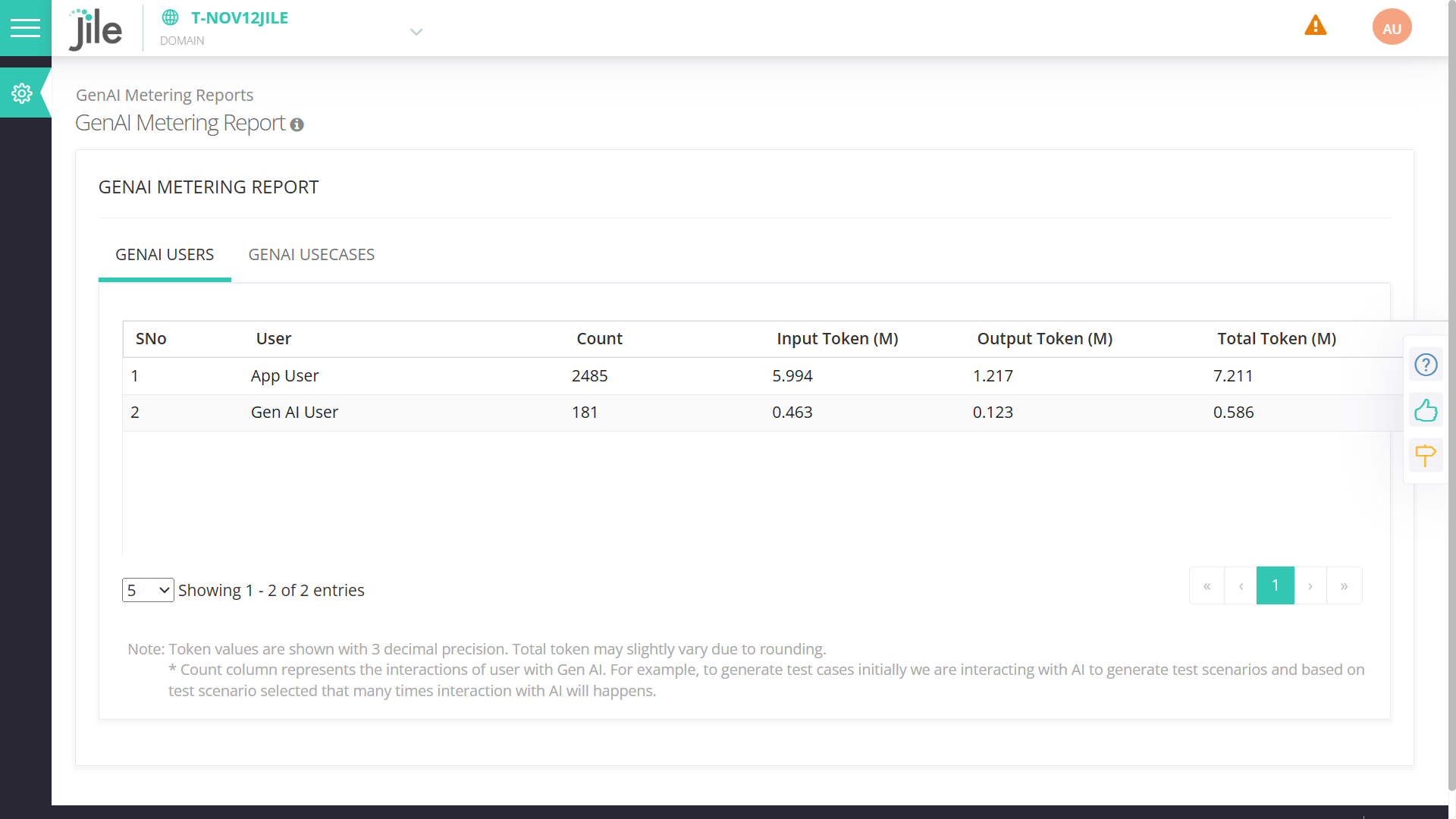
Step 3: Users Tab provide User wise consumption

Step 3

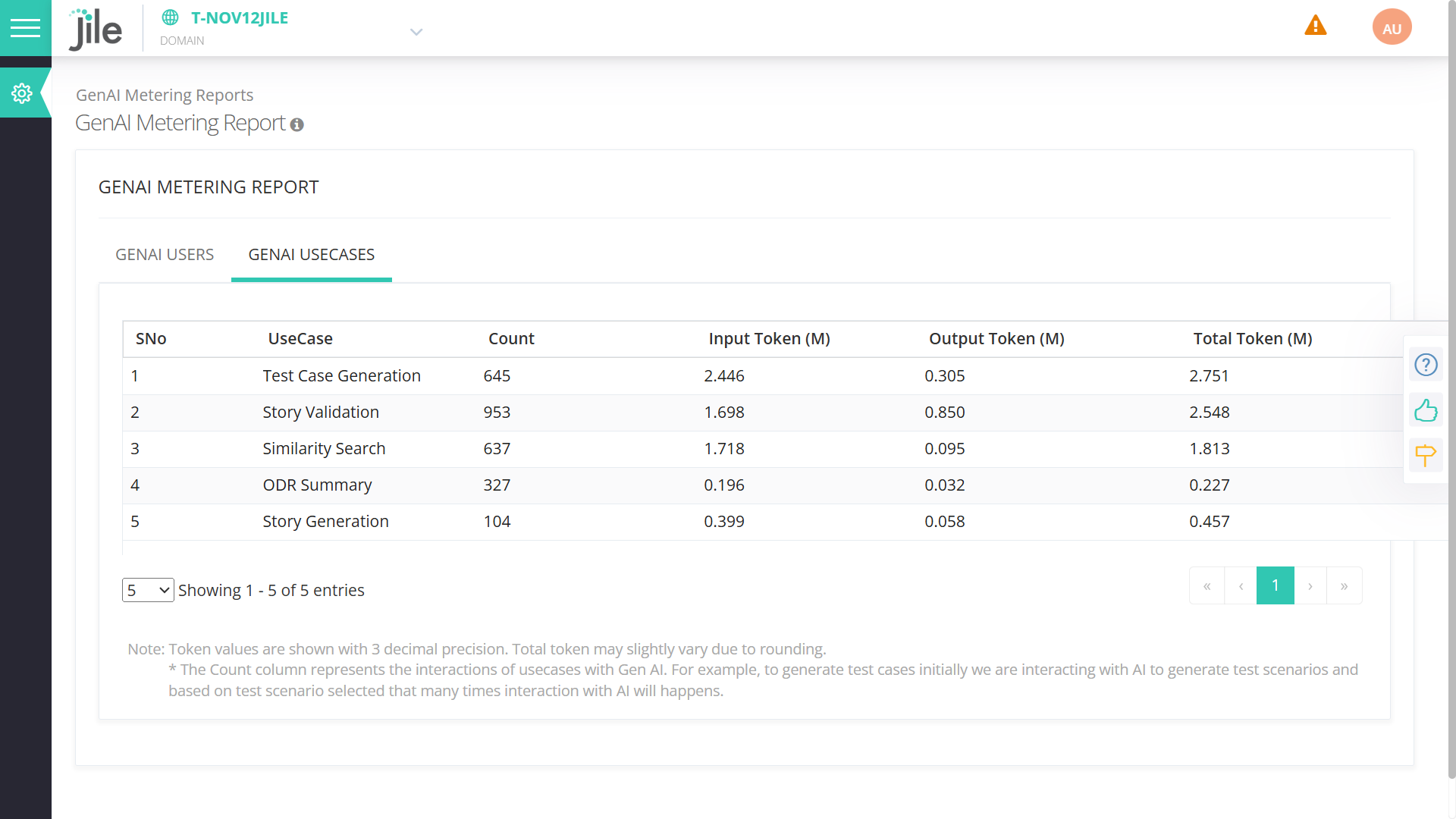
Step 4: Usercases Tab provide Usecase wise consumption

Step 4

A Power-packed Insights Framework with Numerous Outstanding Features for Better Visualization

The following features in Gen AI provide details of various visualizations that offer data analysis capabilities.

Follow these steps to View Program Dashboard

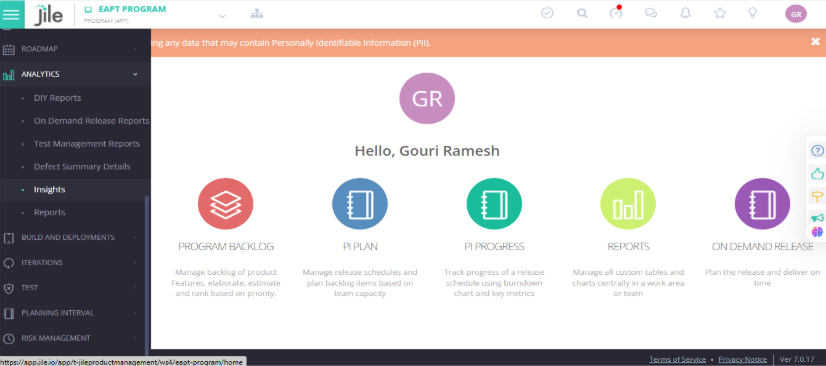
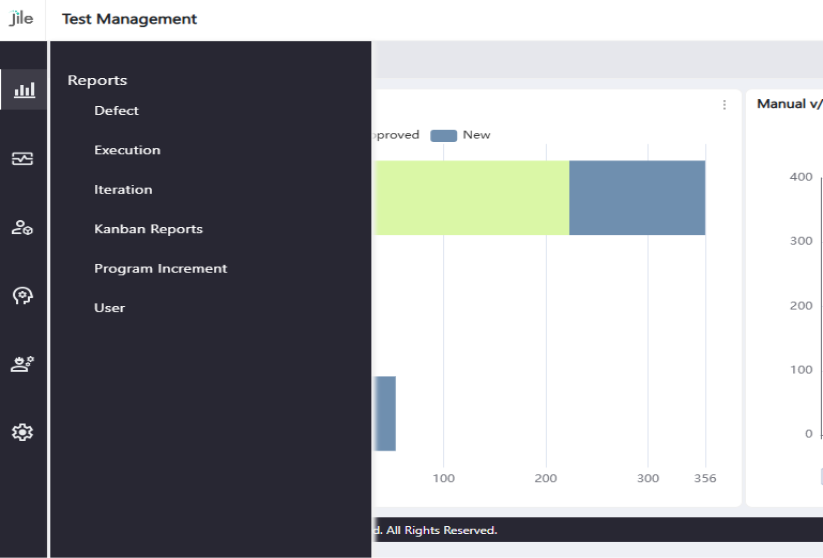
Step 1: Click on the hierarchical menu located at the top-left corner and click on Analytics.

Step 1

Step 2: Click on Insights and you will be redirected to the default landing page - the Program Dashboard - which provides a comprehensive overview of key metrics and analytics.

Step 2

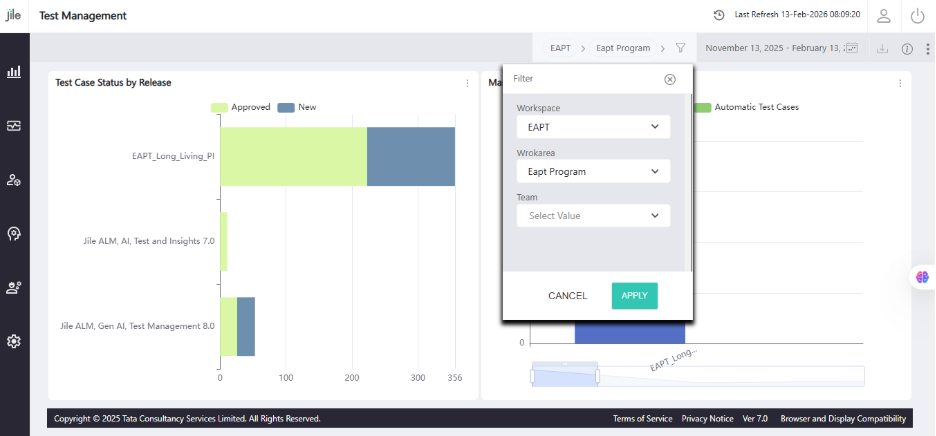
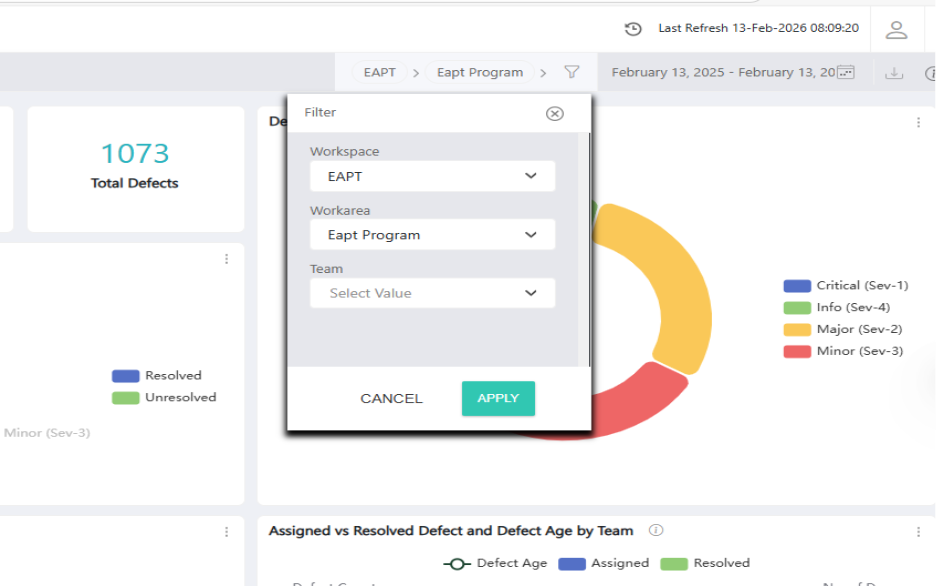
Step 3: Select appropriate page-level filters such as Workspace, Work Area, and Date Range, based on your requirements.

Step 3

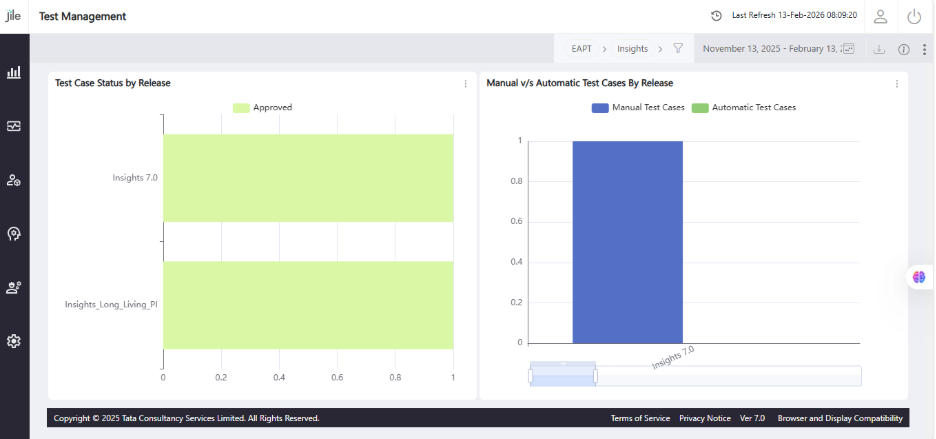
Step 4: Click on 'Apply' and you'll see insights based on your selection.

Step 4

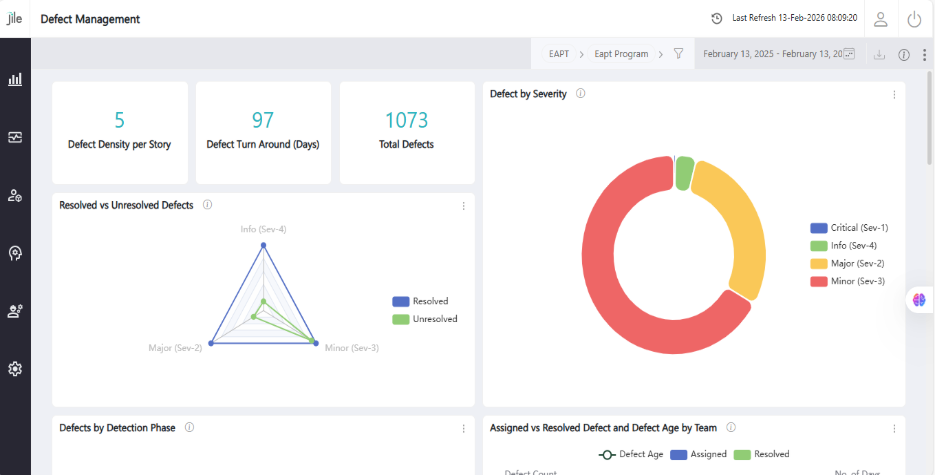
Defect Management

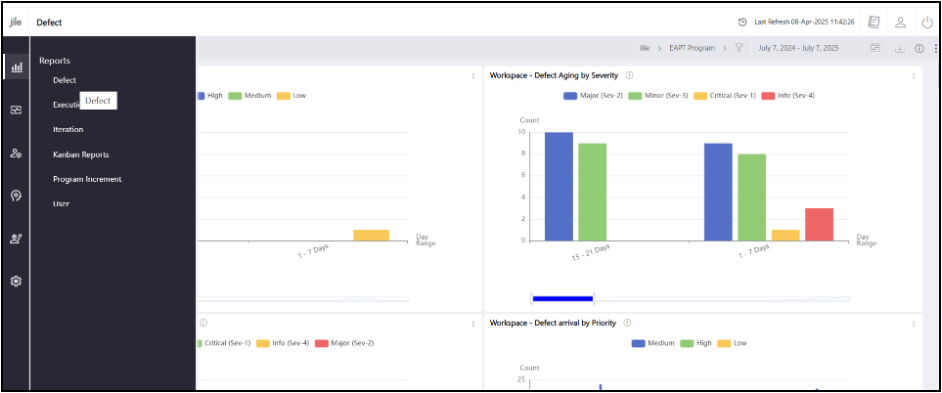
Step 1: Click on the Defect Management section.

Step 1

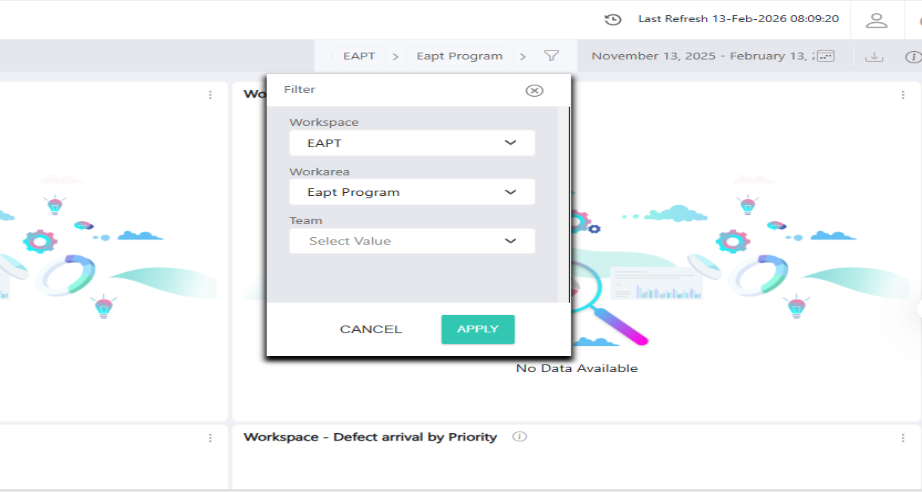
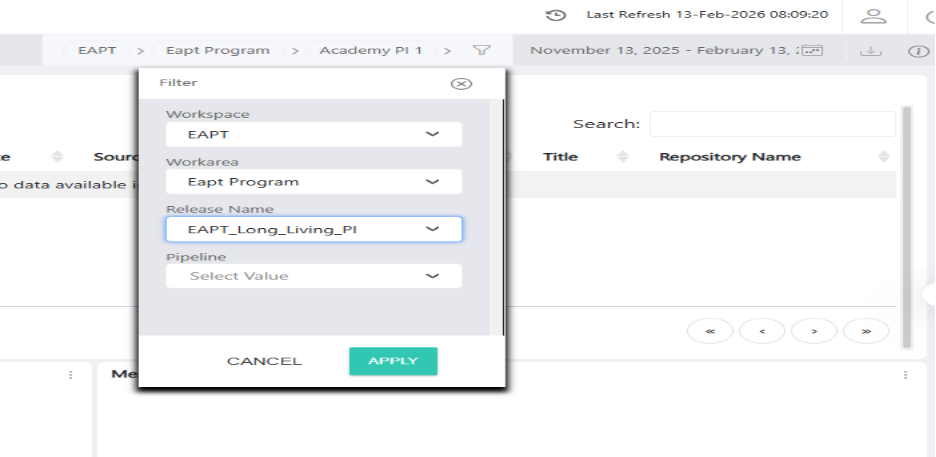
Step 2: Select filters: Workspace, Work Area, Release name, and Date Range.

Step 2

Step 3: View the comprehensive defect reports.

Step 3

Reporting Dashboard

Execution Reports

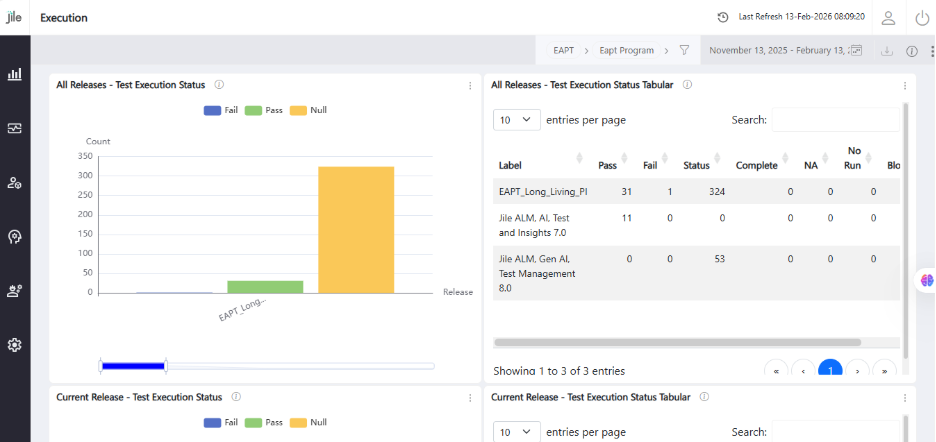
Step 1: Go to the Execution section.

Step 1

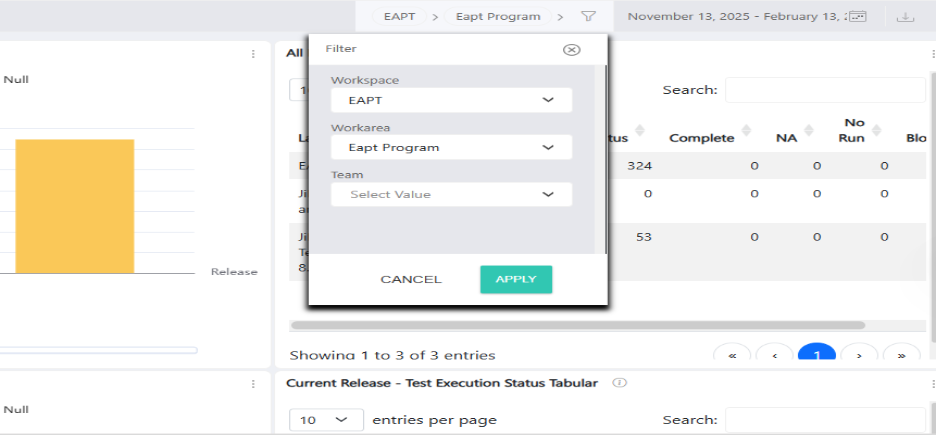
Step 2: Select filters: Workspace, Work Area, Release name, and Date Range.

Step 2

Step 3: View refreshed test execution reports.

Step 3

Iteration wise Reports

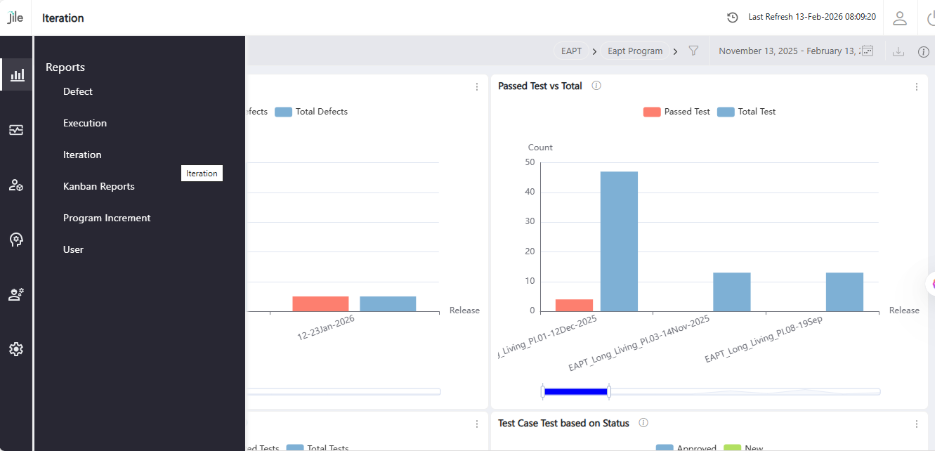
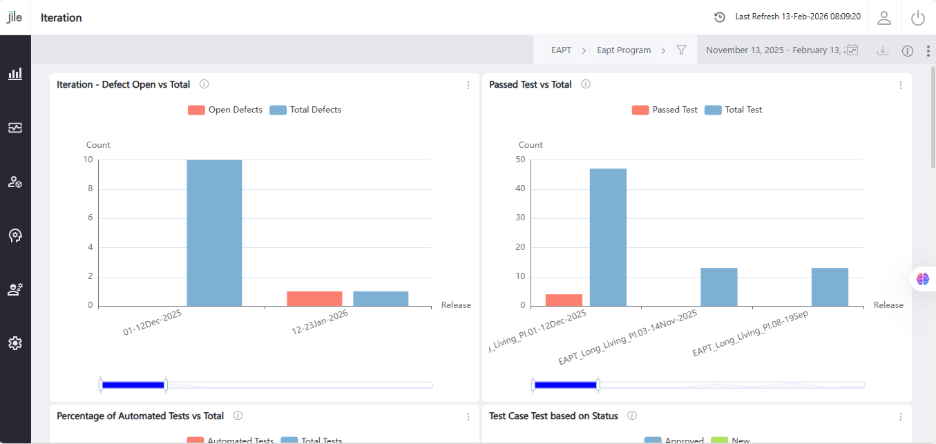
Step 1: Go to the Iteration section.

Step 1

Step 2: Select filters: Workspace, Work Area, Release name, and Date Range.

Step 2

Step 3: View iteration-wise progress and performance reports.

Step 3

Kanban Reports

Step 1: Go to the Kanban section. .

Step 1

Step 2: Select filters: Workspace, Work Area, Release name, and Date Range.

Step 2

Step 3: View the Release Throughput chart for release progress insights.

Step 3

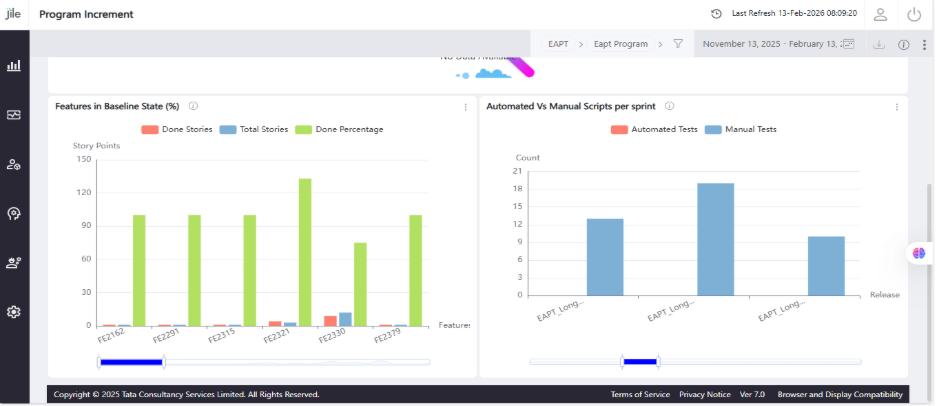
Program Increment

Step 1: Go to the Program Increment section.

Step 1

Step 2: Select filters: Workspace, Work Area, Release name, and Date Range.

Step 2

Step 3: View program-level planning and progress reports.

Step 3

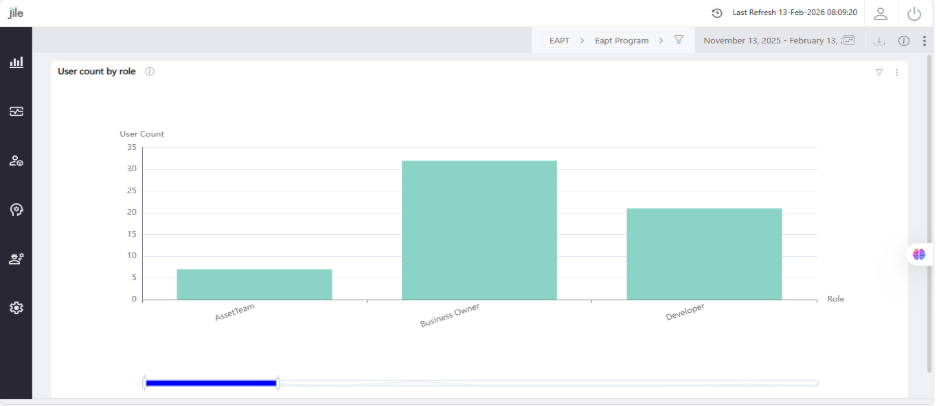
User

Step 1: Go to the User section.

Step 1

Step 2: Select filters: Workspace, Work Area, Release name, and Date Range.

Step 2

Step 3: View user-specific reports based on the selected filters.

Step 3

Report Categories

Release Management

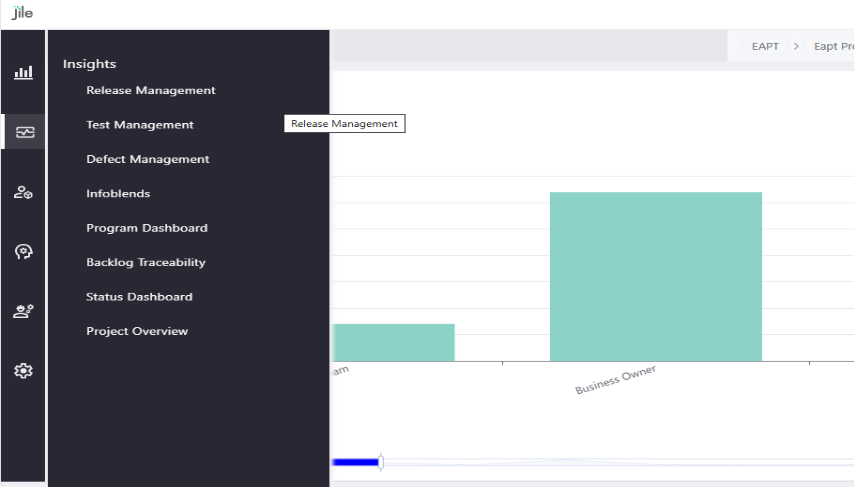
Step 1: Hover over the "Insights" menu view the list of report categories . Select from Release Management

Step 1

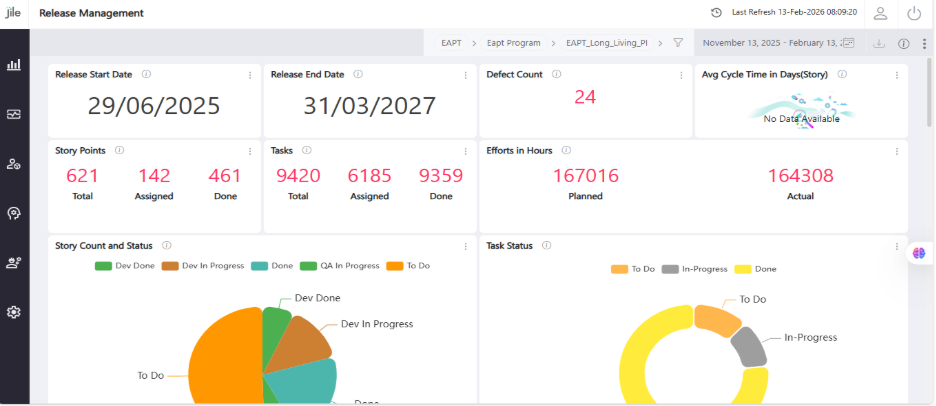
Step 2: Select filters: Workspace, Work Area, Release name, and Date Range.

Step 2

Step 3: Click Apply to refresh the view.

Step 3

Test Management

Step 1: Click on the Test Management section.

Step 1

Step 2: Select filters: Workspace, Work Area, Release name, and Date Range.

Step 2

Step 3: Click Apply to refresh the view.

Step 3

Defect Management

Step 1: Click on Defect Management.

Step 1

Step 2: Select filters: Workspace, Work Area, Release name, and Date Range.

Step 2

Step 3: View the comprehensive defect reports

Step 3

DSO Dashboard

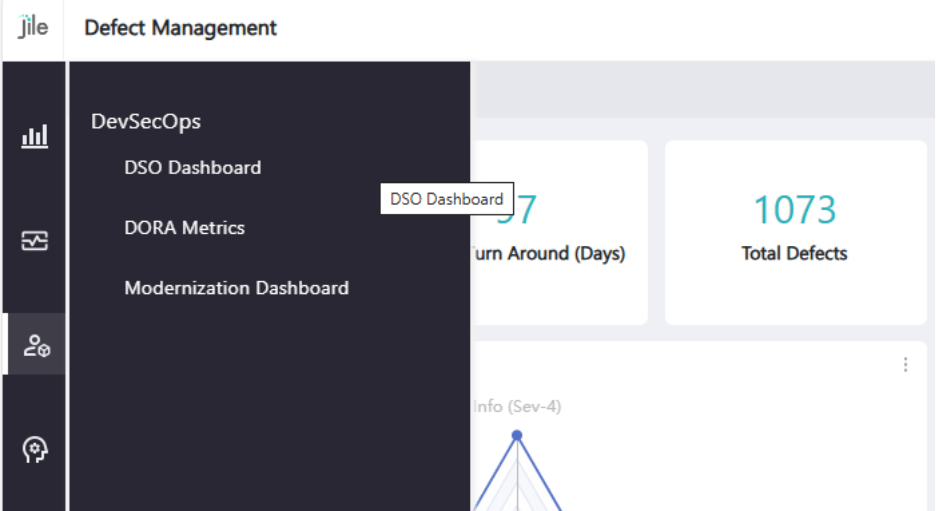
Step 1: Hover over the left menu and click the DevSecOps icon. Select the DSO Dashboard or DORA Metrics menu.

Step 1

Step 2: Choose filters: Work Area, Workspace, Release Name, Pipeline, and Date Range.

Step 2

Step 3: Click Apply to refresh the view and see insights.

Step 3

DORA Metrics

Step 1: Go to the DSO Dashboard or DORA Metrics menu.

Step 1

Step 2: Select filters: Workspace, Work Area, Release name, and Date Range.

Step 2

Step 3: Click Apply to refresh the view and see the metrics.

Step 3